 Rohman
You convert a PDF to JPG using the first tool Google shows you. The result looks like it was faxed in 1997. Text is fuzzy, charts are unreadable, fine print is gone.
The tool isn't broken. The default settings are.
Why Your Export Looks Like Garbage
Every PDF page is vector-based. Text, shapes, and layouts live as mathematical instructions, not pixels. Converting to an image forces a choice: how many pixels per page? That number is controlled by DPI (dots per inch).
Most free converters default to 72 DPI. At that setting, a standard A4 page becomes a 595 x 842 pixel image. Smaller than most phone screens. No wonder it looks awful.
Here's what the same page looks like at different DPI settings:
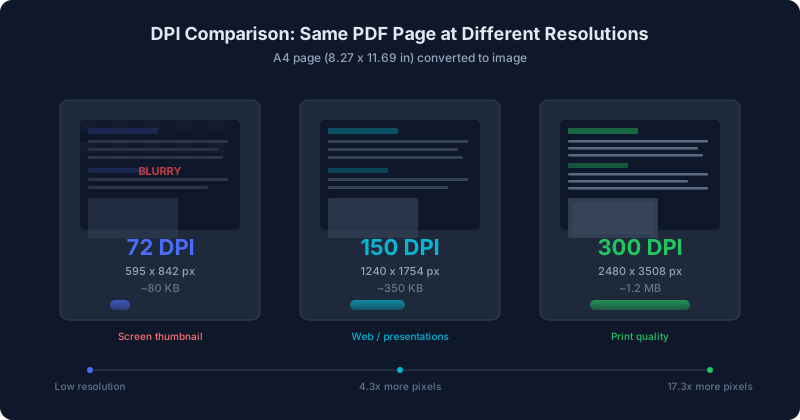
The math is straightforward. An A4 page is 8.27 x 11.69 inches.
- 72 DPI: 595 x 842 px. Thumbnail quality. Useless for anything with readable text.
- 150 DPI: 1240 x 1754 px. Sharp enough for screens, presentations, web use. The sweet spot for most people.
- 300 DPI: 2480 x 3508 px. Print-ready. Pick this when the image will be printed or zoomed into.
Pixel count scales quadratically. Going from 72 to 300 DPI doesn't give you 4x the quality. It gives you 17x the pixels, and file sizes balloon to match. Pick the right DPI for the job instead of maxing it out.
That multiplier isn't theoretical. I rendered a one-page test document — a paragraph of body text plus a small line-item table, roughly what a real contract or invoice page looks like — through the same pipeline OxygenPDF's converter uses internally: draw the page to a canvas at the target DPI, then encode it as an image. Exported as an 85%-quality JPEG, the 72 DPI version came out to about 78 KB. The 150 DPI version of the exact same page was about 477 KB — six times larger, for text that's already comfortably readable on a screen. Push it to 300 DPI and it jumps again, to roughly 1.15 MB. None of that is a rounding error. It's the direct cost of the pixel math above, and it's why "just export everything at 300 DPI to be safe" is the wrong instinct for anything that isn't headed to a printer.
JPG vs. PNG: Which One Won't Ruin Your Text
Converting a PDF to JPG means choosing lossy compression. JPEG was designed for photographs, continuous tones, gradients. Handles those well.
Text? Terribly.
JPEG compression averages nearby pixels in 8x8 blocks. On a photo, invisible. On a sharp black letter against a white background, those averaged blocks produce halos and smudging called compression artifacts. Sharper edges make it worse.
PNG keeps every pixel intact. If your PDF has text, diagrams, charts, code, or screenshots, convert to PNG instead. Files are larger. Quality difference is immediate.
Put simply: JPEG is lossy — it throws away image data during compression and can't get it back — while PNG is lossless, meaning compression never discards a single pixel. That's the entire decision in one sentence.
Use JPG for: photos, scanned documents, pages where file size beats edge sharpness, social media posts that'll get recompressed anyway.
Use PNG for: anything you'll zoom into. Contracts, invoices, technical diagrams, pages with small text -- anything someone actually needs to read.
As of September 2026, JPEG is used on roughly 69% of websites and PNG on roughly 75%, per W3Techs' live usage tracking (a site can use more than one format, so the two numbers aren't mutually exclusive). Neither is universally better. Let the content decide.
When a PDF Traps What You Actually Need
PDFs are locked containers. Great for distribution, useless for reuse. Here are the common escape routes:
Presentations: PowerPoint and Google Slides can't embed a PDF. Export at 150 DPI and the slide looks sharp on any projector.
Social media: No platform accepts PDF uploads. Instagram, LinkedIn, Twitter -- they all want JPG or PNG. A one-page infographic stuck in a PDF has one way out.
Email: You can attach a PDF, but you can't display it inline. An image renders directly in the message body. For newsletters and proposals, that visibility changes whether someone actually looks at it.
Web publishing: Blog posts, documentation, product pages. Embedding a PDF viewer is clunky and slow. A clean image loads instantly, works everywhere, and gives search engines something to index with alt text.
Archival: Some workflows need image snapshots of documents frozen at specific points in time. PNG at 300 DPI creates a pixel-perfect record that doesn't depend on any PDF renderer.
Need to go the other direction — turn a batch of phone photos into one shareable PDF? See how to convert JPG to PDF without leaking the GPS coordinates and timestamps your phone bakes into every photo.
Your Files Don't Belong on Someone Else's Server
PDF exists to make a document look identical on every device it's opened on, which is exactly why it became the default container for things that matter: contracts, tax returns, medical records, legal filings, signed agreements. None of that is content you'd want sitting on a server you don't control.
Every upload to an online converter puts that file on someone else's server. Maybe briefly. Maybe not. You don't control retention policies, access logs, or which jurisdiction applies.
Verizon's 2025 Data Breach Investigations Report found that third-party involvement in breaches had doubled to 30% year over year — vendors, contractors, and any outside service that touches your data before you're done with it. A free PDF converter you used once and forgot about is exactly that kind of third party.
For a public flyer, fine. For anything with names, numbers, signatures, or proprietary data, client-side processing is the only option that makes sense.
Getting an Actually Sharp Conversion
Most converters give you a button and nothing else. Upload, wait, download whatever they decided to spit out. No DPI control, no format choice, no quality settings.
Here's what to look for:
DPI Selection
150 for screen use. 300 for print. 72 only if you need tiny thumbnails. Above 300 wastes disk space for quality the human eye can't perceive at normal viewing distances.
Good tools also give you a step in between — OxygenPDF's DPI selector includes 200 alongside 72, 150, and 300, useful when 150 feels slightly soft on a high-resolution display but 300 feels like overkill for something that's only ever viewed on screen. And if you're exporting an oversized page — an architectural drawing, a poster, a wide banner PDF — at 300 DPI, you can hit a hardware ceiling that has nothing to do with any setting: browsers refuse to allocate a single canvas bigger than roughly 8,192 pixels on a side, or about 33.5 megapixels in total. A tool that handles this well caps the render scale automatically so you get the sharpest image the browser can actually produce, instead of a silent crash.
Quality Slider (JPG Only)
JPEG quality ranges from 60-100%. At 90%+, artifacts are invisible. Between 80-89%, artifacts exist but vanish unless you zoom to 400%. Below 70%, they're obvious. Stay above 80% for documents with text.
Page Range
A 200-page PDF where you need pages 3-7 shouldn't produce 200 images. Half the free tools skip this.
Batch Output
Multiple pages means multiple files. Good tools give you a ZIP. Bad tools make you right-click-save 47 times.
Password-Protected PDFs
Encrypted PDFs need the password passed through to the rendering engine. Tools that skip this step either fail silently or produce blank pages. Real support means entering the password once and getting usable output.
OxygenPDF's PDF to JPG converter handles all of this. DPI from 72 to 300, quality slider from 60-100%, page range selection, batch ZIP downloads, and password-protected PDF support. Everything runs in your browser. Your files never leave your machine.
Need lossless output? The PDF to PNG tool uses the same engine with lossless compression. For modern web publishing, PDF to WebP produces smaller files than both JPG and PNG at equivalent quality. And if the source PDF is bloated, compress it before converting to keep output sizes manageable.
Converting Without Installing Anything: What Your OS Actually Lets You Do
Not every conversion needs a dedicated tool. If you're on a Mac and need one page as an image right now, Preview already does it: open the PDF, go to File > Export, pick JPEG or PNG, and drag the quality slider. The catch is that Preview's Export command only exports the page you're currently looking at — for a 10-page PDF, that's ten trips through the same menu, or a detour into Shortcuts (built into modern macOS) to loop through pages automatically, which is more setup than most one-off jobs are worth.
Windows doesn't have an equivalent. There's no default app that opens a PDF and offers "save this page as an image" the way Preview does — Edge's built-in PDF viewer can print a page or save the whole file back out as a PDF, but it won't hand you a JPEG. The usual workaround people reach for is screenshotting each page, which caps your resolution at whatever your screen happens to be and picks up scrollbars and cursor artifacts along the way. It technically works. It's not a conversion.
Mobile doesn't have a clean native path either — iOS and Android's share sheets let you send a PDF to another app, but neither ships a built-in "export as image" action for PDFs the way Preview does on the Mac. Because OxygenPDF runs entirely in the browser, this is one of the places it actually closes a real gap rather than just being a nicer version of something that already existed: open the PDF to JPG tool in Safari or Chrome on a phone, and the same DPI and quality controls that live in a sidebar on desktop show up in a bottom sheet instead — same engine, same output, no app to install.
Common Problems When Converting PDF to JPG (And Why They Happen)
A few things go wrong often enough that they're worth naming directly.
The exported image is blank or solid black. Almost always a password problem. If the source PDF is encrypted and the password wasn't entered — or was entered wrong — a tool that skips proper validation will happily hand you an empty page instead of failing loudly. A converter built to handle encrypted files correctly prompts for the password up front and blocks the export until it's right, rather than guessing.
Text is still fuzzy at 300 DPI. This one surprises people, because it seems like the highest setting should fix everything. It doesn't, if the PDF is already a scan. A scanned document is a photograph of a page, saved at whatever resolution the scanner used — often well below 300 DPI — and embedded inside the PDF as an image rather than real text. Exporting it at a higher DPI just makes a bigger file holding the exact same blur; there's no additional detail to recover, because the detail was never captured in the first place. If a page looks soft at every DPI setting, the fix isn't a higher number — it's re-scanning the original at a higher resolution, or running the page through OCR to get usable text instead of a sharper photo of blurry text.
The output is much bigger than expected for a simple page. DPI isn't the only variable. A single full-page background image, a scanned signature, or an embedded photo on an otherwise text-only page will drag file size toward "photo" territory regardless of the DPI setting, because both JPEG and PNG size themselves to the busiest content on the page, not the average.
A large or oversized page renders softer than the DPI setting implies. Covered above: an unusually large page — an architectural drawing, a poster, a wide-format banner — can hit the browser's canvas size ceiling before it hits the requested DPI, so the actual output resolution ends up a little lower than requested. That's a browser limit, not a bug in the converter.
How Free Tools Actually Compare
| Tool | Free Limit | DPI Control | Quality Slider | Batch | Ads | Privacy |
|---|---|---|---|---|---|---|
| OxygenPDF | Unlimited | 72-300 | 60-100% | Yes + ZIP | None | Client-side, nothing uploaded |
| iLovePDF | 15-25 MB | No | No | Limited | Yes | Server-side |
| Smallpdf | 2/day | No | No | Pro only | Yes | Server-side |
| Adobe Acrobat | 1 per 30 days | No | No | No | No | Server-side |
| Zamzar | 50 MB, 2/day | No | No | Limited | Yes | Server-side |
Free-tier limits as of September 2026, per each vendor's own pages: iLovePDF, Smallpdf, Adobe Acrobat, Zamzar. These move over time, so check the current page before relying on a specific number.
The pattern: free tiers exist to funnel you into $10-15/month subscriptions. None of them offer DPI control, which is the one setting that determines whether your output is usable or useless.
Quick Reference: Format + DPI Cheat Sheet
| Situation | Format | DPI | Why |
|---|---|---|---|
| PowerPoint slides | JPG | 150 | PowerPoint can't embed PDFs. 150 DPI is sharp on projectors. |
| Social media post | JPG | 150 | Platforms recompress everything anyway. |
| Email inline image | JPG | 150 | Keeps file size reasonable for email clients. |
| Contract or invoice | PNG | 300 | Lossless preserves readable text at any zoom. |
| Web publishing | WebP | 150-200 | Smaller than JPG and PNG. Supported everywhere now. |
| PNG | 300 | No compression artifacts on paper. | |
| Archival | PNG | 300 | Lossless means no generational quality loss. |
| Thumbnail / preview | JPG | 72 | Small file, low quality is acceptable. |
Unsure? PNG at 150 DPI covers most cases without regret. You can always convert PNG to JPG later. You can't recover quality lost to JPEG compression.
Five Steps, Zero Confusion
- Pick format: JPG for photos and social, PNG for text and diagrams
- Set DPI: 150 for screens, 300 for print
- If JPG, push quality to 85%+ for anything with text
- Select page range if you don't need every page
- Convert and download
If your PDF is massive, compress it first. Smaller source means faster rendering and smaller output.
Frequently Asked Questions
What DPI should I use to convert a PDF to JPG?
150 DPI is the right default for anything viewed on a screen — presentations, social posts, web images — because it renders a standard page at roughly 1240 x 1754 pixels, sharp on any monitor without ballooning file size. Reach for 300 DPI only when the image will be printed or zoomed past 100%, and 72 DPI only for disposable thumbnails.
What's the difference between DPI and PPI?
In a PDF converter, they mean the same thing: how many pixels get packed into each inch of the page when it's rendered as an image. The terms diverge in professional printing, where a physical printer's "dots" can involve ink dithering patterns that don't map one-to-one with pixels — but no PDF-to-image tool's DPI setting is doing that. It's just choosing pixel density.
Can I convert a password-protected PDF to JPG without removing the password first?
Yes. The password only needs to be entered once, at conversion time. A properly built converter asks for it when it detects an encrypted file, uses it to decrypt the page in memory long enough to render it, and never stores it anywhere else — there's no need to run the file through a separate "remove password" step beforehand.
Why does converting to JPG make sharp text look smudged, when the PDF looked fine?
That's JPEG compression, not a rendering bug. JPEG divides an image into small blocks and compresses each one by averaging nearby pixel values — a technique built for photographs, where neighboring pixels are already similar. Sharp black text on a white background is the opposite case: high-contrast edges everywhere, exactly what that averaging blurs. Raising the quality slider past 90% shrinks the effect; switching to PNG eliminates it, because PNG never averages pixels at all.
Does a higher DPI fix a blurry scanned PDF?
No. If the PDF is a scan rather than real vector text, its resolution was fixed the moment it was scanned. Exporting at 300 DPI just produces a bigger file holding the same blur — it can't add detail the scanner never captured. Check the original scan's resolution before assuming a higher export DPI will help.
Can I convert only some pages of a PDF to JPG, not the whole file?
Yes, in any converter with page-range support. Typing something like "3-7" or "1, 4, 9-12" exports only those pages instead of forcing a full run through a 200-page file to get five images out the other side.
Is it safe to convert sensitive PDFs — contracts, tax documents, medical records — to JPG using an online tool?
It depends entirely on whether the converter uploads the file anywhere. Most free PDF-to-JPG sites do: the file travels to their server, gets processed, and comes back, with no visibility into retention or who else can access it in between. A client-side tool renders the PDF to an image entirely inside the browser's own memory and never uploads it at all. For anything with names, account numbers, or signatures, that distinction is the whole decision.
That's the whole damn thing. Blurry PDF-to-image conversions aren't a tool problem. They're a DPI default that nobody surfaces. Set it right and the output is sharp.
Convert your PDF to JPG in your browser. No upload, no account, no limit.