 Rohman
The short version: convert your Word document locally — through Word's own Save As PDF, LibreOffice, Apple Pages on a Mac, or a browser-based tool like OxygenPDF's Word to PDF converter — and your content never leaves your device. Skip any tool that asks you to upload the file to a server before you know who runs it. The rest of this article is about why that distinction matters and what each option actually does to your document.
In March 2025, the FBI's Denver field office issued a public warning: fake online file converters were distributing malware. The sites looked legitimate. They performed the conversion as promised. Then they embedded an ArechClient variant in the downloaded file, scraping passwords, banking credentials, and social security numbers from the user's machine. Security researchers at Palo Alto Networks' Unit 42 have tracked the same lure for years — fake productivity tools are an effective disguise precisely because the victim expects to download something.
The word to PDF converter you found on page one of Google might be one of them.
PDF Is Still the Delivery Format
Microsoft Word is the most widely used word processor on the planet, and its users produce documents that need to look identical on every screen, every printer, every operating system. PDF solves that. Nobody publishes one authoritative count of how many PDFs get created every day, but the direction is consistent: PDF is where a document goes once it's finished, and it's the default format for business communication.
Courts require PDF for electronic filing. HR departments prefer PDF resumes. Tax agencies and insurance companies demand it. Government offices won't accept anything else. The format isn't going anywhere.
You write in Word. You ship in PDF. The conversion between them happens millions of times a day, and how you do it matters more than most people realize.
What's Actually Inside a .docx File
A modern Word document isn't one file pretending to be a file — it's a ZIP archive. Rename any .docx to .zip, extract it, and you'll find a folder structure: word/document.xml holds the actual text and paragraph structure, word/media/ holds embedded images, word/styles.xml holds font and formatting definitions, and a handful of relationship files tie hyperlinks and images back to the spots in the text where they belong. Footnotes live in their own part, word/footnotes.xml, separate from the main body text entirely.
That matters for one practical reason: every Word-to-PDF converter has to decide how much of that structure it actually reads. A converter that unpacks the whole archive — images, styles, relationships, all of it — and renders it can reproduce your layout closely. A converter that only reads the text nodes out of document.xml gets the words right and nothing else. Which category a given tool falls into determines whether your bold headings, embedded photos, and tables survive the trip, and it's worth knowing before you pick one. That's exactly what the rest of this article covers, including a specific breakdown of where OxygenPDF's own converter falls on that line.
Where Conversions Break
Font Substitution
The most common failure. Your document uses Calibri. The converter doesn't have it, substitutes Arial or Helvetica. Character widths differ, text reflows, and a paragraph that fit on one page spills onto the next. Tables break. Headers shift.
Fonts with ligatures or non-Latin scripts are worse. The converter may have the font family but not the specific weight or variant, producing subtle shifts that wreck carefully tuned layouts.
Dead Hyperlinks
The "Print to PDF" function in Windows strips hyperlinks. Every link becomes dead blue text. Use "Save As PDF" or "Export to PDF" instead. These methods preserve clickable links, bookmarks, and table of contents entries. Links that work on export day can still rot later, so check the links in a finished PDF before you republish it.
Layout Drift
Complex Word documents use features that don't map cleanly to PDF: text boxes with precise positioning, SmartArt diagrams, embedded charts, section-specific headers. Each is a potential failure point. Two-column layouts and mixed-orientation pages are particularly fragile.
Tracked Changes, Comments, and Footnotes
If Track Changes is still turned on, converting straight to PDF can bake the markup — strikethrough deletions, colored insertions, reviewer initials — directly into the output, because most converters render whatever the document currently displays on screen. Accept or reject every tracked change first. Comments attached to text are usually dropped silently rather than rendered, which is fine right up until you needed one. Footnotes and endnotes generally survive conversion through Word's own exporter, but they can vanish entirely in a converter that only reads body-paragraph text, since footnote content lives in a separate XML part rather than alongside the main text (see the section above on what's actually inside a .docx).
Bloated File Sizes
A 500KB Word document can balloon into a 15MB PDF if images aren't handled properly. Word stores images at their original resolution. A good converter resamples them to an appropriate DPI for the output medium. A lazy one embeds them at full resolution, duplicates shared resources, and produces files ten times larger than they should be. If your converted PDF comes out unexpectedly large, run it through a compression tool afterward.
Why Online Converters Are a Privacy Liability
Here's the core issue. When you use an online Microsoft Word to PDF converter, your file travels to a remote server, gets processed, and comes back. During that window, your document sits on infrastructure you don't own, can't audit, and can't delete from.
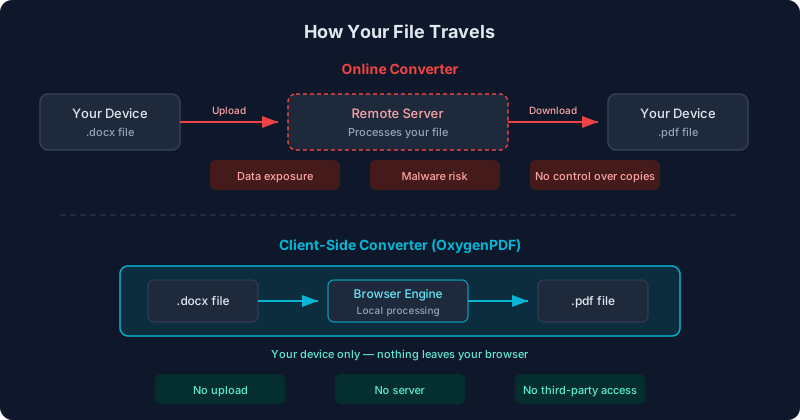
The FBI warning wasn't hypothetical. It was a response to active campaigns targeting people doing exactly this: searching for a converter, clicking the first result, uploading sensitive files.
Even legitimate services carry risk. Third-party involvement in data breaches doubled to 30% in Verizon's 2025 Data Breach Investigations Report. The average cost of a breach is $4.44 million globally, according to IBM's 2025 Cost of a Data Breach Report. Your converter provider might be perfectly trustworthy today and get compromised next quarter. Their security team might be two people. Their backup policy might be "we'll figure it out."
Think about what people convert. Resumes with home addresses and phone numbers. Contracts with financial terms. HR documents with employee data. Legal filings with privileged information.
Some services claim to delete files after processing. You can't verify that. Backup systems and CDN caches have a way of keeping data around longer than anyone admits. If the service uses AI features, your uploaded content might be feeding model training, buried in paragraph 47 of their terms of service.
On the regulatory side: uploading documents containing EU residents' personal data to a non-compliant processor can violate GDPR. Patient information without a Business Associate Agreement violates HIPAA. If you've signed an NDA prohibiting disclosure to third parties, an online converter qualifies as a third party. These aren't edge cases. They happen every day.
Convert Word to PDF Without Uploading Anything
A few options keep your files local.
Microsoft Word's Built-In Export
If you have Word installed: File > Save As > PDF. Or File > Export > Create PDF/XPS. This is the most reliable conversion because Word is converting its own format with its own layout engine. No upload, no third party. The catch is you need a Microsoft 365 subscription ($6.99-$12.99/month) or a one-time Office license.
LibreOffice
Free, open source, processes locally. Conversion quality is decent for simple documents but less reliable for complex Word-specific features like SmartArt or advanced table formatting. It supports batch conversion via command line, which helps if you're processing dozens of files — see the batch section below. The tradeoff is installation size and occasional UI roughness.
Apple Pages (Mac)
If you're on a Mac without a Word license, Pages — free on every Mac — can open most .docx files directly and export to PDF through File > Export To > PDF, entirely on your device. Pages uses its own layout engine to interpret Word's format, so expect the same category of formatting drift you'd get from LibreOffice: solid for text-heavy documents, less reliable for anything built around precise Word-specific layout features.
OxygenPDF
Open the Word to PDF converter, drop your .docx file in, click convert. Everything runs in your browser using client-side JavaScript. Your document never leaves your device. No account, no upload, no hard file-size limit — a friendly nudge toward a paid plan appears if you're on the free tier and the file is over 50MB, but it doesn't block the conversion. Free.
It's built for text-first documents, not layout reproduction. Before you use it on anything with images, tables, or formatting you care about, read the next section — it explains exactly what survives the trip and what doesn't.
After conversion, you can edit the PDF directly in the browser, merge it with other documents, or compress it without losing quality if the file size balloons.
Does OxygenPDF Preserve Formatting? Here's What Actually Happens
No — and it's worth being straight about that. OxygenPDF's Word to PDF tool opens the .docx as the ZIP archive it is, reads the plain text out of word/document.xml, and re-lays that text into a new PDF at a font size, page size, and margin you choose. It's a text extractor and re-typesetter, not a layout renderer. Concretely, that means:
- Bold, italics, and custom fonts don't carry over. Every paragraph is drawn in one consistent typeface at the size you set (8-24pt), because the conversion reads the text runs, not the character-level formatting wrapped around them.
- Images and embedded charts are dropped. Nothing in the conversion path reads image data out of the .docx package. A document that's mostly a screenshot with a caption keeps the caption and loses the screenshot.
- Tables lose their grid. The text inside a table's cells still comes through in reading order, but the row-and-column structure — and anything that depended on it to make sense, like a side-by-side comparison — doesn't.
- Links stop being clickable. A hyperlink's visible text survives as plain text; the underlying link target doesn't.
- Page size, font size, and margins are yours to set. A4 or Letter, 8-24pt type, and a margin slider from half an inch to an inch and a half, so you can control roughly how many pages the re-flowed text takes up.
That makes it genuinely good at one job: turning a text-heavy document — a manuscript draft, a script, a set of meeting notes, a letter with no embedded images or tables — into a clean, readable PDF without a server in the loop. It is not the right tool for a formatted resume, a brochure, an invoice template, or anything where the layout itself is the point. For those, Word's own Save As PDF or LibreOffice — both of which render the actual page layout instead of re-flowing text — will get you closer to the original.
Competitor Comparison
| Tool | Price | File Upload? | Limits | Notes |
|---|---|---|---|---|
| Adobe Acrobat | $19.99/mo | Yes (online) or local (desktop) | None with subscription | Best accuracy, expensive |
| Smallpdf | $9/mo | Yes | 2/day on free tier | Solid quality, server-processed |
| iLovePDF | $4/mo | Yes | Free tier has ads | Budget option, privacy tradeoff |
| Google Docs | Free | Yes (to Google servers) | Google account required | Strips some formatting |
| MS Word | $6.99-12.99/mo | No | Requires installation | Best fidelity, not free |
| OxygenPDF | Free | No | Device RAM only | Client-side text re-flow — no formatting, images, or tables preserved |
The honest split: if conversion accuracy on a formatted document is your priority, Microsoft Word's built-in export or Adobe Acrobat wins — both render the actual page layout. If your document is mostly text and you want a quick, private conversion without installing anything or paying for a subscription, OxygenPDF handles it, as long as you don't need the formatting to survive the trip.
What Client-Side Conversion Can't Do
Every local option in this article trades something for that privacy. It's worth knowing what, before you reach for the wrong tool.
A browser-based text extractor, like OxygenPDF's, can't reproduce layout at all — not "struggles with complex layout," but doesn't attempt it. That's the tradeoff covered in detail above: it's a text-in, formatted-PDF-out tool, and the "formatted" part refers to the page size and font you set, not anything inherited from the original document.
Word's own Save As PDF and LibreOffice can reproduce layout, but Word's rendering engine is proprietary — nothing outside Microsoft replicates it exactly, so LibreOffice, Google Docs, and Pages each introduce their own small differences in font metrics, spacing, and how edge-case features get interpreted. Documents with complex SmartArt diagrams, embedded Excel charts, or heavily customized themes may not convert with perfect fidelity outside of Word itself.
None of these tools touch encrypted or macro-enabled content safely. Macro-enabled documents (.docm) need their macros stripped before conversion, since no PDF format supports VBA. Password-protected Word files need to be unlocked before any converter — local or online — can read them at all.
Only .docx is universally supported here. The legacy binary .doc format (Word 97-2003) isn't a ZIP archive, so a text-extraction tool built around unzipping the file — including OxygenPDF's — can't open it directly. If you're starting from an old .doc file, open and re-save it as .docx in Word first, or use LibreOffice, which reads the legacy binary format natively.
Batch jobs favor a desktop tool. For converting hundreds of files at once, a command-line tool will always beat clicking through a browser tab one file at a time.
The right tool depends on the document. A script, a set of notes, a letter — plain text, no embedded media? A client-side text-to-PDF tool handles it fine and keeps the file off any server. A formatted resume, a two-column newsletter, or a 200-page technical manual with embedded diagrams? Use Word, Adobe Acrobat, or LibreOffice, whichever you have.
Batch Converting Many Files at Once
If you're converting a handful of files, opening each one in a browser tab is fine. If you're converting a folder of fifty, it isn't — and this is where LibreOffice's command-line mode earns its installation size. From a terminal, in the folder containing your files:
soffice --headless --convert-to pdf *.docx
This runs LibreOffice without opening a window, converts every matching file, and writes each PDF alongside its source — no clicking through a UI per file. It's the same LibreOffice conversion engine as the desktop app, so the same formatting tradeoffs apply: solid for standard documents, less reliable for SmartArt or advanced table layouts. On Windows, the equivalent binary is usually soffice.exe under the LibreOffice install directory rather than a command already on your PATH.
For a batch where formatting fidelity matters more than speed, Word itself can drive a folder of conversions through a macro (ExportAsFixedFormat in VBA), though setting that up takes more effort than it's usually worth for a one-off job — it earns its keep only if you're converting the same kind of document on a recurring schedule.
Tips That Actually Help
Pick the right source format. If you're creating a document specifically for PDF conversion, keep it simple. Use standard fonts (or embed them). Avoid text boxes when a table would do the same job. If you're exporting through Word or Adobe Acrobat, use heading styles instead of manually formatted bold text — Word's exporter turns heading styles into proper PDF bookmarks automatically. A plain-text re-flow tool like OxygenPDF's has no equivalent for this tip, since it doesn't preserve document structure at all — bookmarks are a layout-renderer feature, not something a text extractor can produce.
Check the output. Open the PDF and compare it against the original side by side. Look at page breaks, table alignment, image positioning, and hyperlinks. Headers and footers are often the first casualty. Catch problems before you send it.
If the PDF is too large, compress it. If you need to combine multiple converted files, merge them into one document.
And for the love of all that is holy, stop uploading sensitive documents to random websites. The FBI literally told you not to.
Frequently Asked Questions
Is it safe to convert Word to PDF online?
It depends entirely on whether the tool uploads your file to a server. A browser-based converter that processes the file with client-side JavaScript, like OxygenPDF's, never sends your document anywhere — it's "online" only in the sense that the page loaded from a URL. A converter that uploads your file to a remote server for processing carries the risks covered above: you can't audit what happens to the file, how long it's kept, or who else can access it.
Will converting Word to PDF ruin my formatting?
It depends on the converter, not the file. Word's own Save As PDF and Adobe Acrobat render the actual page layout, so formatting generally survives well. LibreOffice and Apple Pages render their own interpretation of that layout, so minor drift is common. A text-extraction tool like OxygenPDF's doesn't attempt to preserve formatting at all — see the dedicated section above for exactly what does and doesn't survive.
Can I convert Word to PDF without Microsoft Word installed?
Yes. LibreOffice is free and processes files locally; Apple Pages does the same on a Mac; and a browser-based tool like OxygenPDF's needs nothing installed at all. None of the three require a Microsoft 365 subscription, and none of them upload your file anywhere.
Why does my PDF look different from the original Word document?
Almost always one of four causes: font substitution, where the converter doesn't have your exact font and swaps in a lookalike; a layout feature that doesn't map cleanly to PDF, like text boxes, SmartArt, or mixed page orientations; tracked changes or comments that got rendered into the output instead of stripped out first; or, if you used a text-extraction tool rather than a layout renderer, the fact that formatting was never going to be preserved in the first place.
Can I convert Word to PDF on my phone?
Yes, through a browser-based tool: open OxygenPDF's Word to PDF converter in your phone's browser, select the .docx file, and convert — no app install required. Just remember it's a text re-flow, not a layout-preserving conversion, so it suits notes and drafts better than a document where formatting matters.
Convert Word to PDF privately — no upload, no account, no bullshit.