 Rohman
You open a PDF. Select text. Paste. And get... nothing. Or line breaks splitting every word in half. Or paragraphs in reverse order. Or the table you copied becomes a pile of numbers and labels mashed into nonsense.
You're not doing anything wrong. The PDF is working exactly as designed — which means it was never designed for text extraction.
Converting PDF to text should be simple. Sometimes it is. Knowing when it's simple and when it's not saves you twenty minutes of fighting a tool that can't help you.
The Two PDF Types That Explain Everything
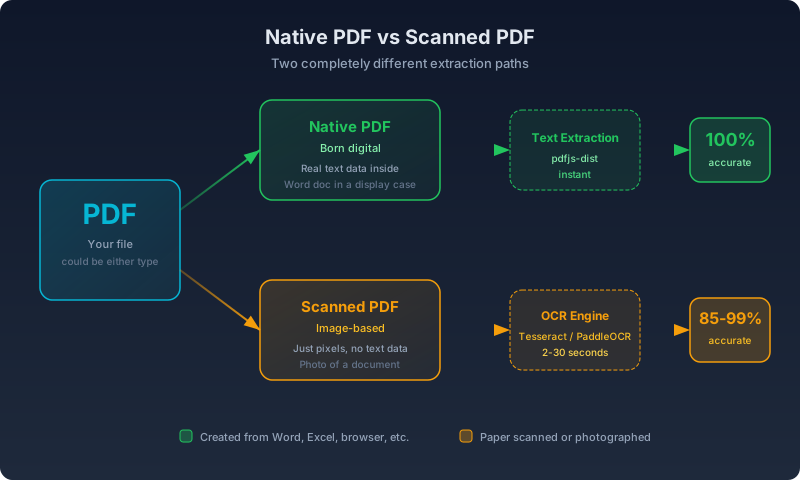
Every PDF falls into one of two categories. This single distinction explains 90% of extraction failures.
Native PDFs (Born Digital)
A native PDF was created from a digital source: exported from Word, saved from a browser, generated by software. The text inside is real character data with font and position information.
Think of it as a Word document locked in a glass display case. The text is right there. You need something to open the case.
When you use a PDF to text tool on a native PDF, extraction is instant and perfect. The tool reads character data directly. No interpretation, no guessing.
Scanned PDFs (Photographed)
A scanned PDF is a stack of images. Someone fed paper through a scanner, or snapped a photo, and wrapped the result in a PDF container. There are no characters inside. Only pixels — millions of them, arranged in a pattern that looks like text to your eyes but means nothing to a computer.
This is a photograph of a document. Asking a text extraction tool to read it is like asking someone to pull ingredients from a photo of a recipe. The information is visually there but structurally absent.
To get text from a scanned PDF, you need OCR (Optical Character Recognition). An engine analyzes the image, identifies letter shapes, and reconstructs the text. It works, but it's slower and imperfect.
How to Tell Which Type You Have
Open the PDF. Click and drag across a line of text. If individual words highlight with a blue selection box, it's native. If the entire page selects as one big block (or nothing highlights at all), it's scanned.
That one test tells you everything.
If you'd rather skip the manual check, OCR PDF's Smart Mode does it for you: before it spends any time running an OCR engine, it checks whether the file already has enough embedded text to read directly. If it does, it extracts that text and skips OCR entirely. If it doesn't, it hands the file to whichever OCR engine you picked. You get the fast path automatically, without guessing first.
Why Extracted Text Looks Like Garbage
Even native PDFs produce terrible output sometimes.
PDF stores text as positioned glyphs, not flowing paragraphs. The format has no concept of sentences, line breaks, or reading order. Each character sits at specific coordinates on a canvas. The letter "H" goes at position (72, 680). The letter "e" goes at (79.2, 680). And so on, character by character. That's not an implementation shortcut — it's the specification. PDF's text elements live inside page content streams as character codes that map to glyphs through an encoding, and nothing in that pipeline records which glyphs form a word, a sentence, or a paragraph. A reader assembles those the same way you'd read a ransom note: by position, not by structure.
A text extraction engine must reassemble those positioned characters into logical text. Usually it works. When it doesn't, these are the common failure modes:
Blank output. The PDF is scanned. No text data exists. This is the most common complaint, and the answer is always the same: you need OCR, not text extraction.
Broken words and random spacing. The PDF was generated by software that places each character individually rather than as text runs. The engine can't tell where words start and end. Common with PDFs exported from design tools like InDesign or Illustrator. Ligatures make this worse: a font can encode "fi" or "fl" as a single combined glyph for typographic reasons, and an extraction engine that doesn't unpack it correctly either drops a letter or inserts a stray character in its place.
Scrambled paragraphs. Multi-column layouts confuse the reading order algorithm. The engine reads left-to-right across the full page width, merging column one's first line with column two's first line. A layout-aware engine has to notice the column boundary and read each one top-to-bottom before moving to the next — that's a layout-analysis problem, not a text problem, which is why a plain character dump gets it wrong by default.
Tables become unreadable. PDF tables are lines drawn on a page with text placed inside the grid. There's no table structure at all. The engine dumps cell contents in whatever order it encounters them.
Weird characters and encoding issues. Some PDFs use custom font encodings or subset fonts where the character map ignores standard Unicode. The engine extracts the right glyphs but maps them to wrong characters.
Headers, footers, and page numbers stuck in the middle of a sentence. A running header, a footer disclaimer, and a page number are just more positioned glyphs to the format — nothing marks them as page furniture instead of body copy. An engine that reads strictly in stream order can drop "Page 14 of 32" between two sentences that were never supposed to be near each other.
What Actually Happens When You Click Extract
PDF to text extraction is the process of reading a PDF's positioned character data (or, for scanned pages, running OCR on the page image) and reassembling it into plain, linear text — no fonts, no coordinates, no page furniture, just the words in reading order.
For a native PDF, PDF to Text tries a font-aware extraction engine first: a Rust-compiled WASM module (the same WebAssembly approach behind several OxygenPDF tools) that reads font metrics and layout alongside the raw characters, which is what lets it keep multi-column and table-heavy pages in the right order instead of just dumping glyphs left-to-right. When that engine isn't available, the tool falls back to Mozilla's pdfjs-dist library, which reads each character's position directly and reconstructs lines by grouping characters whose vertical position falls within a few points of each other, then reading those line groups top to bottom. Either way, nothing leaves your browser: the file is read, converted, and handed back to you as a .txt download without a network request in between.
For a scanned PDF, there's no character data to read, so OCR PDF renders each page to an image and runs it through a recognition engine that identifies letter shapes and outputs the text it thinks it sees — a fundamentally different, and fundamentally less certain, process than reading characters that were already there.
The Privacy Problem You're Overlooking
Consider which documents you convert to text: contracts, legal filings, medical records, tax returns, financial statements. The sensitive stuff.
Most free online PDF to text tools upload your file to a remote server before they can do anything with it. Some delete it after processing. Some don't say when, or at all. Some have privacy policies so vague they could wallpaper a bathroom. None of that requires a headline-grabbing breach to matter — it only requires the server to be misconfigured, breached, or subpoenaed once while your file happens to be sitting on it, and by IBM's 2025 Cost of a Data Breach Report, the global average cost of a breach is $4.44 million. That number describes the fallout for the company holding the data — it says nothing about what happens to the person whose contract or medical record was in the batch.
For a receipt or a flyer, fine. For anything with a name and account number on it, uploading to a server you don't control and can't audit is a hell of a gamble when a browser-based tool can do the same job without ever asking for the file.
How OxygenPDF Handles Both Types
OxygenPDF provides two tools because the two PDF types need different approaches entirely, and both run the processing on your device rather than a server. No upload, no account, no file leaving your browser.
PDF to Text (Native PDFs)
PDF to Text is built for the case above: a PDF that already has real character data. Processing is close to instant because there's nothing to interpret visually — just text to read and reassemble, using the extraction path described above. For native PDFs, this is all you need.
AI OCR PDF (Scanned PDFs)
OCR PDF is built for the other case, and it gives you a choice of up to eight recognition engines rather than one fixed pipeline, because "best OCR engine" depends on what's in the scan:
- Tesseract — the open-source engine most tuned for English, and the fastest to load.
- PaddleOCR (two model sizes) — better suited to Asian-language text, with a smaller fast model and a larger, higher-accuracy one.
- Florence-2 (two model sizes) — on-device AI vision models that run on WebGPU, with the larger HD variant as OxygenPDF's best on-device accuracy option.
- Surya — an opt-in cloud engine covering 90+ languages with stronger layout analysis than the on-device engines.
- GOT-OCR 2.0 and Text Extract OCR — opt-in cloud engines for, respectively, complex layouts with tables and math, and fast, general-purpose recognition.
Smart Mode, described above, checks for embedded text before it OCRs anything, so a PDF that turns out to already be native never gets run through an OCR engine at all. The language list covers 20 languages, from Spanish and Arabic to Vietnamese, Thai, and Hebrew, and the tool can output a searchable PDF — your original scanned pages with an invisible text layer added on top — so you only need to run OCR on a document once and can still search or copy from it afterward.
Accuracy is a function of the scan, not just the engine. A 2009 study of digitized historical newspaper pages found character-by-character accuracy for commercial OCR software ranging from 81% to 99% — and clean, modern, high-resolution scans of typed or printed text generally land at the better end of that kind of range. The same study flags something worth internalizing before you trust any single accuracy number: a 1% character error rate can still produce a 5%-or-worse word error rate, because a single wrong character usually ruins the whole word it's in. Handwriting fares worse across the industry; cursive recognition in particular runs meaningfully behind hand-printed text, which is why messier handwritten documents are the case most likely to need a manual pass afterward.
How the Alternatives Compare
| Tool | Price | OCR | Processes locally | Limitations |
|---|---|---|---|---|
| Adobe Acrobat | $19.99-$29.99/mo, per Adobe's pricing page | Pro only | Yes | OCR locked behind Pro tier |
| Smallpdf | Free tier + paid | Yes | No, server-side | Limited free tasks/day, files uploaded |
| Google Drive | Free | Yes | No, server-side | First 10 pages only |
| Online OCR tools | Free | Yes | No | Vague privacy policies, file size caps |
| OxygenPDF | Free | Yes (8 engines) | Yes, client-side | Device memory is the limit |
Pricing and limits as of September 2026. Free-tier terms and page limits are the kind of detail vendors change without much notice, so verify current terms on the provider's own site before relying on this table.
OCR has been available as an online, cloud-based service since the 2000s, and document-heavy workflows — insurance claims, medical intake forms, expense reports — keep adding more scanned paper to the pile every year. Demand for automated extraction isn't going away. The question worth asking isn't whether a tool can do OCR; nearly all of them can. It's whether the tool you hand your documents to respects what's actually in them.
When to Use Which Tool
The shortest possible decision guide.
Can you select text in the PDF?
- Yes: Use PDF to Text. Instant, perfect extraction.
- No: Use OCR PDF. Slower, and typically in the 80-99% character-accuracy range for printed text, depending on scan quality.
Do you need the formatting preserved?
- Just the text: PDF to Text or PDF to Markdown for structured output.
- Full layout with fonts and spacing: PDF to Word. See our guide on how to convert PDF to Word for what to expect.
Is the document sensitive?
- Yes: Use a tool that processes locally. OxygenPDF never uploads your file.
- No: Whatever's convenient.
FAQ
Why does my PDF to text conversion put a space in the middle of every word?
The PDF was likely made by design software (InDesign, Illustrator, or a similar tool) that positions each character individually rather than as connected text runs. The extraction engine has no word boundaries to go on, only character coordinates, so it guesses wrong. There's no setting that fixes this reliably — a font-aware extraction engine gets closer than a basic one, but a badly-authored PDF can still defeat it.
Can I extract text from a password-protected PDF?
Yes. PDF to Text and OCR PDF both accept the password directly and decrypt the file in memory to read it — they don't need you to remove the password first, and the password itself never leaves your browser.
Is OCR the same thing as PDF to text conversion?
They solve the same problem — getting plain text out of a PDF — but by different means. Text extraction reads character data that's already in the file, which is fast and exact. OCR analyzes a page image and reconstructs text it doesn't have, which is slower and never perfectly accurate. Use extraction when you can (check by trying to select text first); reach for OCR only when there's no character data to extract.
Does converting PDF to text preserve formatting like bold, italics, or tables?
No — that's the point of a plain-text format. If you need fonts, spacing, and layout intact, PDF to Word is the right tool. If you need structure (headings, lists, tables) without full visual fidelity, PDF to Markdown sits between the two.
Why does OCR get some words right and others wrong on the same page?
Recognition confidence varies with the individual glyphs on the page — smudges, low contrast, an unusual font, or a character that looks like another one (a lowercase "l" and a capital "I" are a classic confusion) all affect a single word without affecting its neighbors. That's also why whole-word accuracy is meaningfully lower than character accuracy: one bad character is enough to break a word that was otherwise recognized correctly.
Is it safe to run a sensitive PDF through an online converter?
Depends entirely on whether "online" means "uploaded to a server." A converter that processes the file in your browser, like OxygenPDF's tools, never transmits it anywhere, so there's nothing to expose even if the site's servers are compromised. A converter that uploads your file has made your document only as safe as that company's infrastructure, retention policy, and staff access controls — which you generally can't verify from the outside.
What's a searchable PDF, and why would I want one instead of a plain text file?
A searchable PDF is the original scanned images with an invisible text layer laid on top, generated by OCR. It looks identical to the scan, but you can now select, search, and copy text from it — useful when you need to keep the document's original appearance (a signed form, a letterhead) while also making it searchable, rather than throwing that appearance away for a .txt file.
Blame the Format, Not the Tool
PDF wasn't an accident of engineering — it was a deliberate trade-off. Adobe co-founder John Warnock outlined the idea in 1991 in a paper for a project code-named "Camelot," proposing a simplified, display-optimized version of PostScript that would render identically on any screen or printer. Adobe released it to the public for free in June 1993, according to Wikipedia's history of the format, and the format succeeded wildly at that one job: a PDF looks the same on your laptop as it did on the sender's, thirty-plus years and countless software updates later.
It was never designed to make text easy to extract, and that omission wasn't fixed later because fixing it would mean changing what PDF fundamentally is. That tension between visual fidelity and structural accessibility hasn't been resolved in three decades, and there's no version of PDF on the horizon that resolves it.
When your PDF to text conversion fails, the tool isn't broken. The format is doing exactly what it was built to do: preserve appearance at the cost of everything else.
The fix: know which type of PDF you have and reach for the right tool. Native PDFs give up their text willingly. Scanned PDFs need persuasion. Either way, your documents shouldn't have to leave your device to get there.
Extract text from your PDF in your browser, or run OCR on scanned documents without uploading anything.