Rohman
The landlord's email says the deposit will be returned within 14 days, and the signed checkout report is attached. You want both on file before the argument starts. So you open the message, press Print, choose Save as PDF, and file the result.
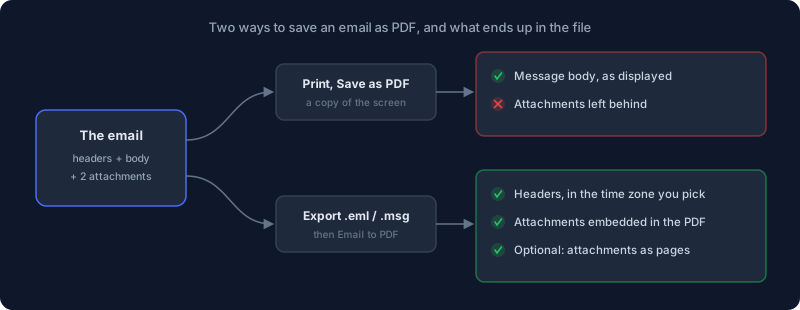
Open that PDF a month later and you'll find the email. The checkout report isn't in it. Printing an email saves a picture of the message as your mail client displays it, and an attachment was never part of that picture.
Quick answer: To save an email as a PDF with its attachments, don't print it. Download the message as a file first: in Gmail, choose More, then Download message to get an .eml; in Outlook, use Save as or Download to get an .eml or .msg. Then convert that file with Email to PDF, which prints the headers and body and embeds every attachment inside the PDF. It runs in your browser, so the message is never uploaded.
What Print to PDF Actually Saves
Every major mail client sends you to the print dialog when you ask how to save an email as PDF. Microsoft's own instructions for Outlook are to select Print and pick "Microsoft Print to PDF" as the printer, in new Outlook, classic Outlook and Outlook on the web alike. Gmail's print help is More, then Print, or "Print all" for a whole conversation.
Neither page says the attachments end up in the PDF, because they don't. Outlook does have a "Print attached files" option, and Microsoft's page on printing attachments explains how it behaves: attachments print as their own jobs, "Quick Print will only send attachments to your default printer," and "some attached files must be opened before they can be printed." That is a way to get paper, not a single file you can hand to someone.
Two other things go missing on the way through the print dialog, and both matter more than they seem:
- The message's own record of itself. An email file carries a Date header written by the sender's server, plus routing headers, a Message-ID, and often authentication results. A printout keeps the handful of fields your client chose to show, formatted the way your client shows them.
- The original file. A printed PDF is a copy of a rendering. The
.emlor.msgis the message itself, and it's what you'd want if anyone later asks whether the PDF is genuine.
Step 1: Export the Email as a File
Every client can hand you the raw message. It just isn't the button people reach for.
Gmail (web, on a computer). Open the email, click More (the three dots next to Reply), and choose Download message. You get an .eml file, which Google's help page notes needs a desktop mail client to open. Attachments are inside it.
New Outlook for Windows and Outlook on the web. Open the message, then More actions. In new Outlook it's Save as; on the web it's Download. Microsoft's page says the web version saves "as an EML or MSG, usually in the Downloads folder."
Classic Outlook. Double-click the message to open it, then File, Save As, and choose Outlook Message Format (.msg) in the Save as type list.
Apple Mail on a Mac. Drag the message to your desktop and it saves as an .eml. File, Save As with the Raw Message Source format does the same. (Apple Mail's own File, Export as PDF is the print path again.)
An .msg is Outlook's own container, which Microsoft's format specification describes as the file used "to represent individual email messages, appointments, contacts, tasks, and so on in the file system." An .eml is the plain internet message format every other client uses. The converter reads both, so export whichever your client offers.
Step 2: Convert It with Email to PDF
- Open Email to PDF and drop in the
.emlor.msgfile. - Check the preview. It shows the subject, sender, recipients, date and the list of attachments it found, so you know you grabbed the right message before converting.
- Pick the header fields. Subject, From, To and date are printed whenever the message has them. CC and BCC each have their own switch. If the BCC switch is on and the message has no BCC field, the tool says so: most emails you receive don't carry one, because it's removed before delivery.
- Choose the date format and time zone (more on that below) and the page size: A4, Letter or Legal.
- Choose how to handle attachments, then convert and download.
The Three Ways to Keep Attachments
This is the part a print dialog can't do, so it's worth picking deliberately. The tool has three independent switches.
List attachments in the PDF (on by default). An Attachments section after the body gives each file's name, type and size. It's the cheapest proof that something was attached, even if you never open it.
Embed attachments in the PDF (on by default). Every attachment, whatever its type, is stored inside the PDF file itself, the same way a PDF can carry any embedded file. Open the PDF in a viewer with an attachments panel, such as Acrobat Reader or the sidebar in most desktop readers, and you can save the original spreadsheet, zip or Word file back out, byte for byte. PDF Attachments can list and extract them too. This is the one to use for records: one file, and nothing re-encoded.
Append PDF and image attachments as pages (off by default). PDF attachments have their pages copied in after the email, each captioned with the file name and "page 2 of 5" and so on; image attachments get a page each. Use this when the reader is going to print the thing or read it on a phone, and wouldn't think to look in an attachments panel. Other file types, like .docx or .xlsx, can't be drawn as pages, so they're only listed and embedded. An attachment the tool can't read, such as a password-protected PDF, is skipped rather than breaking the conversion.
For something like the deposit dispute, turn on all three. The appended pages are for the person reading it, and the embedded originals are what makes it complete.
Dates, Time Zones and Why "Original" Exists
An email's date is written once, by the sending server, in the sender's time zone: Tue, 16 Sep 2026 09:12:44 -0400. Your mail client quietly converts it to your time zone when it displays the message, and a printout freezes that conversion.
Most of the time that's fine. It stops being fine when the time matters: a notice that had to arrive before a deadline, or a thread between offices in three countries. The converter gives you three options:
- Local (the default) converts to your computer's time zone, like your mail client does.
- Original prints the Date header exactly as the message carries it, offset and all. Outlook
.msgfiles store the time in UTC, so for those Original shows a GMT timestamp. - UTC converts everything to one neutral clock, which is the easiest to line up across several messages.
For anything that might be read by a lawyer, pick Original or UTC. The date format (long, short, or ISO 8601 like 2026-09-16) applies to Local and UTC, and is purely about readability.
What the PDF Doesn't Keep
Being clear about the limits is part of trusting the output.
Layout is approximated. Marketing emails are built from nested tables and inline CSS meant for a mail client, not a page. The converter extracts styled text: headings, paragraphs, lists, quotes, tables, code blocks, links and inline images come through, while exact positioning and most CSS don't. A newsletter will look tidier and plainer than it did in your inbox. A normal written email will look like itself.
Remote images are never fetched. Images embedded in the message, like a signature logo or a pasted screenshot, render in place. Images the email loads from a web server don't, because fetching them would mean contacting the sender's server from your browser, which is exactly how tracking pixels report that you opened a message. Where a remote image has alt text, the PDF shows it in brackets.
Transport headers aren't printed. The PDF shows From, To, CC, BCC, subject and date. It doesn't reproduce the Message-ID, the Received chain or authentication results. That's why you should keep the .eml or .msg alongside the PDF.
That last point is the legal one, and I'm not a lawyer, so take it as a pointer rather than advice. In US federal litigation, Rule 34 says that when a request doesn't specify a form, electronically stored information is produced "in a form or forms in which it is ordinarily maintained or in a reasonably usable form." A PDF is a reasonably usable reading copy. The original message file is the form the email was ordinarily kept in. Keeping both costs you a few kilobytes.
Saving a Whole Thread
The converter takes one message file at a time, and Gmail's Download message saves one message at a time too. For most threads that's enough, because each reply quotes the ones before it, so the latest message usually holds the whole conversation as text. What it won't hold are the attachments sent earlier in the thread.
If the earlier attachments matter, export each message that carried one, convert them, and combine the PDFs in date order with Merge PDF. Embedded attachments stay with the pages they came in on.
Why Not an Online Converter?
The emails people need as PDFs are rarely newsletters. They're HR complaints, medical correspondence, contract negotiations and disputes, and each carries names, addresses and signatures belonging to people who never agreed to have them uploaded anywhere.
Email to PDF parses the .eml or .msg in your browser tab, builds the PDF there, and hands it back as a download. The message isn't sent to a server, and because remote images are never fetched, opening the file in the converter doesn't tell the sender anything either. The same thinking runs through the rest of the toolkit; why local-first PDF tools explains it.
Frequently Asked Questions
How do I save a Gmail email as a PDF with attachments?
Open the email in Gmail on a computer, click More, then Download message. That saves an .eml file with the attachments inside it. Drop the file into Email to PDF with "Embed attachments" on, and every attachment is stored inside the resulting PDF.
How do I convert an Outlook .msg file to PDF?
In classic Outlook, open the message and use File, Save As, with Outlook Message Format. In new Outlook, use More actions, then Save as. Then convert the .msg in Email to PDF. You don't need Outlook installed on the computer doing the conversion.
Can I get the attachments back out of the PDF later?
Yes, if they were embedded. Open the PDF in a viewer with an attachments panel and save them from there, or use PDF Attachments to list and extract them. They come out as the original files.
Can I convert several emails into one PDF?
Convert each message separately, then combine the PDFs with Merge PDF. Put them in date order so the thread reads top to bottom.
Why is the BCC line missing from my PDF?
Because the message doesn't have one. BCC recipients are hidden from everyone else, so received emails almost never carry the field. A copy from your own Sent folder sometimes does, and then the BCC switch prints it.
Keep the whole message, not a printout of it. Convert your .eml or .msg to PDF in your browser, attachments included.