Rohman
The contract is final and the client gets it tomorrow. On page six there's still a yellow sticky note from your colleague, "they'll never notice this clause," signed with her name and a timestamp. That is the usual moment people go looking for a way to remove annotations from a PDF.
Review is over. The markup has to go, all of it, without touching the document underneath. Annotations were built to come off, which helps. The catch is that some marks that look like annotations aren't, and those are the ones that refuse to delete.
Quick answer: To remove annotations from a PDF, delete each page's annotation list, which holds the comments, highlights, sticky notes, drawings, stamps, links and form fields layered over the page. Remove Annotations does that for every page in one pass, in your browser, and leaves the text and images exactly as they were.
What a PDF Annotation Actually Is
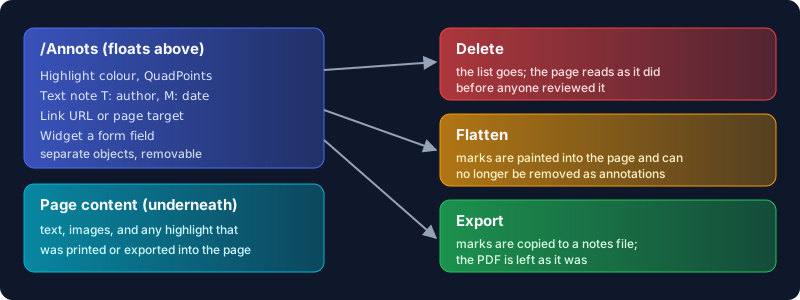
A PDF page has two layers. One is the page content: the text, images and vector drawing that make up the document. The other is a list called /Annots, and every item in it is a separate object that sits on top of the page. The PDF 1.7 specification (ISO 32000-1) defines these in section 12.5, and the family is bigger than most people expect. Highlights, underlines, strikeouts, sticky notes, free text, ink, stamps and shapes are the review markup. Links are annotations too. So are form fields, which the spec draws with widget annotations.
Review markup also carries more than it shows. Every markup annotation can store a /T entry, which the spec uses to identify the user who added it, plus a creation date and a modification date. That's the name you see in the comment bubble, and it travels with the file.
So removing annotations is half tidying and half privacy. The yellow is the part everyone sees. The reviewer's name and the time they wrote it are the part they don't. If you also want the document's own author and producer fields gone, that's metadata, a separate layer covered in how to remove metadata from a PDF.
Delete or Flatten, and Export First
Getting rid of annotations comes down to two operations, and they aren't interchangeable.
Deleting removes the objects. The page reads as it did before review started, which is what you want for a clean copy going out the door.
Flattening paints each mark into the page content and throws away the object. The highlight stays visible forever, but it's no longer an annotation, so nothing can lift it off again. Our explainer on what flattening does to a PDF covers the variants. Apple's guide to Preview says that to save a PDF and "flatten annotations (so that they can't be edited)", you choose File > Print, then Save as PDF (Apple Support, Annotate a PDF in Preview). That's an easy way to flatten a file without meaning to.
Before either, decide whether the comments are worth keeping. If they are, export them. Annotation Exporter copies every highlight, its quoted text, the note, author and page into one Markdown or JSON file and leaves the PDF alone; our guide to exporting highlights shows the output. Then delete with a clear conscience.
The order only runs one way. Export, then delete. Once the objects are deleted or flattened there is nothing left to export.
How to Strip Every Annotation, Step by Step
- Open Remove Annotations and drop in your PDF. Several files at once work too; batch mode runs the same pass on each.
- Check the summary. It tells you how many pages will be scanned and warns that all annotations, comments, highlights and form fields will be stripped from every page. There are no settings to choose.
- Run it. The tool deletes the
/Annotsentry from every page and saves a new copy. The result card reports how many pages had annotations on them, or tells you none were found. - Rename the file if you like (the default is
yourfile-no-annotations.pdf), then download it. - Open the result in your usual viewer and look at the comment panel. It should be empty.
All of this happens in the browser tab. The PDF is read and rewritten on your machine and never uploaded, which matters when the comments you're removing were the confidential part.
Acrobat users can do the same job by hand: the Delete comments help page describes selecting a comment in the Comments pane and choosing Delete from its options menu. That's fine for three comments. Forty is a long afternoon.
Why Some Highlights Won't Delete
The short answer: the highlight you're trying to delete is not an annotation any more, or never was. There are four ways that happens.
It was flattened. Someone printed the reviewed file to PDF, or ran it through a flatten step, and the yellow became part of the page. An annotation remover finds an empty /Annots list and reports nothing to do, because from the file's point of view that's true.
It came from the source document. Text highlighted in Word, or a coloured box in a slide, is drawn into the page when the file is exported. No PDF tool calls that an annotation. Go back to the source and export again.
It's a scan. On a scanned page the highlighter ink is part of the photo. Only image editing will touch it.
It's not in the file at all. Zotero, for one, keeps its reader annotations in the Zotero database rather than in the PDF. Delete them in Zotero, because the PDF on disk never had them.
A quick test: if you can click the highlight and get a comment bubble or a selection handle, it's an annotation and the tool will remove it. If clicking selects the text underneath, the colour is page content.
What Remove Annotations Can't Do
It's all or nothing. There's no option to keep links while dropping comments, or to keep form fields. A fillable form loses its fields along with the sticky notes, so don't run it on a form you still need people to fill in.
It can't reach page content. Flattened highlights, exported Word highlighting and scanned ink all survive, for the reasons above.
It hides the comments; it doesn't scrub them. I checked this while writing: after the pass, the deleted annotation objects, author names and comment text included, are still stored in the file, unreferenced. No viewer will show them, and a reader opening the PDF normally will never see them. Someone dumping the raw PDF objects can. When the point is privacy rather than appearance, use Sanitize PDF with Strip annotations switched on. It deletes the same annotations and then drops every object nothing refers to before saving. The sibling guide on how to sanitize a PDF walks through the rest of its options. Acrobat Pro's equivalent is Sanitize document, whose help page lists comments among the hidden information it removes.
Password-protected files need one extra step. Unlock the file with Unprotect PDF first, then remove the annotations. Remove Annotations opens an encrypted file by re-rendering each page as an image, which costs you the text layer and can paint the very marks you wanted gone into the picture.
Frequently Asked Questions
How can I remove annotations from a PDF for free?
Use a browser tool that deletes the page annotation list. OxygenPDF's Remove Annotations is free and processes the file on your device, so nothing is uploaded. In Acrobat you can also delete comments one at a time from the Comments pane.
How do I remove highlighting from a PDF that won't delete?
Check whether it's still an annotation. If clicking it selects the text underneath, the highlight was flattened or exported from Word, so it's page content. Re-export from the source file, or edit the page itself.
How do I get rid of all annotations at once?
Run the whole file through Remove Annotations. It clears every annotation on every page in one pass, including links and form fields.
What do PDF annotations mean?
They're objects layered over a page rather than part of it: highlights, sticky notes, drawings, stamps, links and form fields. Review annotations also record who added them and when.
Does removing annotations delete the reviewer's name?
It removes the comments from every page, so no viewer shows them. The objects stay in the file unreferenced, though. For a file that must not carry reviewer names, use Sanitize PDF, which deletes them outright.
Send the Clean Copy
Export anything worth keeping, then remove every annotation in one pass and send the version your client was always meant to see, without uploading the reviewed draft anywhere.