Rohman
You have a comic as a .cbz file, and what you want to do with it (print it, or hand it to a friend who has never installed a comic app) needs a PDF. Converting CBZ to PDF is simple in principle. It goes wrong in specific ways: page 10 lands right after page 1, or the upload stalls at a size cap because the archive is several hundred pages of scans.
Quick answer: A CBZ is a ZIP archive of page images, so converting it means sorting those images into reading order and placing one on each PDF page. CBZ to PDF does that in your browser: drop in the .cbz, pick Original, US Comic, A4 or Letter page size, and download the PDF. JPEG and PNG pages go in unchanged.
What's Actually Inside a CBZ File
Nothing special, which is the point. Wikipedia's entry on the comic book archive puts it bluntly: these "are not distinct file formats", they are a naming convention. A .cbz is a renamed ZIP, a .cbr is a renamed RAR, and .cb7 and .cbt are 7z and TAR. Rename a .cbz to .zip and your operating system will open it as a folder of pictures.
Readium's CBZ description adds the detail that matters for conversion. A CBZ has no table of contents and no required metadata. Page order comes entirely from the filenames, which is why the convention is zero-padded numbers like 001.jpg to 095.jpg.
Many archives also carry a ComicInfo.xml, a metadata file from the old ComicRack app whose schema the Anansi Project now maintains. It can hold the series, the writer, a flag marking a page as a double spread, and a Manga field that sets right-to-left reading when it's YesAndRightToLeft.
Why Page Order Breaks, and How the Sort Fixes It
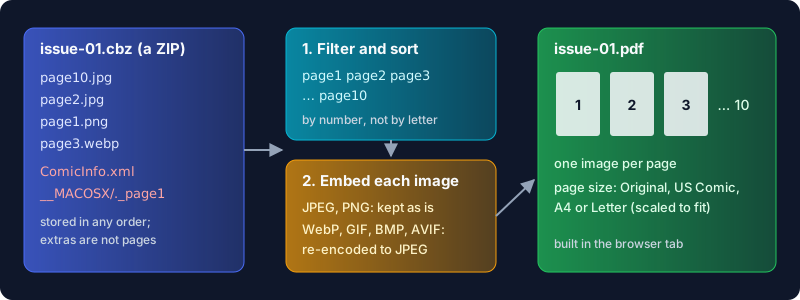
Not every archive is zero-padded. Rippers and people renaming files by hand produce page1.jpg, page2.jpg … page10.jpg, and a plain alphabetical sort puts page10 straight after page1, because the character "1" comes before "2". Every page after the ninth ends up in the wrong place.
The converter sorts with numeric collation, comparing runs of digits by their value. page2 comes before page10 whether or not anyone padded the numbers. It sorts on the whole path inside the archive, so a volume split into Chapter 2/ and Chapter 10/ folders comes out in chapter order too, with each chapter's pages in order inside it.
It also throws out what isn't a page. Only image files count: JPG, PNG, WebP, GIF, BMP and AVIF. ComicInfo.xml is skipped, and so is the clutter that rides along in archives zipped on a Mac or Windows machine: __MACOSX folders, ._ resource files, Thumbs.db, .DS_Store. An image that won't decode is skipped with a warning that says how many were dropped, instead of failing the whole book.
How to Convert CBZ to PDF, Step by Step
- Open CBZ to PDF and drop in your .cbz file. A plain .zip of page images works too.
- Check the page grid. Every page appears as a thumbnail in the order it will be written, so a misnamed cover shows up before you convert, not after.
- Choose a page size. Original keeps each page's pixel dimensions. US Comic (6.63 × 10.25 inches), A4 and Letter scale every page to fit that sheet, centred, with no margin added.
- Set Image quality if your archive holds WebP, GIF, BMP or AVIF pages. It runs from 70% to 100% and starts at 92%. JPEG and PNG pages ignore it.
- Convert and download. The PDF takes the archive's name, so
issue-01.cbzbecomesissue-01.pdf.
There's no reorder step. The grid is for checking, not editing; if a page is out of place, its filename is wrong, and renaming it inside the archive fixes it for every reader you'll ever open the comic in.
Image Quality, Page Size and File Size
The file-size worry is mostly unfounded. JPEG pages are embedded byte for byte, since a PDF can hold a JPEG as it is, and PNG pages are embedded losslessly. The art in the PDF is the art in the archive, and because most comics are JPEG, the PDF usually comes out close to the archive's size.
Only the other formats get re-encoded. A PDF has no native slot for WebP or AVIF, so those pages are drawn onto a canvas and saved as JPEG at your quality setting, with any transparency filled white. Leave the slider high unless the PDF is too large, and if it is, reach for Compress PDF afterwards. Our guide to compressing a PDF without losing quality explains which settings hurt line art and which don't.
Page size is the choice people get wrong. Original turns pixels into points at 96 per inch, so a page scanned 1,988 pixels wide becomes a page about 20.7 inches wide. That's fine on a screen, where the reader zooms to fit. For printing, pick US Comic, A4 or Letter, so each page is already the size of the paper it's going onto.
Double-Page Spreads and Manga
A spread in a CBZ is usually one wide image. The converter doesn't split it. At Original size it becomes a single landscape page; on US Comic, A4 or Letter, it's scaled to fit the portrait sheet's width, with white bands above and below.
If you want spreads cut into single pages, convert first, then run the PDF through Split Scanned Pages. You can untick every page that isn't a spread, and its page order setting has a right-to-left option, so a manga spread splits into the right page first. Our walkthrough on splitting scanned pages in half covers the cut line.
Manga page order is otherwise safe. The files are numbered in reading order, so sorting by filename gives the right sequence. What the PDF doesn't carry is ComicInfo's right-to-left flag, because the converter ignores that file. A PDF reader showing two pages side by side will lay them out left to right.
Honest Limits
- CBR is not supported. CBR is a RAR archive, and the tool reads ZIP only. A .cbr is refused with a message saying so. Extract it with any unarchiver that handles RAR, zip the images back up, and drop in the .zip.
- Metadata stays behind. The series name and the creator credits in ComicInfo.xml don't make it into the PDF's properties, and there's no table of contents.
- Memory is the ceiling. There's no upload, so no upload cap. Free users see a Pro prompt above 50 MB, but the conversion still runs. The whole archive and the finished PDF are held in the browser tab's memory, though, so a phone may run out of room on a very large omnibus that a laptop handles fine.
- Animated pages flatten. A GIF page becomes one still frame.
That missing upload cap is the practical difference from the sites that rank for this query. Zamzar's free tier caps uploads at 50 MB, and a volume of high-resolution scans can blow past that. FreeConvert's free limit is 1 GB per file. Either way the whole comic travels to someone else's server and back. Here it never leaves the tab.
Frequently Asked Questions
How do I convert CBZ to PDF for free?
Drop the .cbz into a converter that unzips the page images, sorts them and writes one per PDF page. OxygenPDF's CBZ to PDF does it free in the browser, with no account and no upload.
Can I convert CBR to PDF?
Not directly with this tool, because CBR is a RAR archive and it reads ZIP only. Extract the CBR's images with an unarchiver, zip them, and convert the .zip.
Does converting CBZ to PDF reduce image quality?
Not for JPEG or PNG pages, which are embedded unchanged. WebP, GIF, BMP and AVIF pages are re-encoded to JPEG at the quality you set, 92% by default.
Can I read a CBZ comic on a Kindle?
Convert it to PDF first. Amazon's Send to Kindle service accepts PDF files up to 200 MB, and our guide to sending a PDF to Kindle covers what happens to it on arrival.
Is CBZ or PDF better for comics?
Inside a comic reader, CBZ, because the reader understands spreads and right-to-left reading. Everywhere else PDF wins: printers, and every device that has no comic app.
How do I turn a PDF back into a CBZ?
Use PDF to CBZ, which renders each page to an image and zips them. The PDF to CBZ guide explains the resolution choices.
Convert Your Comic
Your comic is already a folder of pictures with a different extension. Turn it into one PDF in reading order, ready to print or send, without uploading a single page.