Rohman
Someone clicks the link to your 80 MB product catalogue and stares at a spinner. The viewer isn't slow. It's waiting for the end of the file, because that's where an ordinary PDF keeps the map of everything inside it.
A linearized PDF fixes exactly that wait, and the option has existed since PDF 1.2. It's also widely misunderstood, because it does nothing at all for most of the files people apply it to.
Quick answer: A linearized PDF (Adobe calls it Fast Web View) is a PDF whose internal objects are reordered so page one, plus a small index for the rest, sits at the start of the file. A viewer fetching it from a web server can draw page one before the download finishes. Linearize PDF does this in your browser with qpdf.
What Linearization Actually Changes
A PDF is a pile of numbered objects: pages, fonts, images, content streams. At the end of a typical file sits the cross-reference table, listing the byte offset of every object. qpdf's documentation spells out the consequence: the entire file must ordinarily be present before it can be rendered "because important cross-reference information typically appears at the end of the file."
Linearization rearranges those bytes. The rules are in Annex F of the PDF standard, ISO 32000-1, which splits the file into two groups of objects. The first holds the document catalogue and everything page one needs; the second holds every other page and the objects pages share. The front of the file gets four things:
- A linearization dictionary, which the standard says "shall be entirely contained within the first 1024 bytes of the PDF file." It records the file's length, the page count, the object number of the first page and where page one ends.
- A small cross-reference table covering just page one and the document-level objects.
- Hint tables, a compact index telling the viewer which byte ranges hold each later page and each shared font or image.
- Page one itself, with every font and image it uses.
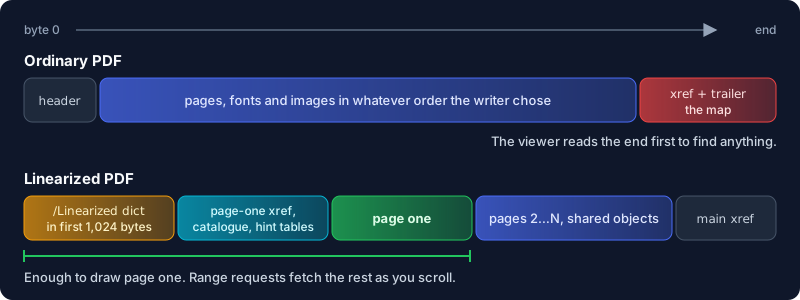
Nothing is compressed or re-rendered. The same objects are written in a different order, with some extra bookkeeping, so the file usually gets slightly bigger. When I linearized a 25,921-byte one-page PDF with qpdf 12.3.0, it came out at 26,395 bytes.
Why It Needs the Server's Help
Reordering the bytes only helps if the viewer can ask for some of them. Annex F was designed around HTTP byte-range requests: the reader "may request retrieval of portions of a document by specifying one or more byte ranges" in the request headers. With the hint tables in hand, a viewer can ask for exactly the bytes page 47 needs when you jump there.
So the server has to support range requests. Per MDN's guide to HTTP range requests, a server that answers with an Accept-Ranges header set to anything other than none supports them; if the header is missing, it doesn't. You can check yours with curl -I https://example.com/file.pdf.
The viewer has to cooperate too. The standard calls linearization an optional feature, and a reader that ignores it "can still successfully process linearized files although not as efficiently." Acrobat describes its version as restructuring a document "for page-at-a-time downloading from web servers". Firefox's viewer, pdf.js, fetches a PDF in chunks when the server supports partial content requests and keeps pre-fetching the rest in the background. Our online PDF viewer guide covers how browser viewers handle PDFs more broadly.
When Fast Web View Helps, and When It Does Nothing
It helps with large PDFs opened from a URL: manuals, annual reports, catalogues, scanned archives on a library site. Anything where a reader may only want page one or a single section. Bigger file, slower connection, bigger win.
It does nothing in four common cases:
- Small files: A 300 KB PDF downloads in less time than the extra round trips would save.
- Email attachments: The mail client downloads the whole attachment before anything opens it.
- Local files: A PDF on your disk is read from the disk, and seeking to the end costs nothing.
- Downloads that skip the browser viewer: A link with a
downloadattribute, or a server sendingContent-Disposition: attachment, saves the whole file first.
Linearization is also fragile. PDF editors often save changes by appending them to the end of the file, and the standard is blunt about it: after an incremental update "the resulting PDF is no longer linearized and subsequently shall be treated as ordinary PDF." Sign the file, or annotate it in an app that saves incrementally, and the layout is gone. Any tool that rewrites the file without a linearizing writer drops it too. So linearize last, after compressing, merging and editing.
How to Check If a PDF Is Linearized
In Acrobat or Acrobat Reader, open File > Properties and look at the Description tab. It lists Fast Web View: Yes or No. Fine for a spot check.
On the command line, qpdf has a dedicated check: qpdf --check-linearization file.pdf. It "checks to see whether a file is linearized and, if so, whether the linearization hint tables are correct", and prints either "no linearization errors" or "is not linearized". This is the one to trust.
You can also peek at the first kilobyte with head -c 1024 file.pdf. A linearized file shows something like this near the top:
<< /Linearized 1 /L 26395 /H [ 575 121 ] /O 10 /E 25869 /N 1 /T 26137 >>
/L is the file length in bytes and /N the page count. The catch: this dictionary survives an incremental update. When I appended a one-object update to a linearized file, the /Linearized line stayed at the top, /L no longer matched the real length, and qpdf reported "is not linearized". The standard agrees: a length mismatch means the file "shall be treated as ordinary PDF". If /L doesn't equal the file size, the layout is gone.
How to Linearize a PDF in Your Browser
- Open Linearize PDF and drop in your PDF, or several for a batch.
- If the file is password-protected, enter the password when asked. The output keeps the same protection.
- Run Linearize for Fast Web View. The tool has no settings, because linearization has none worth choosing.
- Check the result card, which shows the original and new file sizes, then download. The file is named
yourfile-linearized.pdf.
Under the hood this is qpdf compiled to WebAssembly, running in the tab, so an unreleased report never leaves your machine before its publish date. To script it instead: qpdf --linearize input.pdf output.pdf.
Two passes are worth doing first. Compress PDF cuts the bytes every reader has to fetch, range requests or not; our guide to reducing PDF file size explains what makes PDFs heavy. And if a file throws errors in some viewers, run PDF Health Check or Repair PDF before anything else. Linearizing a broken file gives you a well-ordered broken file.
Honest Limits
It won't make a big file small. Linearization moves page one forward. Images and fonts stay as they are, and the total download grows a little.
The tool trusts the /Linearized marker. It reads the first 1,024 bytes and, if it finds /Linearized, hands the file back unchanged and reports it as already linearized. Right for a freshly linearized file, wrong for one that was linearized and later saved incrementally, where the marker outlives the layout. If qpdf --check-linearization says such a file is not linearized, run qpdf --linearize on it directly.
It can't fix your server. Without range-request support, the file downloads in full like any other, and the reader waits just as long.
Readers may ignore it. The standard makes linearization optional for viewers. One that doesn't use it still opens the file normally and gains nothing.
Frequently Asked Questions
What does it mean to linearize a PDF?
It means rewriting the file so page one and an index of the remaining pages sit at the start. A viewer streaming the PDF from a server can then display page one, and jump to other pages, before the whole download completes. The content of the pages doesn't change.
What is the difference between a PDF/A and a linearized PDF?
They answer different questions. PDF/A (ISO 19005) is about whether a file will still render correctly decades from now, so it requires embedded fonts and forbids things like encryption. Linearization (ISO 32000, Annex F) is about how fast a file opens over a network. Neither requires the other. Our PDF/A guide explains the archival side.
Which PDF format is best?
There isn't one; it depends on the job. A document on a website opens fastest compressed and linearized. An archive copy wants PDF/A. A print job wants whatever your printer's spec asks for. One file can meet several of these if linearizing is the final step.
Does linearizing a PDF reduce file size?
No. The hint tables add bytes, so the file grows slightly. Compress first if size is the problem, then linearize.
Is Fast Web View the same as a linearized PDF?
Yes. Fast Web View is Adobe's name for it, and qpdf's docs note that many applications call linearization "optimization or web optimization". Acrobat's "Save As Optimizes For Fast Web View" preference writes linearized files.
Make Page One Show Up First
Host big PDFs? Linearizing them is free speed for every reader on a slow connection. Emailing small ones? Skip it. Linearize your PDF right in the browser as the last step before upload, then confirm with qpdf --check-linearization or Acrobat's Fast Web View line.