Rohman
You redacted the settlement draft properly. The names are gone from the page, and copy-paste turns up nothing. Before you send it, you still need to sanitize the PDF, because the file holds the reviewer's margin comments, the spreadsheet someone attached on page three, a layer the designer switched off, and the version saved before you redacted anything.
None of that shows on screen. All of it travels with the file. Sanitizing clears those hidden parts out, and it is a separate job from redaction, with its own place in the order.
Quick answer: To sanitize a PDF, remove the parts nobody sees on the page: metadata, JavaScript and auto-run actions, comments, attachments, hidden layers and earlier saved versions. Redact visible content first, sanitize second, then check the result. Sanitize PDF does this in your browser, one switch per category, and the file is never uploaded.
Sanitize vs Redact: Two Different Jobs
Adobe draws the line clearly in its own help pages. Redaction "permanently hides sensitive information": the text or images you mark are replaced with colored boxes. Sanitization "focuses on removing hidden data from PDFs. This includes metadata, embedded content, scripts, and other non-visible elements" (Adobe, About redacting and sanitizing PDFs). The same page lists the limit that matters most: "Redaction removes only visible text and graphics. Hidden data, such as metadata or embedded content, must be sanitized separately."
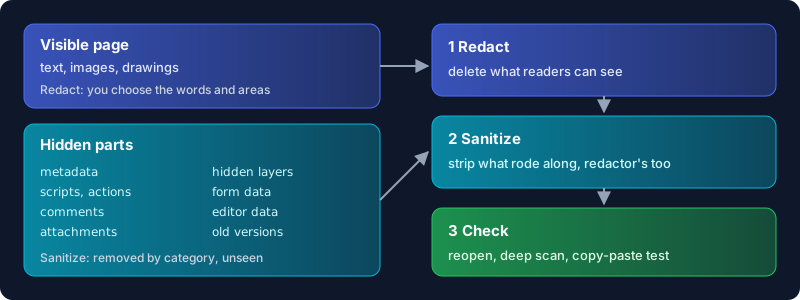
So the difference is selection. When you redact, you pick: a name, an account number, a signature block, a whole exhibit. A sanitizer picks nothing for you. It removes whole categories of data wherever they appear, and most of what it removes you never saw.
Search results for this topic mix the two, and plenty of people who redacted still need to sanitize. If you need specific words gone from the page, start with our guide to redacting a PDF so it stays redacted.
What Hides in a PDF, and What Each Part Can Do
Adobe's list of redactable data runs to fourteen types. These are the ones a sanitizer exists for, with what each can leak or do:
- Scripts and actions. A PDF can carry JavaScript, and the specification says that when a JavaScript action is invoked, the reader "shall execute a script" (ISO 32000-1, 12.6.4.16). An open action runs the moment the file opens; other actions fire when a page opens or a field changes. Forms use this for calculations. Acrobat lets you switch JavaScript off entirely, a setting Adobe says "helps protect your system from potential security risks".
- Attachments. A PDF can embed files of any type. That might be the full spreadsheet behind a one-page summary, or an executable; Acrobat keeps a block list for attachments that covers types such as .EXE and .BAT.
- Comments and markup. Sticky notes and their replies carry the reviewer's name and the internal conversation. Our guide to removing annotations covers them on their own.
- Hidden layers. Optional content is material "that can be selectively viewed or hidden" (ISO 32000-1, 8.11), common in CAD drawings and maps. A layer switched off in your viewer is still in the file, and anyone can switch it back on.
- Editor data and the file ID. PieceInfo holds "private conforming product data", such as the layer information Photoshop saves (14.5). The trailer ID's first half is set when the file is created and "shall not change when the file is incrementally updated" (14.4), which ties every later version back to the original.
- Old versions. An incremental save appends changes "to the end of the file, leaving its original contents intact" (7.5.6). Text you deleted can still be sitting earlier in the file.
Metadata belongs on this list too: author, software, dates, the XMP packet. It's deep enough to need its own article, so read how to remove metadata from a PDF for that part.
The Order That Works: Redact, Sanitize, Check
Redact first, because redaction is the step that changes the page, and it often leaves things behind. Many redactors edit the file in place. OxygenPDF's own Redact PDF blanks the text under each box and keeps the rest of the document as it was, so the original metadata, attachments, unrelated comments and form data are all still in the redacted copy. Sanitizing afterwards removes them, along with anything the redaction step wrote.
If the file is a filled form, deal with that before either step. Flatten PDF turns field values into ordinary page text, which you can then redact. The section on limits below explains why this matters.
Then check the result every time. The limits section below shows what a sanitizer can miss.
How to Sanitize a PDF in Your Browser
- Open Sanitize PDF and drop in the file, or several at once. A password-protected PDF asks for its password, and standard encryption is removed without turning pages into images.
- Look at the three switches, all on by default: Strip metadata, Strip annotations and Strip JavaScript. The JavaScript switch removes the scripts and actions attached to the document as a whole. Turn off Strip annotations only if comments and links must survive; it removes them together.
- Turn on Deep sanitize when the file has attachments or layers, or has been through many rounds of edits. A Deep scan findings panel lists what it found: an XMP packet, PieceInfo data, layers (and how many are hidden), embedded files, the document fingerprint and page action triggers. Content on hidden layers is deleted; visible layers are merged into the page.
- Press Sanitize. The result is named
yourfile-sanitized.pdf, and you can rename it before you download. - Check the output. Drop the sanitized file back into the tool with Deep sanitize on; a clean file reports "No hidden structures found". The scan doesn't cover form fields, so check those yourself. Open the file in PDF Attachments to confirm nothing is embedded, and rerun the copy-paste test on anything you redacted.
Every run saves a full rewrite, so earlier incremental versions don't survive, and objects nothing points to any more are deleted instead of shipping as orphans.
What Sanitizing Won't Do
I ran the tool's code for this article against a PDF built to fail: a filled form field with its own script, a link with a script, an open action, a page action, a bookmark with a script, and one attachment. Some of it survived.
The page itself is untouched. Text under a drawn rectangle, white text on a white background, content outside the crop box and the invisible text layer of a scanned page all stay exactly where they were. That is redaction territory.
Filled form values survive. With the default switches, the field vanished from the page and its value was still in the file's form dictionary. Deep sanitize didn't remove it either. Flatten the form first, or clear the fields, before you treat a filled form as clean.
Not every script goes. The script attached to the form field survived, and so did the one on the bookmark. The page action needed Deep sanitize, and so did the attachment in my file. Sanitize PDF is a cleanup tool for files you send; it isn't a malware scanner. For a PDF you don't trust, open it with JavaScript switched off.
Strip JavaScript removes the document's whole names dictionary, which also holds attachment names and named destinations. A bookmark that jumps to a named spot can stop working after it.
Finally, the upload question. Acrobat's Sanitize document is a desktop feature of Acrobat Pro. An online sanitizer that processes files on its server has to receive the unsanitized original first, hidden parts and all, on a machine you can't audit. That defeats the purpose, and it's why local-first PDF tools exist.
Frequently Asked Questions
What does it mean to sanitize a PDF?
It means removing the hidden data a PDF carries beyond its visible pages: metadata, scripts and actions, comments, attachments, hidden layers, application data and earlier saved versions. The pages look the same afterwards, except that removing annotations also takes comments, highlights, links and form fields off them.
How can I sanitize a PDF online?
Use a tool that runs in the browser instead of uploading the file. Sanitize PDF processes the document on your device with pdf-lib, so the unsanitized original never leaves your computer, and it works on several files at once.
How do I sanitize a PDF in Adobe Acrobat?
In Acrobat Pro, go to All tools > Redact a PDF > Sanitize document. Choose Remove all, or Selectively remove to tick items in the Hidden Information panel, then save (Adobe, Sanitize PDFs in Acrobat Pro). Adobe documents it as an Acrobat Pro feature.
What does sanitize mean in Adobe?
In Acrobat, sanitizing removes hidden data such as metadata, embedded content, scripts and other non-visible elements, while redaction removes visible text and images you mark. Adobe treats them as separate steps and says hidden data "must be sanitized separately".
Can I remove JavaScript from a PDF without changing how it looks?
Yes. Scripts and actions aren't drawn on the page, so removing them leaves every page looking the same. A form that leans on document-level scripts for its calculations may stop calculating, which rarely matters in a file you are sending rather than filling in.
Is sanitizing the same as removing metadata?
No. Metadata is one of the things a sanitizer removes. A file with clean metadata can still carry attachments, comments, scripts and old versions. Our metadata guide covers that slice in depth.
Clean the File, Not Only the Page
Redaction decides what readers see. Sanitizing decides what the file carries, and it's easy to forget because nothing on screen reminds you. Check again after any later edit, since a new save can add history back.
Sanitize your PDF in the browser and strip the hidden parts without uploading the file you are trying to protect.