Rohman
A vendor's API returned the wrong price, and the support ticket wants proof. You have the response body: one line, 14,000 characters, no spaces. Attach that and nobody will read it. Paste it into an email and the client wraps it into mush.
Converting JSON to PDF fixes the reading part. Indented, coloured, numbered, paginated, it becomes something a person can scan and cite by line. Two very different jobs hide behind the search "json to pdf", though, and only one of them is what this tool does.
Quick answer: To convert JSON to PDF, parse it, pretty-print it with indentation, then lay the text out on pages. JSON to PDF does all three in your browser: paste JSON or import up to 10 .json files, pick a light or dark theme, font size, line numbers and A4 or Letter, and download a syntax-highlighted PDF. Nothing is uploaded.
A Readable Copy or a Designed Document?
The first job is a readable copy of the JSON itself: an API response attached to a bug report, say, or a config file up for review. The structure is the content, so the PDF should show every key and bracket, in order, the way your editor does.
The second job is turning data into a designed document. An {"invoice": ...} object should come out as an invoice with a logo and a totals table, and the braces should vanish. That is templating. Services such as APITemplate.io exist for it: you design a template once and post JSON to an API that fills it in. If you only need one or two documents, a hand-built HTML page converted with HTML to PDF gets you there without an account.
Our converter only does the first job. It has no templates, no field mapping and no layout beyond the code view. If you need an invoice, stop here and pick a templating route.
Why Not Uploading Matters for JSON
JSON is rarely harmless. The payloads people want on paper are usually the interesting ones, like a customer record or a login response. OAuth 2.0 token responses, for instance, are JSON bodies with an access_token and a refresh_token sitting in plain text (RFC 6749, section 4.1.4). Config files hold database URLs and API keys.
A converter that runs on a server needs your file on that server, and then its retention policy is your security policy. Running the conversion locally skips that question. The JSON is parsed by your browser's own JSON.parse, the PDF is drawn with pdf-lib in the same tab, and the file never leaves it. Redact the secrets anyway before the PDF goes into a ticket. A PDF travels further than the JSON did.
How to Convert JSON to PDF, Step by Step
- Open JSON to PDF. Paste into the editor, or click Import .json to add up to 10 files at once. Each imported file gets a chip so you can switch between them.
- Watch the line under the editor. It says "Valid JSON", or it names the problem, as in "Invalid JSON at line 1, column 212", so you can fix the input before converting.
- Open Display Settings. Choose Light or Dark, set the font size anywhere from 8pt to 16pt (10pt is the default), and leave line numbers and indent guides on unless you want a bare listing.
- Pick A4 or Letter.
- Convert and download. One file arrives as
<name>.pdf. Several arrive together asjson-documents.zip, and any file that failed to parse is skipped and named on the result card rather than silently dropped.
Use the light theme for anything that will be printed. The dark theme paints a full charcoal background on every page, which looks right on screen and empties a toner cartridge.
Minified Input, Long Lines and Deep Nesting
Minified JSON needs no preparation. The tool parses whatever you give it and re-serialises it with JSON.stringify at two spaces per level, so a one-line response comes out one key per line. The indent is fixed at two; there's no setting for four or for tabs.
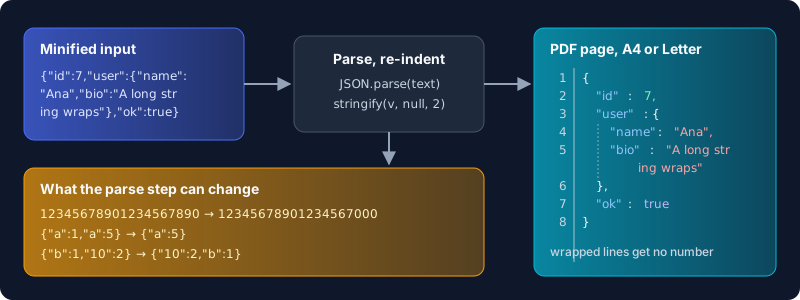
Long lines wrap. Breaks fall between tokens where possible, and a single token wider than the page, such as a base64 blob or a long signed URL, is split at a character boundary instead of running off the edge. Continuation lines are pushed four spaces further in and carry no line number, so the gutter still counts real lines.
Those line numbers count the pretty-printed output, not your input. A minified response is line 1 in your editor and might run to line 340 in the PDF. Cite the PDF's numbers in the ticket, since they're what the reader sees.
Deep nesting is where the indent guides earn their place. A thin vertical rule marks each level, and it continues across page breaks, so you can tell which object a key belongs to on page 6 without flipping back to page 5. Very deep structures still drift right and wrap a lot. Dropping the font to 8pt buys width.
Honest Limits: What the Round Trip Can Change
Because the tool parses before it prints, the PDF shows what your browser's JSON parser understood, which isn't always character-for-character what the file said. I ran {"b":1,"10":2,"2":3,"id":12345678901234567890,"a":1,"a":5} through the same parse-and-stringify step and got {"2":3,"10":2,"b":1,"id":12345678901234567000,"a":5} back. Four things to know:
- Huge integers get rounded. JavaScript numbers are IEEE 754 doubles, and RFC 8259 only promises exact agreement for integers between -(2^53)+1 and 2^53-1. A 64-bit ID beyond that comes out with trailing zeros. MDN notes the same loss and suggests sending big numbers as strings.
- Duplicate keys collapse to the last one. The RFC says names SHOULD be unique and calls behaviour with duplicates unpredictable. Here the last value wins, and the earlier one never reaches the PDF.
- Numeric keys move to the front. JavaScript orders integer-like property names ascending before other keys (ECMAScript, OrdinaryOwnPropertyKeys). Ordinary keys keep their order.
- Comments and trailing commas are rejected. Files like VS Code's
settings.jsonuse JSON with Comments, which strict JSON is not. Strip the comments first or the file won't convert.
If the PDF is evidence in a dispute about an ID or an amount, check those fields against the raw file. To print the file exactly as written, convert it with Text to PDF instead and give up the highlighting.
The rest is scope. There's no collapsing of sections, no landscape option and no custom margins or page headers. Arabic and Hebrew strings render with the right glyphs but are not reordered right to left, a limit of the PDF library's text engine.
Doing It From the Command Line
If you live in a terminal, you don't need a website. jq pretty-prints with its identity filter, jq . data.json, takes --indent n up to 7 or --tab, and tries to keep the original precision of number literals unless it was built with --disable-decnum. Python ships the same thing as python3 -m json.tool, and Python integers don't overflow, so big IDs survive.
Neither makes a PDF. Pipe the output through GNU enscript to PostScript and Ghostscript's ps2pdf to a PDF:
jq . response.json | enscript -p - | ps2pdf - response.pdf
That gives you a plain monospaced listing with enscript's default header. It's scriptable, which the browser tool isn't, and it's the right choice for a nightly job. For a one-off attached to a ticket, the browser route gets you colour, line numbers and indent guides with nothing to install.
If your structured data is really a table, CSV to PDF will serve the reader better, and our guide to printing a wide CSV explains why. For prose with code blocks, see Markdown to PDF, and for logs and plain listings, TXT to PDF.
Frequently Asked Questions
Can I convert a JSON file to PDF?
Yes. Import the .json file into the converter, set the theme and page size, and download. You get a highlighted, paginated PDF with line numbers, made in your browser without uploading the file.
How do I convert a JSON file to readable?
Pretty-print it. Indenting each nesting level and putting one key per line is most of the work, and jq . or python3 -m json.tool do it in a terminal. Converting to PDF adds pages and line numbers for sharing.
Can I open a .JSON file?
Yes. JSON is plain text, so any text editor opens it, and Firefox includes a JSON viewer that shows the data as a collapsible tree. You only need a PDF when someone without those tools has to read it.
How do I open a PDF JSON file?
The phrase usually means a .json file you want to read as a PDF. Convert it as above. A .json file never needs a PDF reader to open; a text editor or browser shows it.
Will the PDF change my data?
The layout can't, but parsing can. Integers beyond 2^53 are rounded and duplicate keys keep only the last value. Integer-like keys also move to the front. Check those fields against the source if they matter.
Is the text in the PDF searchable?
Yes. The JSON is drawn as real text in an embedded monospace font, so you can select it, copy a value out and search with Ctrl+F or Cmd+F.
Print the JSON, Keep the Secrets
A response body nobody reads proves nothing. Laid out with line numbers, it settles the ticket. Convert your JSON to a PDF in the browser tab you already have open, and the tokens inside it stay on your machine.