Rohman
Somewhere right now, a court's e-filing system is rejecting a document with a message as helpful as "Court Response of Failure," and a filer is discovering at 4:45pm that they need to flatten a PDF without knowing what that means.
Fair enough. "Flatten" is jargon borrowed from at least four different workflows, and the tools that offer it rarely say which kind they do.
In short: flattening takes everything interactive in a PDF — filled-in form fields, floating comments, toggleable layers — and merges it into the static page itself, so what you currently see becomes all there is left to see. What follows covers which of the five senses of "flatten" you actually need, what changes inside the file when you run it, and the two things that don't survive the trip.
What Flattening Actually Does
A PDF can be more than a picture of a page. On top of the static content, it can carry interactive machinery: form fields you can type into, comments and stamps, signature widgets, toggleable layers. Each of those lives in the file as its own object rather than as part of the page itself — a form field, for example, is a widget annotation sitting on top of the page, holding an appearance stream that draws whatever you currently see in it. Flattening takes that appearance stream and paints it directly into the page's own content, then deletes the annotation. The page no longer knows a field was ever there; it just has text where the text used to be drawn by a separate, interactive object hovering above it.
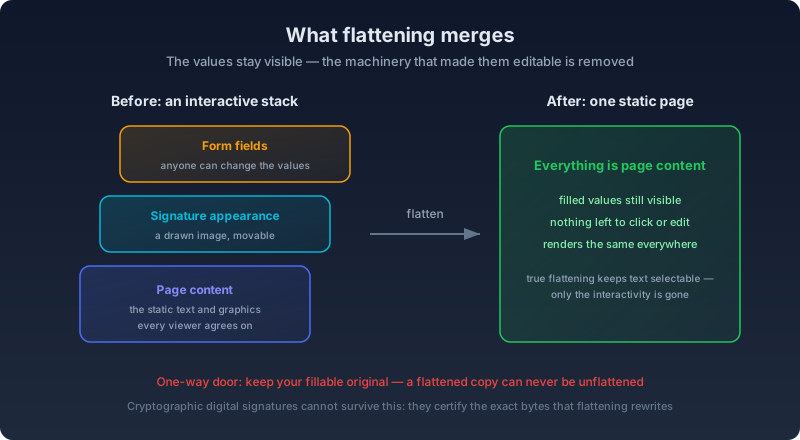
The key detail: what you see survives. A filled-in name stays visible; the field holding it disappears. The document goes from "editable object stack" to "printed page that happens to be digital." And it's a one-way door. There is no unflatten, so keep your fillable original — once a field is deleted, there's no marker left in the file telling any tool it used to be there to rebuild.
One Word, Five Operations
When someone tells you to flatten a PDF, they mean one of these:
- Form flattening. Interactive fields become static text. This is what courts want and what most "flatten" buttons do.
- Annotation flattening. Comments, highlights, sticky notes, and stamps get painted into the page instead of floating above it. A markup layer that used to pop open a note bubble on hover becomes ink that's just... there, permanently, whether the reader wants the commentary or not.
- Layer flattening. PDFs exported from InDesign or CAD and GIS software can carry Optional Content Groups — the PDF specification's formal name for what everyone else just calls layers — and each one can be switched on or off in a capable viewer. Acrobat's own "Flatten Layers" option merges every visible layer into the page's base content and removes that on/off infrastructure entirely. Most general-purpose flatten tools, this one included, never reach into that layer at all; they only touch the form-field layer.
- Rasterizing. Some tools "flatten" by re-rendering every page as an image. It works, but text stops being selectable or searchable and files balloon.
There's a fifth sense that causes real confusion: when a print shop asks for a flattened PDF, they usually mean transparency flattening — a prepress step where a raster image processor resolves every transparent or translucent object, like a drop shadow or a semi-opaque highlight, into fully opaque output before it reaches a plate or a proof. That has nothing to do with form fields, and it can introduce its own artifacts — thin white seams at the edges of overlapping color zones, slightly thicker-looking text — that a print shop's prepress software is built to catch and a general-purpose PDF tool isn't. Same word, entirely different fix, entirely different tool.
What Actually Changes Inside the File
It's worth being precise here, because "flatten" gets used loosely enough that people assume it does more than it actually does. A PDF form's structure lives in two connected places: an /AcroForm dictionary that lists every field and its current value, and a widget annotation on the relevant page that draws that value using its own appearance stream. A proper form flatten takes each widget's existing appearance stream, draws it into the page's content at the widget's exact position and size, then deletes the widget and its entry from /AcroForm. Nothing else about the page is touched — no re-rendering, no recompression, no change to the fonts or images already sitting on it. Only the fields disappear, and only after their current appearance has been copied into what's left behind.
That mechanism is also why flattening fixes the classic Apple Preview problem. Preview writes a field's typed value into the file but skips generating a fresh appearance stream to go with it, instead relying on a flag called /NeedAppearances to tell the next viewer to build one on the fly. Plenty of viewers, and most printers, ignore that flag — so you get a field that holds a value in the raw data but shows nothing on screen or on paper. A flatten step that regenerates appearance streams before merging them in has to build the missing appearance first, which is exactly the piece Preview skipped. The value goes from present-but-invisible to visibly baked into the page, because the tool did the work the display never did.
Why You'd Actually Do This
Whoever receives your form can edit it
An unflattened form ships with live fields. The recipient of your signed quote can change the amounts and the file will still look just as official — nothing about a filled-in field visually announces that it's still editable. Flattening freezes what you submitted, so the numbers a client received are the numbers they can be held to.
Courts bounce unflattened filings
The Western District of New York, the Fourth Circuit, and the District of Nevada's bankruptcy court each publish their own step-by-step flattening instructions for CM/ECF filers, and the reasoning across all three lands on the same two points. Western New York's guide calls flattening "particularly important when the original PDF is a fillable form or other PDF that has unusual attributes like overlayed signatures, images or other non-text components," and explains that printing the file to a new PDF "flattens the PDF and eliminates the form fields but keeps their data" (Western District of New York). The Fourth Circuit frames it as compatibility plus security: flattening "ensures the document can be viewed on all devices" and "prevents other users from manipulating or editing the information" once it's filed (Fourth Circuit). Nevada's bankruptcy court is blunter about the failure mode: "Multiple problems accessing docketed PDFs have been reported where the PDFs are not printing or they are generating errors when opened from the docket," and its guidance states plainly that "the entire PDF document must be flattened (print to PDF) prior to uploading into CM/ECF" (District of Nevada).
All three courts point filers toward the same workaround: print the file to a new PDF. It does the job — the output has no live fields left to reject — but it also rasterizes every page in the process, which is a fair trade for a two-page motion and a rough one for a fifty-page exhibit stack a clerk needs to search and copy text from later.
Forms filled in Apple Preview show up blank
A classic. Preview writes field values without the display data other viewers expect, so your carefully filled form opens empty in Acrobat and prints blank. Flattening bakes the values into the page, and what you see becomes what everyone gets. If you build forms for other people, make them fillable, then flatten once the data is in.
Signatures need to stay put
A drawn signature is an image sitting on the page, and on an unflattened document it can be moved or lifted off entirely. Sign and fill, then flatten, and it's part of the paper rather than a shape floating a few points above it.
Calculated fields stop recalculating
Some fillable forms carry a bit of scripting on their fields — a total that updates itself as line items above it change. That's convenient while you're filling the form out and a liability once you're finished with it: the total on screen is only as reliable as the last time the script ran, and a viewer with scripting disabled, or a different reader entirely, can show a stale number sitting next to figures that have since changed. Flattening locks in whatever the field displayed at that instant as plain page content, so the number that ships is the number that was actually on screen when you flattened it — not a live formula that might quietly recompute to something else in someone else's viewer.
The Two Things That Break
Cryptographic digital signatures die, by design. A certificate-based signature validates the exact byte range of the document as it existed at the moment of signing — add or change anything afterward, including running a flatten pass, and the file's hash no longer matches what was signed. As one widely cited explanation on Adobe's own user community puts it: "When a document is signed, the signature applies to the exact byte range of the file at the time of signing." Change the file after that, even by adding a comment, and the signature shows as invalid — not because anything was tampered with maliciously, but because that's precisely what the signature is designed to detect. The order matters. If a document needs both a valid cryptographic signature and a flatten pass, flatten first and sign last; reverse it, and the signature you just applied breaks the moment you flatten afterward.
Drawn e-signatures, the kind most people actually use for everyday paperwork, survive fine, because they were never a cryptographic promise about the document's byte-for-byte integrity in the first place — they're an image sitting on the page like any other, and flattening treats them exactly the way it treats a filled-in text field. Some courts even want digital signatures flattened before filing, since their docket systems check for the older /s/ Jane Doe text convention instead of a PKI-based signature block.
Flattening is not redaction, either. It bakes in what's visible; it doesn't remove what's underneath. Hidden text and metadata stay in the file, and so does whatever your black rectangle is covering — a flattened redaction box is still, after flattening, just a black rectangle drawn on top of live, extractable text. If the goal is making information unrecoverable, that's a different operation entirely.
Flatten in the Browser, Keep the Text
OxygenPDF's Flatten PDF tool does form flattening, properly, using pdf-lib, an open-source PDF library. Here's the whole flow:
- Drop in the file — or a whole folder of them, if you're clearing a batch of signed filings at once.
- If it's password-protected, unlock it inline with the password. The tool decrypts it and loads the pages without asking you to strip the password first.
- It reports how many form fields it found, alongside the page count, before you commit to anything — so you're not flattening a document you assumed was static, or skipping one you assumed wasn't.
- One click merges every field into the page. There's no partial mode: every field in the file gets flattened in the same pass, so if part of the form still needs to stay live, handle that in the original before this step.
- Download the result. Because it's built on true appearance-stream flattening rather than re-rendering, the text in a regular PDF stays selectable and searchable — unlike the print-to-PDF workaround the courts above suggest.
Scope note so you're not surprised: it flattens form fields, not comments or layers. Comments and markup are a different job, and Remove Annotations deletes those outright if that's what you actually want.
Everything runs client-side. For court filings, that's not a small point: the documents you're flattening are exactly the documents you don't want passing through a converter's server.
Mistakes That Undo a Flatten
Flattening before the form is actually finished. Once a field is gone, it's gone — there's no way to reopen a flattened page as a fillable field again short of rebuilding the form from scratch with a new field laid over the old spot. If a colleague still needs to add their portion, get every field filled and every signature collected first, and flatten last, once, at the very end.
Flattening after signing, when the signature needed to stay verifiable. Covered above, and worth repeating because it's the mistake that's hardest to notice until someone tries to validate the file weeks later: run any edit at all on a signed document, flatten included, and a certificate-based signature can no longer confirm the file is unchanged from the moment it was signed.
Asking a flatten tool to do a print shop's job, or the reverse. A form-flattening tool has nothing to say about a drop shadow's opacity, and a prepress transparency flattener has nothing to say about your AcroForm fields. Naming which of the five senses you actually mean before picking a tool saves a confused round trip with whoever asked for "a flattened PDF."
Assuming flatten equals redact. A black box drawn over a Social Security number is still, after flattening, just a black box drawn on top of a Social Security number — the text underneath is exactly as extractable as it was before. If the document is leaving your hands and the covered information can't travel with it at all, redact, don't flatten.
The Checklist Version
Flatten when a form is finished collecting data and about to leave your hands, whether for a court docket or for a client who shouldn't be able to edit your numbers. Keep the fillable original — there's no undo once it's done. Expect a certified digital signature not to survive a flatten pass, and flatten before you sign if a document needs both. Expect comments, layers, and hidden metadata to come through a form flatten completely untouched, because a form flatten never reaches for any of them. And if a print shop asked for a flattened file, talk to them about transparency before you reach for a form-flattening tool at all.
Frequently Asked Questions
Does flattening remove hidden metadata or make redaction unnecessary?
No. Flattening only changes how form fields, comments, or layers are stored — it merges their visible appearance into the page and deletes the interactive object underneath. Document metadata, hidden text layers, and anything merely covered rather than deleted stay fully intact and extractable afterward. Use a dedicated redaction tool when the actual goal is making information unrecoverable.
Can I flatten only some of a form's fields and leave the rest interactive?
Not with a general flatten button, including OxygenPDF's. A standard flatten pass processes every field in the document in one operation; there's no per-field toggle in the tool itself. If part of a form genuinely needs to stay fillable — a second signer's section, say — remove or extract that section before flattening the rest, or flatten a copy and keep the live original for whoever still needs to fill in their part.
Does flattening work on a scanned PDF?
Yes, though there's usually nothing for it to do. A scanned page that's just a picture, with no form fields on it, has no interactive layer to merge, so flattening it simply re-saves an already-static file with no visible change. If the scan has gone through OCR and now carries an invisible, searchable text layer behind the image, that layer isn't touched either — a form flatten reaches for fields and annotations, not OCR text.
Will flattening make my file smaller?
Usually not by much, and sometimes the file grows slightly, because deleting a widget annotation removes a small amount of overhead while painting its appearance into the page content adds back a comparable amount. Flattening is not a compression step. If reducing file size is the actual goal, compress the PDF as a separate operation.
Do I need Adobe Acrobat to flatten a PDF?
No. Acrobat's form tools and Organize Pages panel can flatten, but so can any tool built on a PDF library that implements the operation — including a browser-based one that never uploads the file anywhere. The courts' own instructions default to Acrobat's print-to-PDF workaround mainly because it's the tool every filer is assumed to already have installed, not because it's the only method that produces a valid result.
Can I undo a flatten if I ran it on the wrong file?
Only by going back to a copy you saved before you ran it. No PDF operation reverses a flatten — the field objects and their /AcroForm entries are deleted outright, not hidden or disabled, so there's nothing left in the file to restore from. This is the one habit worth building before you flatten anything at all: keep the fillable original somewhere until you're genuinely sure you won't need it again.
Does flattening affect bookmarks, the table of contents, or page order?
No. A form flatten touches only the AcroForm fields and their widget annotations on the pages that hold them. Bookmarks, the outline tree, page order, and every other piece of the document's structure pass through untouched.
Flatten your PDF in the browser, and the filing system gets the static file it wants, with the text still being text.