Rohman
You want to write in the margins. Maybe it's a set text for a seminar, maybe it's your own manuscript and you proofread better on paper, maybe it's a public-domain classic you'd like to print and bind. Your e-reader can highlight, but it can't hand you a stack of pages and a pen.
So you look for an EPUB to PDF converter, and the first surprise is that the results vary wildly from one tool to the next. That's not because some tools are broken. It's because an EPUB doesn't have pages to convert.
Quick answer: To convert EPUB to PDF, the converter has to typeset the book from scratch: pick a page size, a font and margins, then flow the chapters onto pages. EPUB to PDF does that in your browser with A4 or Letter pages, 9–18 pt serif text and real, selectable words. It works on DRM-free books only.
An EPUB is a website in a zip file
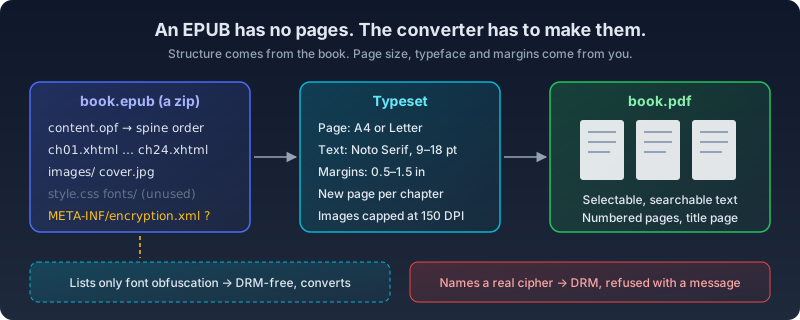
Rename a .epub to .zip and open it. Inside you'll find a folder of XHTML chapter files, a stylesheet or two, the images, maybe some fonts, and a package file (the OPF) that lists every resource and the order the chapters should be read in. The W3C's EPUB 3.3 specification, a Recommendation whose current version is dated January 2026, calls that reading order the spine.
What you won't find is a page. Reflowable is the default layout in EPUB: the text reshapes itself to whatever screen and font size the reader picks, which is exactly why ebooks are pleasant on a phone. The spec does allow a fixed-layout mode, marked pre-paginated in the package file, and that's what comics, picture books and some cookbooks use. Most novels and nonfiction are reflowable.
That changes what "convert" means. Going from EPUB to PDF isn't a format swap like PNG to JPG. The converter has to make typesetting decisions the author never made: how big the page is, how wide the margins are, how large the type is, where each page breaks. Two converters will make different decisions, and neither is "the original layout," because there wasn't one.
What survives the trip, and what doesn't
Here is what our converter does with each part of the book. I'm listing it plainly because the answer to "does it keep formatting?" is "some of it, on purpose."
| Part of the EPUB | In the PDF |
|---|---|
| Chapter order (the spine) | Kept exactly; each chapter starts on a new page |
| Headings, paragraphs, block quotes, scene breaks | Kept as structure, re-set in Noto Serif |
| Bulleted and numbered lists | Kept, with • or 1. markers |
| Images and the cover | Embedded; the cover leads a title page with title and author |
| Tables | Flattened to one line of text per row, cells separated by a vertical bar |
| Bold and italic inside a paragraph | Flattened to regular text |
| The publisher's CSS and embedded fonts | Ignored; the tool uses its own typography |
| SVG illustrations and MathML equations | Dropped |
| Text | Real text you can select, search and copy |
Two of those rows deserve a sentence each.
Losing inline italics is the one readers notice. Emphasis, book titles and foreign phrases go roman. Our renderer draws each paragraph as a single run of type, which keeps pagination predictable and text selectable, but it can't switch faces mid-line. For a novel you're reading, that's a small loss. For a critical edition where italics carry meaning, it's a real one, and you should know about it before you print 300 pages.
Dropping SVG and MathML matters for technical books. If your EPUB is a math textbook that sets its equations in MathML, those equations won't appear in the PDF at all. Picture-heavy fixed-layout books are the other poor fit: they get reflowed like prose, so a two-page spread stops being a spread. For a comic, you want CBZ to PDF or the images themselves, not a typesetter.
Images are embedded at up to 150 DPI at the size they're placed on the page, which is plenty for photos and illustrations in a reading copy. And since the text is drawn as text, a 400-page novel comes out small and fully searchable, not as a stack of page scans.
DRM: the part no honest converter can do
Most books bought from the big stores carry DRM, encryption tied to your account or device. The content files inside the zip are scrambled, and the only software meant to unscramble them is the store's own reading app. A converter that opens the zip sees ciphertext where the chapters should be.
Plenty of sites will tell you to strip the DRM first. We won't. In the US, 17 U.S.C. § 1201 makes it unlawful to circumvent a technological measure that controls access to a copyrighted work, and "circumvent" explicitly includes decrypting it. There's no general exception for books you paid for; exemptions come from the Copyright Office's rulemaking every three years, and none of them covers "I'd like to print my novel." Whatever you think of that law, and plenty of authors and readers think poorly of it, a tool that quietly helps you break it isn't doing you a favor.
So EPUB to PDF checks for DRM before it does anything else, and if a book is encrypted it tells you so instead of producing a PDF full of garbage.
That's also why Kindle books aren't on the table. They aren't EPUB files to begin with, they carry Amazon's DRM, and since February 26, 2025, Amazon no longer offers the "Download & Transfer via USB" option that used to let you save purchased books to a computer, as Good e-Reader reported.
Where DRM-free books actually come from
More places than you'd guess.
Project Gutenberg lists 79,474 free ebooks as of this writing, almost all public domain, and offers EPUB downloads. Standard Ebooks takes public-domain texts, proofreads them and produces carefully typeset editions, over a thousand of them. Some publishers sell without DRM entirely: Tor Books announced back in 2012 that its whole ebook list would go DRM-free, with publisher Tom Doherty saying DRM "prevents them from using legitimately-purchased e-books in perfectly legal ways, like moving them from one kind of e-reader to another" (Tor.com). Many small presses and indie authors do the same. And every EPUB you export yourself from Vellum, Pages, InDesign or Sigil is yours to convert.
The false alarm we fixed
Here's a detail most converters get wrong, and ours did until this week. EPUB has a place for encryption information, META-INF/encryption.xml, and a lazy DRM check just looks for that file. But the same file is also used for font obfuscation, a publisher's way of scrambling the first 1,040 bytes of an embedded font so it can't be lifted out of the book and installed. The EPUB 3.3 spec is blunt about it: "obfuscation is not encryption." Books exported from InDesign use it all the time, with no DRM anywhere in sight.
Our tool used to refuse those books. It now reads encryption.xml, and if the only thing listed there is font obfuscation it converts the book normally. We never use the book's fonts anyway, so nothing is lost. If the file names a real cipher, the tool still refuses.
How to convert EPUB to PDF in your browser
- Open EPUB to PDF and drop in a
.epubfile. The book is unzipped and parsed in your browser tab; nothing is sent to a server. - Check the preview. It shows the cover and the chapters the tool found, so you can spot a missing chapter before you convert.
- Pick a page size: A4 (the default) or US Letter.
- Set the font size, anywhere from 9 to 18 pt. It starts at 11 pt, which reads well at arm's length. Go up to 13 or 14 if you're printing for someone who reads with glasses on.
- Set the page margin, from 0.5 to 1.5 inches. More on this below, because it matters more than you'd think.
- Convert and download. Chapters start on fresh pages, pages are numbered, and the title page carries the cover.
If the book uses a script our serif doesn't cover, such as Chinese, Japanese or Arabic, the tool falls back to Noto faces for those characters and warns you if any glyph is still missing, rather than printing empty boxes.
Settings for the thing you're actually going to do
For annotating, go wide. The default margin is about 0.78 inches. Push it to 1.25 or 1.5 inches and you get a real column of white space for notes, which is the whole reason you're converting. Pair it with 12 pt text so there's room between lines for underlining.
For printing to bind, pick the paper you'll print on. Letter for US printers, A4 almost everywhere else. If you want a smaller book-sized object, print two pages per sheet with N-up, or impose it as a folded booklet with PDF Booklet, then fold and staple. A 1-inch margin survives most home printers and a little trimming.
For reading on a tablet with a pen, keep A4 or Letter and bump the text to 13–14 pt. A tablet shows the whole page at once, so large type saves you zooming. Then mark it up with Annotate PDF, which also runs locally.
For sending one chapter to someone, convert the book, then pull the pages you need with Extract Pages instead of re-cutting the EPUB.
Why do this in a browser at all
Two reasons, one practical and one about trust.
The practical one: Calibre is excellent, free and open source, and its ebook-convert has far more knobs than we'll ever ship. If you already have it installed, use it. But it's a desktop install, and a lot of people who need one PDF from one EPUB are on a work laptop that won't allow it, or a Chromebook, or a borrowed machine.
The trust one: the books people most want to convert are often the ones they'd least like to upload. An unpublished manuscript, a draft you're sending to beta readers, a review copy from a publisher that came with a polite request not to share it. An upload-based converter has to receive the whole file to do its job. Local-first tools don't, so there's no copy sitting on anyone's server afterwards.
Frequently Asked Questions
Can I convert EPUB to PDF and keep the exact formatting?
Not the exact formatting, from any converter, because a reflowable EPUB has no fixed formatting to keep: the layout is created by whatever reader opens it. Our converter keeps the book's structure (chapter order, headings, quotes, lists, images) and sets it in its own serif typography. Inline bold and italic are flattened, and the publisher's fonts and CSS are not used.
Why won't my EPUB convert? It says it's DRM-protected.
Because it is. Books from most major ebook stores are encrypted and can only be opened in the store's own apps. Converting them would mean circumventing that encryption, which the US DMCA prohibits even for books you own. Look for a DRM-free edition instead: publishers such as Tor sell them, and public-domain books are free from Project Gutenberg and Standard Ebooks.
Can I convert Kindle books to PDF?
Not with this tool. Kindle store books are a different format with Amazon's DRM, and Amazon removed its USB download option in February 2025. For your own documents, Amazon's Send to Kindle works the other way round, from EPUB or PDF to your Kindle.
Is the text in the PDF selectable and searchable?
Yes. Every word is drawn as real text, not as an image of a page, so you can search, copy and highlight it in any PDF viewer, and file sizes stay small.
Does it work with fixed-layout EPUBs like comics or picture books?
It will produce a PDF, but it reflows them like prose, so two-page spreads and precise image placement are lost. For image-first books, CBZ to PDF or working from the images directly gives a better result.
What about MOBI or FB2 ebooks?
The same typesetting engine handles both: use MOBI to PDF for DRM-free Kindle-era MOBI files and FB2 to PDF for FictionBook files.
Start with a book you're allowed to print
Grab a DRM-free EPUB, set the margins wider than feels normal, and print a chapter before you print the whole thing. Convert your EPUB to PDF here. It runs in your browser, and the book never leaves your machine.