Rohman
You sign a sheet of printer paper, snap it with your phone and drop the photo onto a contract. It looks wrong straight away: a grey-beige rectangle sitting on top of the page, clipping the signature line, with a shadow in one corner where your hand was. To make a signature transparent you have to get rid of the paper and keep only the ink.
Most people fix it by uploading their own signature to a random website. You don't have to.
Quick answer: To make a signature transparent, sign on plain white paper, photograph it in even daylight and open the photo in Extract Signature from Photo. It estimates the paper colour, makes every paper pixel transparent and saves a PNG. Then place that PNG with Sign PDF. Both steps run in your browser, and the photo is never uploaded.
Why a JPG Signature Shows a White Box
A phone photo is a JPG, and JPG has no transparency. Every pixel is a colour, including the thousands of pixels of paper around your strokes. Put that image on a PDF and the paper comes with it.
PNG can carry an alpha channel, a fourth value per pixel that says how opaque it is (W3C PNG specification). A signature PNG done properly has alpha 0 everywhere the paper was and alpha near 255 on the ink. Drop it on a page and the page shows through around the letters.
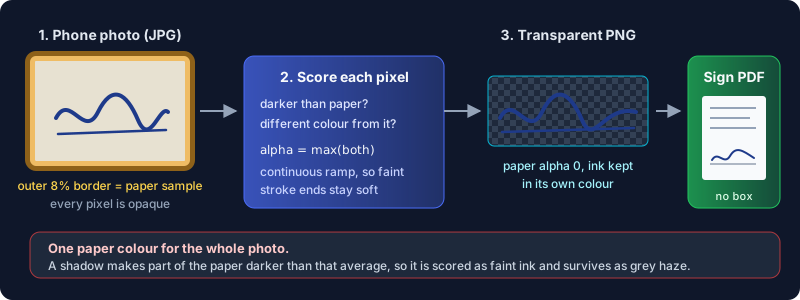
The trick is deciding which pixels count as paper. A hard cut ("anything lighter than X is gone") leaves jagged edges and eats the faint start and end of each stroke. A soft ramp keeps them, at the cost of keeping a little of anything else that isn't paper-coloured. Deep shadows included.
How the Extraction Works
I read the tool's source before writing this, so here is what it does rather than what it claims.
It samples the outer 8% of the photo on every side and averages it into one paper colour. Then it scores every pixel twice: how much darker it is than the paper, and how different its hue is. Blue ink on white paper is only moderately darker but clearly bluer, so the hue score catches it. A shadow makes paper darker without changing its hue, so it only ever registers on the first score. The higher of the two scores becomes the pixel's opacity, on a continuous ramp rather than an on/off switch. The original colour is kept, so blue ink stays blue.
Three controls tune it:
- Ink colour. Auto-detect, blue, black, or red for stamps and seals. Picking the right one boosts strokes of that hue and plays down everything else.
- Background cleaning. Sets how far a pixel has to fall below the paper's brightness, and how far its hue has to stray, before it counts as ink. Higher clears more paper tint and light shadow. Push it to the top and the faintest pen strokes start to go as well.
- Edge contrast. Steepens the ramp, which firms up faint strokes and also anything faint you didn't want.
Finally it crops to the ink plus a small border, and encodes a PNG. Photos larger than 2,048 pixels on the long side are scaled down to that first, which is still far more detail than a signature needs on a page. The crop ignores the faint grain a camera leaves in blank paper and isolated specks of dust: it measures how opaque the paper at the border came out and only counts pixels clearly above that, and only where they join up into a stroke. A faint pen stroke that is connected survives. In my tests a 1,600 × 1,000 photo came out at 1,049 × 272, cropped to the signature.
Take the Photo So It Has Nothing to Fix
The extraction assumes the paper is one colour. That is the whole game, and it explains every good and bad result I got.
I tested synthetic photos of the same blue signature. On evenly lit paper the result was clean: composited back onto a white page, the paper area was indistinguishable from blank. On a photo with a soft shadow falling across one side, about 18% darker than the rest of the sheet, the default settings cleared the shadowed paper completely. Its opacity measured zero. Then I deepened the shadow to about 30%. Now the shadowed corner was darker than anything cleaning will throw away, so the tool read it as faint ink. The PNG carried a grey haze that showed up on a white page, even at 100% cleaning, and the crop stretched to take in that corner. Faint strokes that fall inside a shadow are also the first thing a high cleaning setting removes.
So the photo matters more than the settings:
- Sign with a felt-tip or gel pen on plain white printer paper. Ballpoint works, but its strokes are thinner and lighter.
- Shoot near a window in daylight, phone held flat above the page, not at an angle. No overhead lamp throwing your shadow.
- Fill most of the frame with paper and keep the signature away from the edges. The border is where the paper colour gets sampled, so a stroke running off the edge, or a desk showing at the corner, skews it.
- JPG or PNG only. iPhone HEIC photos aren't accepted, so set the camera to "Most Compatible" or export a JPG first.
Step by Step: Photo to Transparent PNG to Signed PDF
- Open Extract Signature from Photo and drop in the photo.
- Watch the preview pair: your photo on the left, the result on a checkerboard on the right. The checkerboard is transparency. Any tint you can see over it will show on the PDF.
- Set the ink colour to match your pen. Leave cleaning and contrast at their defaults to start. If a tint survives on the checkerboard, raise cleaning. If faint strokes are breaking up, lower cleaning or raise contrast, a step at a time.
- Click Extract signature. You get a PNG named after your photo with
-signatureadded. - Click Download PNG to keep a copy, or Open in Sign PDF. That button saves the PNG into Sign PDF's signature library and opens the tool, so the signature is waiting there.
- In Sign PDF, load the document, pick the signature in the library, click the page where it goes, resize it, and download.
The library lives in your browser's local storage. It's on that device, in that browser, and nowhere else. Clear site data and it's gone, which is why downloading the PNG as well is worth the extra click.
One warning about Sign PDF's own Import tab: give it the PNG, never the raw photo. It stores the image exactly as you hand it over, so a photo brings its paper along, and right now a JPG imported there fails when the PDF is saved. The extractor's PNG is the route that works.
An Image Signature Is Not a Digital Signature
A transparent PNG on a page is an electronic signature in the everyday legal sense. US federal law defines one as "an electronic sound, symbol, or process, attached to or logically associated with a contract or other record and executed or adopted by a person with the intent to sign the record" (15 U.S.C. § 7006). The EU's eIDAS regulation says an electronic signature "shall not be denied legal effect" just for being electronic (Regulation (EU) No 910/2014, Article 25). For a lease, an offer letter or a school form, that is usually all anyone asks for.
What a picture can't do is prove the document hasn't changed since you signed it. Anyone can copy your PNG onto another file. A digital signature is different: a cryptographic seal on the file's bytes that breaks if a single character changes. If the other side asks for a certificate-based signature, you need Digital Sign PDF, and our guide to digital signatures in PDFs explains the difference in detail. For everyday sign-and-return, signing and filling a PDF for free covers the rest of the workflow.
An image signature is easy to copy, so be careful where you upload a photo of one. This tool does all of its work inside the browser tab. Nothing leaves your device.
Frequently Asked Questions
How do I make my signature transparent for free?
Photograph your signature on white paper in even light, open it in Extract Signature from Photo and download the PNG. It costs nothing, needs no account and runs in your browser.
Why does my signature have a white background on the PDF?
Because the image is a JPG, or a PNG saved without transparency. Both store the paper as visible pixels. Convert it to a PNG with a transparent background before placing it.
Can I remove the background from a signature on my phone?
Yes. The tool runs in a mobile browser, and the settings open in a bottom sheet once the photo loads. Take the photo, open the page in Safari or Chrome and extract it there.
Why is there a grey haze around my extracted signature?
There's a shadow or uneven lighting in the photo. Raise Background cleaning first: a light shadow clears. A deep one won't, because the tool takes one paper colour from the edges and very dark paper reads as faint ink. Retake the photo in even daylight rather than fighting it with sliders.
Is a transparent signature PNG legally binding?
In most everyday contexts an image signature counts as an electronic signature under laws like the US ESIGN Act and the EU's eIDAS. It isn't a certificate-based digital signature, so it can't prove the file wasn't altered later.
Is it safe to upload my signature to an online tool?
Many online background removers process the photo on their own servers. This one works inside your browser, so there is no upload to worry about.
Signed it on paper already? Turn the photo into a transparent PNG and put it on your PDF without the box.