Rohman
For about a decade, "how do I convert HTML to PDF" had one standard answer: wkhtmltopdf. That project was archived on January 2, 2023. Its last stable release dates to 2020, and it ships an unpatched server-side request forgery vulnerability rated 9.8 out of 10. A generation of tutorials still points at abandonware.
So the question is open again. And the replacements sort into two camps: tools that need a Node.js runtime and a full Chrome binary, and websites that want your markup uploaded to their servers. If you just have an HTML file and want a document, neither camp is built for you.
Quick answer: open HTML to PDF, paste your markup or import a saved .html file, and generate. The conversion runs in the browser tab you already have open — nothing uploads, there's no account, and no hourly quota to run into. What comes back is a rasterized PDF: a faithful picture of the page rather than selectable text, which is the right shape for a receipt, a report, or a saved template. If you need the text searchable afterward, running the result through OCR adds a text layer.
An HTML File Is Usually a Document
What is an .html file, for most of the people searching this? Rarely source code. More often it's an email receipt saved from a mail client. An order confirmation. A bank statement exported from a portal that inexplicably chose HTML. A report some internal tool generated.
Which means it has your name in it. Your address, your order history, sometimes account numbers. "Convert HTML to PDF online" translates to "upload this document to a stranger's server and trust their deletion policy."
The deletion policies, for the record: Sejda's privacy policy commits to removing both the files you upload and the files it hands back once a job finishes — in its own words, "all user-uploaded files as well as the processed output files will be permanently deleted after upload or processing respectively," with a shared link as the one exception, kept for seven days. Smallpdf and iLovePDF publish similarly short retention windows of their own. I believe them, mostly. But you can't audit a server you don't control, and local conversion makes the whole question moot.
How the Conversion Actually Works
Every HTML to PDF converter is one of two machines.
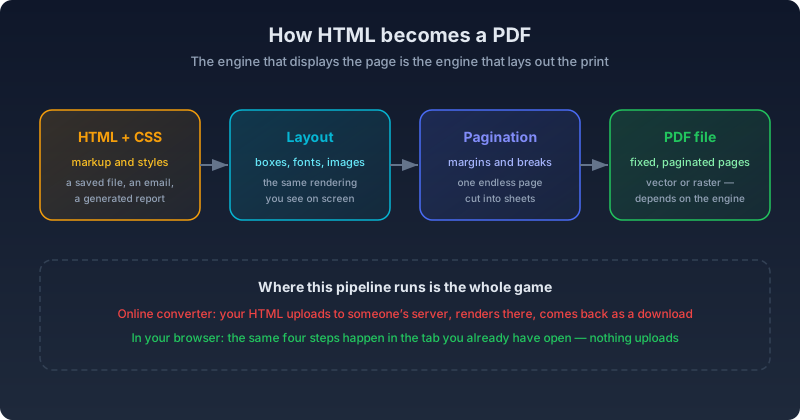
Layout-engine converters run a real rendering engine against a page box instead of a browser window. Your browser's print dialog does this. So do headless Chrome, and dedicated engines like WeasyPrint and Prince that exist specifically because browsers ignored print CSS for twenty years — the formal name for that page-box behavior is the CSS Paged Media specification. Output is vector: selectable text and real fonts, in files that stay small.
Rasterizers draw the rendered page to a canvas and embed the picture. Output is an image of your document, paginated into slices. Pixel-faithful to what the renderer could draw, but the text is pixels now, and files run larger.
Neither is "better." Vector output wins for contracts and anything a recipient might search. Raster output wins when you want the page to look exactly like it looked, with zero font or layout drift on someone else's machine.
Put more simply: a vector PDF stores instructions for drawing text and shapes that a viewer redraws at any zoom level; a raster PDF stores a picture of the page at a fixed resolution, with no drawing instructions left to redraw. Everything else in this guide follows from that one distinction — including why OxygenPDF's own browser tool, covered below, behaves the way it does.
The Online Converter Catch
Here's the part that surprised me while comparing tools: several of the big-name converters don't accept HTML.
iLovePDF's HTML tool is URL-only, one link at a time. You cannot hand it a file or paste markup. Smallpdf's converter in this category is a webpage-capture tool too. If what you have is a file on disk, the field narrows to a handful of uploaders like Sejda, which does take files and pasted code, but processes them server-side and caps the free tier at three tasks per hour.
For live web pages, a URL-based capture is sometimes what you want, and that's a different job with different tradeoffs. For a file that's already on your machine, uploading it somewhere just to get it back re-encoded is a strange detour.
Convert the File Without Uploading It
OxygenPDF's HTML to PDF tool runs the whole pipeline in your browser tab, from reading your markup to assembling the finished PDF. Nothing is sent anywhere. No account, no watermark. No hourly quota either.
The steps:
- Open HTML to PDF
- Paste your markup, or import a .html file from disk
- Check the live preview and adjust the HTML if something looks off
- Create the PDF, then download it or continue straight into Edit PDF
Honesty about what you get: this is a rasterizing converter. Your markup is written into a sandboxed, isolated frame that never touches the page you're actually looking at — the sandbox permits reading the frame's own DOM, which the renderer needs, but not executing scripts, so a <script> tag stays inert no matter what it contains. The frame is then rendered at 2× scale and embedded as images. That's the right shape for receipts, confirmations, templates, and snippets. If you need the text searchable afterward, run the result through OCR and it gains a text layer.
Where Rasterizing Actually Wins
That same architecture buys you a couple of things a vector-text generator can't promise, and neither is obvious until you've hit the alternative:
- Backgrounds and colors never quietly vanish. A screenshot has no "print background" toggle to default to off. Chrome's own print pipeline does — and its
falsedefault is exactly the trap covered in the Puppeteer section below — but a rasterizer can't drop what it already painted. - There's no font-embedding step to fail. Chinese text, Arabic text, an emoji — whatever your browser already renders correctly comes across pixel-for-pixel, because the output page is a picture of what rendered rather than text redrawn with an embedded font. A vector-text generator can drop a glyph its font doesn't cover; a screenshot can't drop a pixel it already drew.
What Can Go Wrong
Rasterizing trades one set of failure modes for another. None of these are OxygenPDF-specific bugs so much as consequences of how any screenshot-based converter works — worth knowing before you paste something and wonder why the output looks off.
Scripts and Client-Rendered Apps
If your HTML is a single-page app's shell — a <div id="root"> with everything injected by JavaScript after the page loads — pasting the raw source produces a blank page, because the sandboxed frame that renders it doesn't execute scripts, by design. The fix is mechanical: view the page after it has actually rendered (right-click the <html> element in your browser's DevTools and choose "Copy → Copy outerHTML," or use "Save Page As → Webpage, Complete") and paste that fully-rendered markup instead of the original source.
Colors the Renderer Can't Parse
The renderer this tool is built on predates newer CSS color syntax like oklch(), lab(), and color-mix() — increasingly common since Tailwind CSS v4 made oklch() its default palette format. If your own stylesheet defines colors that way, the conversion can fail outright with a color-parsing error instead of silently falling back to something close. The fix is the same mechanical swap: convert those color functions to hex or rgb() values before pasting.
Content Split Across a Page Break
Because the whole page is rendered once as a single tall image and then sliced into fixed-height pieces afterward, a table row or an image that happens to straddle the cut line gets split visually across two pages. There's no page-break-inside: avoid awareness in a raster pipeline the way there is in a real print engine, because slicing happens by pixel height, not by DOM element. If a table has to stay whole, keep it short enough to fit on one page, or use your browser's own print-to-PDF instead (covered next), which does honor page-break rules.
Very Long Single Pages
A document that renders as one enormous continuous page — a long changelog, a full email thread — gets paginated automatically into as many output pages as it needs. The one real ceiling is the browser's own limit on how tall a single canvas element can be, a limit every browser enforces and that an unusually long document can hit before anything in the tool itself does. If you run into it, split the source HTML into smaller sections and convert each one separately.
External Images That Never Load
The renderer waits briefly for images and fonts to finish loading before it takes its snapshot, then gives up and renders anyway rather than hanging forever. An image blocked by CORS, a dead link, or a slow CDN can come through blank for exactly that reason — the same failure mode a real browser has when an image 404s, just resolved automatically instead of showing a broken-image icon.
If You Need Full Print Control
Two alternatives for the cases the browser tool isn't built for.
The first is print CSS in your own browser. Open the HTML file, print to PDF, and control the output from inside the document: @page { margin: 1in } for margins (body margins don't reliably survive printing), break-inside: avoid to keep tables whole, pt units instead of px, and @page { size: A4 landscape; } to set both the paper size and orientation from CSS rather than the print dialog. As of Chrome 131 and Safari 18.2 you can even do proper running headers and page numbers with @page margin boxes, a gap in browser printing that stood for two decades.
The second is headless Chrome, for developers. Puppeteer's page.pdf() is the current production standard for generating invoices and reports from templates. Two defaults bite everyone once: printBackground defaults to false, so backgrounds vanish until you opt in, and CSS page sizes lose to the API's format option unless you set preferCSSPageSize to true.
The Short Version
The old default is dead. Online tools either refuse files or upload them, and the developer tools assume you're shipping a service.
For the everyday case, a saved HTML document that needs to become a portable one, convert it in your browser and skip the upload entirely. Your receipt doesn't need a field trip through someone else's server to become a PDF.
Frequently Asked Questions
Is OxygenPDF's HTML to PDF tool free?
Yes — no account, no watermark, and no hourly quota, the same as every other tool on the site. Because conversion runs in your browser instead of on a server, there's no processing queue to meter in the first place.
Why isn't the text in my converted PDF selectable or searchable?
Because the tool rasterizes the rendered page instead of laying out real vector text — see "How the Conversion Actually Works" above. If you need selectable, searchable text afterward, run the finished PDF through OCR, which adds a text layer without changing how the page looks.
Does it work without an internet connection?
The conversion itself makes no server calls once the page has loaded, so HTML with self-contained, inline CSS converts fine offline. The exception is markup that references external resources by URL — a font from a CDN, an image on someone else's server — which still needs a live connection to fetch, exactly as it would in any ordinary browser tab.
Can I convert a live web page instead of a file?
Not directly — this tool converts HTML you provide, pasted or imported as a saved .html file; it doesn't fetch a URL on your behalf the way a server-side tool can. For a page you're currently viewing, your browser's own print-to-PDF is usually the faster path, or see our guide to saving a webpage as a PDF for when a URL-based capture tool is worth the tradeoff instead.
Will JavaScript on the page run during conversion?
No, by design. The markup renders inside a sandboxed frame that permits reading the page's own structure but not executing scripts, so a <script> tag never runs — which is also why a client-rendered app's empty shell converts to a blank page (see "What Can Go Wrong" above).
What page size does the output use?
A4, portrait, with a fixed margin — there's no page size or orientation picker inside the browser tool itself. For a specific size or orientation, set it in your HTML's own @page rule and use your browser's print-to-PDF instead (see "If You Need Full Print Control" above).
Convert your HTML to PDF here — it runs in the tab you already have open, and nothing you paste ever leaves it.