Rohman
Every browser you already have can save a webpage as a PDF through its own print dialog — no extension, no account, no upload to a third-party site. The reason it's worth doing at all is what Pew Research found when it checked what happened to the webpages of 2013: 38% of them no longer exist. Not moved, not redesigned. Gone. A quarter of all pages that existed at any point between 2013 and 2023 were already unreachable by late 2023. Knowing how to save a webpage as a PDF means you own a copy of what you read, bought, booked, or agreed to, instead of hoping it's still there when you need it.
The part nobody warns you about is the output, because a raw capture is often a mess of cookie banners and half-loaded images. Fixing that takes about a minute, and it's most of what this guide is about.
What "Save a Webpage as PDF" Actually Means
Saving a webpage as a PDF means using your browser's own rendering and print engine — the same one that draws the page on your screen — to fix that page's current layout, text, and images into one portable document that opens identically on any device, with no plugin, no login-sharing trick, and no server in between. It's different from bookmarking (which saves a link that can rot) and different from "Save Page As HTML" (which saves the source, not the appearance).
Your Browser Is the Only Tool That Can Do This
Before the how-to, one thing worth understanding, because it saves you a detour through sketchy converter sites.
Online "URL to PDF" services fetch your link from their server, as an anonymous visitor. Your order confirmation, your bank statement, your airline booking, anything behind a login: their server sees the sign-in page, not your page. Smallpdf, which runs one of these converters, says as much in its own guide: pages behind logins, dashboards, and single-page apps often fail to convert cleanly, precisely because the tool never gets to authenticate as you.
Your browser doesn't have that problem. It's already logged in as you. Which makes print-to-PDF, unglamorous as it is, the only correct answer for exactly the pages people most need to keep. It also means the page never travels through a third-party server on its way to becoming your file, which matters for anything sensitive.
On a Computer
Every desktop browser hides the same feature behind the print dialog. Ctrl+P on Windows and Linux, Cmd+P on a Mac.
Chrome
- Press
Ctrl+P/Cmd+P, then set the destination dropdown to Save as PDF. - Open More settings. Two checkboxes matter here: Background graphics (off by default, which is why captures sometimes look bleached of color) and Headers and footers, which stamps the URL and date on every page.
- Check Paper size and Margins — the "Default" setting fits most pages; switch margins to "None" if a wide layout is getting clipped at the edges.
- Click Save, pick a filename and folder, and you're done.
Edge
Edge runs on the same Chromium engine as Chrome, so its print dialog sits in almost the same place: Ctrl+P, pick "Save as PDF" from the Printer dropdown, and the same background-graphics and headers/footers toggles live under "More settings."
Firefox
Firefox's print preview (Ctrl+P / Cmd+P) runs on Gecko, not Chromium, so a couple of things move. Set the destination to "Save to PDF," then look for "Print backgrounds" — colors and images — sitting directly in the main dialog rather than tucked under a secondary menu. Orientation and scale are right there too.
Safari
Skip the print dialog entirely: File → Export as PDF saves the page in one step, no options screen at all. If you want to set a password or add metadata instead, use File → Print, then the PDF dropdown in the Print dialog's bottom-left corner has that option.
On a Phone
iPhone and iPad
- Tap Share.
- Tap Options under the page title preview and switch the format to PDF.
- Tap Save to Files and choose where it goes.
There's a second route worth knowing: take a screenshot, tap the preview thumbnail, and switch to the Full Page tab. It captures the entire scrollable page, even parts you never scrolled to. The catch is that a screenshot PDF is a picture of text, not text. If you need it searchable later, run it through OCR.
Android
In Chrome, tap the three-dot menu, then Share, then Print. Choose "Save as PDF" from the printer dropdown and tap the download button. The file lands in Downloads.
Getting a Capture You'd Actually Want to Keep
The raw print of a modern webpage includes everything the page was showing: the cookie banner, the newsletter modal, the sticky navigation, the ads. Overlays are page elements like any other, so they print.
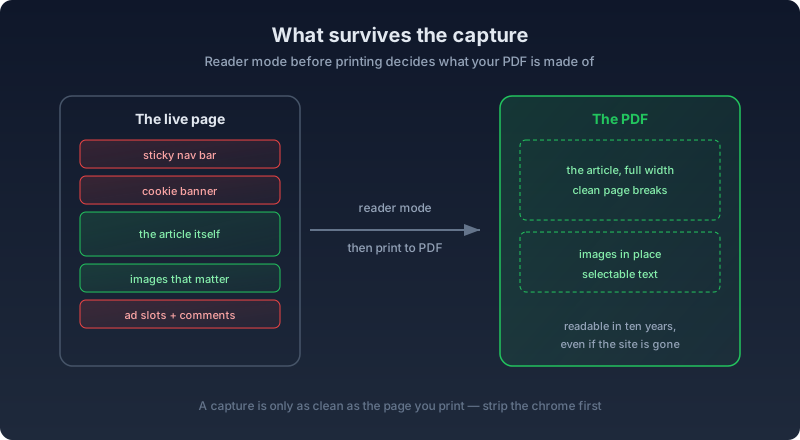
Five habits produce clean captures:
- Use reader mode first. Safari calls it Reader (
Cmd+Shift+R), Firefox Reader View (F9), Edge Immersive Reader (alsoF9). Print from inside it and you get the article, not the website. Chrome is the odd one out: its Reading Mode lives in a side panel that can't print, so on Chrome you dismiss the clutter by hand. - Scroll to the bottom before printing. The print dialog doesn't scroll the page for you. Images that never entered your viewport haven't loaded, and they'll print as gray boxes.
- Dismiss the banners. Close the cookie prompt and any popups before hitting print. Ten seconds of tidying beats a permanent banner on page one.
- Turn off dark mode before you print. A site's dark theme, or your browser's own forced dark styling, inverts colors for comfortable on-screen reading — and that inversion prints exactly as shown, which means white text on a near-black page. It's fine on a phone; it's a waste of toner and a strain to read once it's paper or a shared file.
- Decide about the header stamp. For an article you're archiving to read, turn headers and footers off. For receipts, listings, anything you might need to prove later, leave them on: courts and insurers like a capture that carries the URL and the date it was taken, and the browser stamps both automatically.
Print-to-PDF vs. Extensions vs. Online Converters
If you're weighing the common ways to turn a webpage into a file, this is what actually changes between them:
| Method | Works on pages you're logged into | Needs an install or upload | Text stays selectable |
|---|---|---|---|
| Browser print-to-PDF | Yes — it's your own session | No | Yes |
| Browser extension | Usually, if it reads your open tab | Yes, an extension | Usually |
| Online "URL to PDF" tool | No — fetches as an anonymous visitor | No install, but your URL goes to their server | Usually, for public pages |
| Phone screenshot capture | Yes | No | No — it's an image |
For anything behind a login — receipts, statements, bookings — the first row is the only one that reliably works, which is the whole reason this guide leads with your browser instead of a converter site.
Why the Saved PDF Sometimes Looks Different From the Live Page
A print-to-PDF capture doesn't screenshot the page — it re-renders it through the browser's layout engine against a fixed page size instead of a browser window, the same process covered in more depth in our piece on how HTML becomes PDF. That's why a few things shift between what you saw and what you saved:
- Hover states and animations disappear. A menu that only shows on mouseover was never visible to print. A CSS transition freezes at whatever frame it happened to be on.
- Sticky headers and footers can repeat. An element pinned to the top of your screen isn't pinned to a sheet of paper — it can print once per page instead of once per document.
- Well-built pages define their own print rules. CSS supports an
@media printblock that lets a site hide navigation, ads, and interactive widgets specifically for the printed or saved version. A site that bothers to write one hands you a clean article. A site that doesn't gives you the page exactly as the screen shows it, chrome and all.
None of this is your browser malfunctioning. It's the same print pipeline the web has always had, applied to pages designed for a screen first.
Edge Cases Worth Knowing About
A few situations where print-to-PDF won't give you the whole page, no matter how carefully you follow the steps above:
- Infinite scroll. Content that loads as you scroll — social feeds, endless product grids — only exists once it's been fetched. What loaded before you opened the print dialog is what you get. Scroll to the bottom first, but on a feed with no real bottom, accept that you're capturing a snapshot, not the whole thing.
- Content that loads after a short delay. Some pages swap placeholder content for the real thing a second or two after the page first paints — a lazily loaded comment section, a price that updates after a background request. Print immediately and you capture the placeholder, not the answer.
- Pages that actively resist printing. A small number of publishers ship a print stylesheet that hides the article body outright, on the theory that letting readers print defeats a metered paywall. If a capture comes back blank on a page you can clearly read on screen, this is usually why, and reader mode's extraction — which reads the page's underlying content rather than rendering its stylesheet — often works around it.
After the Capture
A capture session rarely ends with one file. Five saved articles from a research session belong together, so merge them into one PDF. Full-page phone screenshots come out as chunky image PDFs, worth compressing before they clog a folder. An image-based capture only becomes searchable once OCR adds a text layer — and from there, PDF to Word can turn it into something you can actually edit.
If what you saved is a receipt, a lease, or anything else you might need to hand to someone later, lock it down before it sits in a shared drive: add a password, or black out an account number before you forward it on.
One neighboring case: if what you have is a saved .html file rather than a live page, that's a different conversion with its own tool, and it never needs to touch a server either.
If you also want a public, timestamped record, the Wayback Machine's Save Page Now covers that side. Archive it there for the world, keep the PDF for yourself.
Frequently Asked Questions
Can I save just part of a webpage, not the whole thing?
Yes, two ways. Highlight the text you want first — some browsers' print dialogs offer a "Selection" scope that prints only what's selected. Or strip the page down with reader mode before printing, which drops navigation and sidebars and keeps just the article body, which is usually the "part" people actually want.
Why does my saved PDF have blank gray boxes where images should be?
The print dialog captures the page exactly as it exists in memory at that moment. Images that haven't finished loading, or that only load once scrolled into view, print as empty placeholders. Scroll through the entire page first, pausing long enough for images to load, before opening the print dialog.
Does saving a webpage as a PDF capture content added by JavaScript?
Generally yes — the print dialog captures the rendered page at the moment you open it, including anything JavaScript has already inserted into it. What it won't capture is content that loads later: on a scroll trigger, a timer, or a background request that hasn't resolved yet. If a section looks empty in the PDF but full on screen, that's usually the cause.
Is a webpage PDF actually searchable?
If you used your browser's print-to-PDF, yes — it exports the real rendered text layer, so the words stay selectable and searchable. The phone-screenshot method is the exception: a "Full Page" screenshot PDF is an image of the page, not text, and needs OCR before search or copy-paste will work on it.
Can I password-protect a webpage PDF while I'm saving it?
Only Safari on macOS offers that in the save flow itself, through the PDF dropdown in the Print dialog. Every other browser saves a plain PDF first; add a password afterward with a tool like Protect PDF if the document needs one.
Do I need an internet connection to save a webpage as a PDF?
No, once the page has already loaded. Print-to-PDF is a local browser feature, not a network request — it works on a saved tab in airplane mode exactly as it does online. You only need a connection to load the page in the first place.
What's the difference between saving a webpage as HTML and saving it as a PDF?
Saving as HTML keeps the original markup, which stays editable but depends on a browser to reopen and on referenced images, fonts, or scripts to still exist elsewhere. Saving as PDF freezes the visual layout — text, images, positioning — into one self-contained file that looks the same everywhere, forever, at the cost of no longer being source code. More on that conversion here.
The Two-Line Summary
Print-to-PDF from your own browser is the only capture method that sees the web as you see it, logged in and all. Clean it up with reader mode, scroll before you print, and the page you saved today will still open in ten years, whatever happens to the site.