Rohman
Quick answer: Printing multiple pages per sheet — called N-up — can happen two ways: the print dialog tiles pages temporarily at print time, or a tool bakes the layout into a new PDF. Use the dialog for a one-off copy; bake the file when anyone else needs to open or print it.
Every printer driver on earth can print multiple pages per sheet — 2, 4, 9, even 16 at once. Tick the box, hit print, done. What it can't do is turn that layout into a file: the pages inside the original PDF stay full-size, and the moment the print job finishes, so does the layout. N-Up PDF does the part the driver can't — it bakes 2, 4, 9, or 16 pages per sheet into an actual new PDF you can save, email, or hand to a print shop. Then someone asks for the handout version, and you realize you have nothing to send. A print setting and a document are not the same thing, and that gap is where people actually get stuck.
Two Ways to Print Multiple Pages Per Sheet
N-up — the general name for putting several pages on one sheet — exists in two completely different places, and nearly every guide to this conflates them. Wikipedia's definition is blunt about what the technique is actually for: reducing the number of pages a printed work requires, without re-editing, re-indexing, or reflowing anything inside it. That's the tradeoff at work here — nothing about the content changes, only how many source pages share one sheet of paper.
The printer driver does it at print time. The PDF stays untouched; the driver tiles the pages as it rasterises them for the printer. It's fast and it's already installed, but it can't be shared or archived, and it behaves differently depending on which machine runs it. That last part is why "print 2 pages per sheet not working" is such a durable search: the option sits in a different dialog on macOS than on Windows, and plenty of drivers accept the setting and quietly ignore it.
There's also one specific, well-documented cause of that failure worth knowing, because it looks exactly like a bug rather than user error. Some PDF readers apply their own page-layout setting at print time, entirely independent of whatever the print driver is also doing — Acrobat's own documentation describes a "Pages per sheet" option that goes up to 99, applied by the reader before the job ever reaches the driver. The reader tiles your pages into an N-up grid and hands the driver an already-imposed page, and the driver then applies its own N-up setting on top of that. Turn the same option on in both places and you get two impositions stacked on each other — four pages crushed into the quarter-sheet the driver had already allocated for one. People conclude their printer is broken. It did precisely what both dialogs asked. The fix is to pick exactly one: either the reader's print-time layout option or the driver's, never both in the same job.
Baking it into the PDF, on the other hand, produces a new file whose pages genuinely contain two pages each. It opens the same way on every device and survives an email attachment; the print shop down the road gets exactly what you saw on screen. The tradeoff is a second file to keep track of.
Neither approach is universally correct. Printing one copy for yourself right now? Use the driver. Anyone else ever opening it? Make the file.
Is N-up the same thing as "multiple pages per sheet"?
Yes. They're the same operation described two ways. "N-up" is the print-industry shorthand — 2-up, 4-up, 9-up, and so on, where N is the number of source pages placed on each output sheet. "Multiple pages per sheet" is the plain-language version most print dialogs use for the identical setting. Neither term implies a specific method: both cover the temporary driver-level tiling above and a permanently reflowed file like the one N-Up PDF produces.
How Far You Can Push It
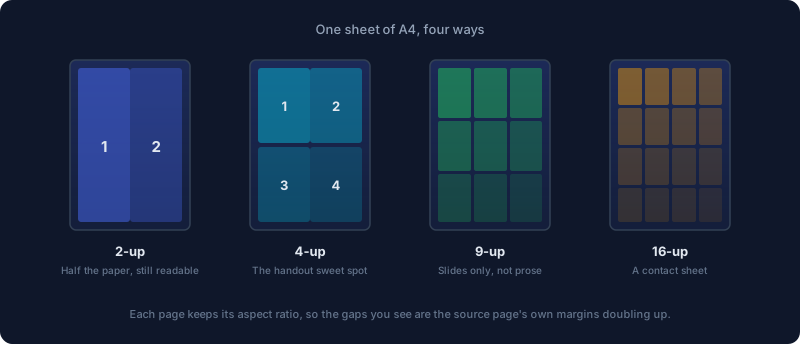
2-up halves your paper and stays comfortably readable for ordinary documents. 4-up is the handout standard — slide decks survive it well, and most people can still make out a 12pt body font on one. 9-up and 16-up are contact sheets: fine for recognising a page you already know, useless for reading one you don't. If the result is headed for a screen rather than paper, combine the pages into one long page at full size instead. Going the other way, one page spread across many sheets, is printing a poster on multiple pages.
The limit is set by the source material, not the grid. A slide deck at 4-up works because slides carry maybe forty words a page, usually set in 24pt type or larger; a dense journal article set in 10 or 11pt hits the same grid and needs a magnifying glass.
You can work out roughly how small your text will get before you print a single page, because the arithmetic behind N-Up PDF is fixed rather than approximate: every layout reserves a 2.5% padding on each side of its cell, then scales the source page down to fit inside what's left — no content lost, nothing distorted, just shrunk. On an A4 sheet, with an A4 source page, that comes out to:
| Layout | Grid | Scale | An 11pt font becomes |
|---|---|---|---|
| 2-up | 2×1, landscape sheet | ~67% | ~7.4pt |
| 4-up | 2×2 | ~48% | ~5.2pt |
| 9-up | 3×3 | ~32% | ~3.5pt |
| 16-up | 4×4 | ~24% | ~2.6pt |
Those numbers assume the source page and the output sheet share the same paper size and a matching orientation family; change either one and the exact figures shift, though the layouts stay in roughly that order relative to each other. The 2-up row is the outlier for a reason worth knowing on its own: two A4 portrait pages placed side by side share almost exactly the same width-to-height ratio as a single A4 landscape sheet. That's not a coincidence — ISO 216, the standard behind A4 and the rest of the A-series, fixed that ratio at 1 to about 1.414 (the square root of 2) specifically so a sheet keeps the same shape every time you halve it. 4-up, 9-up, and 16-up don't get that advantage; they're square grids, so the scale reduces to a simpler rule — 95% divided by the grid's side length.
None of this is a new problem, either. The tactic predates on-screen PDFs by decades: the Compact Oxford English Dictionary's first edition, in 1971, reduced the entire Oxford English Dictionary to 4-up and shipped it with a magnifying glass in the box; the 1991 second edition pushed to 9-up. If you've ever wondered how far running text can shrink before a reference work stops being usable without help, someone already ran that experiment.
The Margin Trap
Scaling a page down scales its margins down with it, except now you have four scaled-down margins meeting in the middle of the sheet, plus the grid's own gutters. A document with generous one-inch margins turns into four small islands of text separated by an ocean of white, and the readable text ends up smaller than it needed to be. This is what makes a first N-up attempt look worse than it should.
The fix is to crop before you impose. Trim the source margins first, then run N-up on the cropped file. The same paper gives you noticeably larger text. Crop PDF does the trimming — it asks for the four margins in points, and its own on-screen hint is the number worth remembering: one inch equals 72 points, so a standard one-inch margin on every side means entering 72 in each of the four fields. Run it first, and the difference on the printed sheet is not subtle; see our full guide to cropping a PDF if you're not sure how much to trim off a scanned or academic document.
While you're there: a mixed-size document imposes badly, because each source page is scaled independently to fit its cell — a Letter page sitting next to an A4 page in the same file ends up at two visibly different scales on the output sheet, even though both land in identically sized cells. Fix Page Size normalises the stack first, matching every page to one target size before N-Up PDF ever sees it.
Choosing a Page Size: A4 or Letter
N-Up PDF gives you exactly two output sizes to pick from — A4 and Letter — and getting this one wrong matters more here than in an ordinary print job, because there's no spare margin left to absorb a mismatch once you're already at 9-up or 16-up.
The two aren't just labeled differently; they're a different shape. A4 is 210 by 297mm; US Letter is 216 by 279mm — about 6mm wider and 18mm shorter. ISO 216 is used almost everywhere outside the United States and Canada, which is exactly why this dropdown exists instead of the tool defaulting to one size for everyone. Feed a Letter-sized PDF through an A4-targeted layout (or the reverse) and every page still scales to fit — nothing clips off the edge — but the cells no longer match the source aspect ratio as closely, so you give up more white space than the layout strictly needs to.
The practical rule: match the output size to the paper actually loaded in the printer or at the print shop, not to whatever size the source PDF happens to already be. An A4 source document prints fine onto a Letter-targeted sheet and vice versa — the scaling step absorbs the difference — but the destination paper size is the number that decides the grid, so if you know it, set it explicitly rather than leaving the default in place.
N-Up Isn't Booklet Printing, and Getting It Wrong Wastes a Ream
People conflate these two constantly.
N-up places pages in reading order: 1 and 2 on the first sheet, 3 and 4 on the next. Read it flat, in the order the numbers run.
A booklet needs imposition — pages reordered so that after printing double-sided and folding down the middle, the numbers land in sequence. For an eight-page booklet on two sheets, the front of sheet one carries pages 8 and 1, its back carries 2 and 7, sheet two carries 6 and 3, then 4 and 5. Fold the stack and it reads 1 through 8.
Run plain 2-up on something you intend to fold and you get a stack of paper with the pages in scrambled order. Use PDF Booklet when there's a fold involved and N-Up PDF when there isn't.
The two tools also disagree about page count, and that's deliberate rather than a limitation. Booklet imposition only comes out evenly in multiples of four, because one sheet, printed on both sides and folded once, always supplies exactly four page positions. If your document doesn't divide evenly, PDF Booklet pads it with a blank page at the end automatically, so a 7-page report becomes an 8-page booklet instead of throwing an error. N-Up PDF carries no such requirement — any page count works, and the final sheet simply has fewer of its cells filled than the grid technically holds.
How to Put Multiple Pages on One Sheet
- Open N-Up PDF
- Drop your file in
- Pick 2, 4, 9, or 16 pages per sheet — it opens on 4-up by default
- Set the output page size (A4 or Letter) and orientation, then apply
Pages are placed left to right, then top to bottom, which is the reading order you want for a handout. Landscape usually beats portrait for 2-up, for the aspect-ratio reason above; for 4-up, 9-up, and 16-up, portrait is the default and usually the right call unless your source pages are themselves landscape.
Everything runs in your browser; the file is never uploaded. That matters more than it sounds for the documents people actually impose — exam papers before an exam, board packs, unreleased decks, medical forms. A print-shop upload form is a strange place to put any of those. If the file is password-protected, the tool prompts for the password up front and unlocks it as part of the same in-browser step — there's no need to strip the password in a separate tool before you start.
Troubleshooting: When N-Up Doesn't Look Right
A handful of problems come up often enough to name directly.
The last sheet has empty cells. If your page count doesn't divide evenly by the layout you picked — 10 pages at 4-up, for instance — the final output sheet only fills as many cells as there are pages left over, and the rest are simply blank. That's expected behaviour, not a bug: nothing is missing, the last sheet is just partially filled, the same way the last page of a word processor document doesn't run all the way to the bottom margin.
Some pages are visibly smaller than others. This is the mixed-page-size problem described above: each source page is scaled independently to fit its cell, so a document that mixes page sizes or orientations — a report with one landscape spreadsheet page dropped in, say — will show that page at a different scale than its neighbours even though the cells around it are identical. Run Fix Page Size first if a uniform look matters for your document.
Text is smaller than expected. Check the scale table earlier in this guide against your chosen layout and original font size before assuming something went wrong — 16-up genuinely does put an 11pt font under 3 points, and no setting in the tool changes that arithmetic. The fix is a lower N-up value, or removing wasted source margins with Crop PDF first so more of the cell goes to text instead of white space.
The file won't open, or the password doesn't seem to work. N-Up PDF handles a standard open-password (the kind that locks the file from being viewed at all) as part of loading the file. A permissions-only lock — one that lets the file open but restricts printing or editing — is a different mechanism and can behave inconsistently across tools; try Unprotect PDF first if the file opens elsewhere but N-Up PDF rejects it.
Worth Knowing
- Check the first sheet before printing eighty. It's the cheapest proof you'll get.
- Duplex often flips on the wrong edge by default: for 2-up landscape output you usually want short-edge binding, since long-edge duplex is built around portrait sheets and flips a landscape one around the wrong axis, printing every second sheet upside down relative to the one before it.
- Keep the original file. An imposed PDF is a derivative for printing, not a replacement: the text stays selectable, but the page geometry no longer matches what anyone else has.
- Toner matters as much as paper here. 4-up quarters your sheet count on a long document; run compression afterward to keep the emailed version small. If the result comes out larger than you expected rather than smaller, see our guide to compressing without losing quality — an imposed file re-embeds every source page's images and fonts into a new PDF, and that packaging overhead can outweigh the space saved by having fewer pages.
- Printing at a shop rather than at home? Ask what page size their equipment is loaded with before you export, so the output size you pick actually matches the paper it lands on.
Frequently Asked Questions
What's the difference between N-up printing and printing multiple pages per sheet?
None — they're the same operation described two ways. "N-up" is the print-industry shorthand (2-up, 4-up, 9-up), while "multiple pages per sheet" is the plain-language phrase most print dialogs use for the identical setting. Both can mean either a temporary print-time tiling or a permanently reflowed PDF, depending on where you apply it.
Is 2-up or 4-up more readable?
2-up, by a wide margin. On an A4 sheet, 2-up scales a source page to roughly two-thirds size; 4-up drops it to under half. For a document with ordinary 10 to 12pt body text, 2-up stays comfortable for sustained reading, while 4-up is better suited to slides, contact-sheet review, or a document you already know well.
Is N-up the same as booklet printing?
No. N-up lays pages down in plain reading order — page 1 then page 2 on the first sheet. Booklet printing reorders pages (imposition) so that after duplex printing and folding down the middle, the numbers run in sequence. Use PDF Booklet for anything that will be folded, N-Up PDF for anything that won't.
Why does my printed page have so much white space in the middle?
That's the margin trap: scaling a page down scales its margins down with it, so four already-shrunk margins now meet in the center of the sheet on top of the grid's own gutters. Trim the source margins with Crop PDF before running N-Up PDF, and the same sheet of paper yields noticeably larger, more evenly spaced text.
Which duplex setting should I use for a 2-up handout?
Short-edge binding, in most cases. A 2-up landscape sheet is wider than it is tall, and long-edge duplex — designed around portrait sheets — flips it around the wrong axis, so every second sheet prints upside down relative to the one before it. Print a single duplex test sheet before committing to a full run.
Does N-Up PDF work on a password-protected file?
Yes. Drop the file in, enter the password when prompted, and the tool decrypts and processes it in the same in-browser step — nothing is ever uploaded to a server. If the file uses a permissions-only lock rather than a standard open-password, try Unprotect PDF first.
Put multiple pages on one sheet here — in your browser, nothing uploaded.