Rohman
Someone sends back a "final" version of a contract, an invoice, or a spec sheet. They say it's the same as the last one, just cleaned up. Whether that claim holds is the difference between signing blind and signing with proof.
Diffing two PDFs is harder than it sounds — but it's solvable, and the check can happen on your machine, not someone else's server. The short version: for anything you're about to sign, run a pixel-level visual compare, not a text diff, and do it in a tool that never uploads the file. A visual diff catches a moved paragraph, a bolded clause, or a swapped page just as reliably as a changed sentence. A text-only diff catches none of those unless the words themselves changed.
Why PDFs Resist Comparison
PDF stores absolute coordinates, not semantic text. There's no "paragraph three" inside the file — just character outlines and line segments placed at fixed x/y positions on a page. Change one sentence on page two and everything below it can reflow to new coordinates, even though nothing else actually changed. A naive text diff sees bytes moving and flags the whole page as rewritten.
This is the exact problem document comparison software has existed to solve since long before it ran on a computer. Before automation, comparing two contract drafts meant printing both copies and marking every difference by hand with a red pen — which is where "redlining" comes from as a term, and why modern comparison tools still use it (Wikipedia: Document comparison).
Scanned documents make it worse: they can't be diffed at the text level at all until OCR runs, and OCR has its own failure modes. Tesseract's own documentation is blunt about the ceiling — accuracy gains essentially stop past 300-400 DPI, and text below roughly 30 pixels of x-height falls outside what the engine can reliably read at all (Tesseract FAQ). Run OCR on a slightly skewed scan and a text diff won't just miss real changes, it can invent ones that were never there — a misread character shows up as a "difference" that doesn't exist on the page. Tables break during extraction, splitting one cell's contents across the wrong columns. And purely visual edits — bolding a clause, tightening line spacing, swapping a typeface — never touch the underlying text stream at all, so a text-only tool reports zero differences on a page that now reads differently to a human.
A text diff is right as far as it goes. A visual diff is broader, because it doesn't care what the change is — only that the rendered page looks different. For a final version you're about to sign, that broader net is the safer check.
What a Visual Diff Catches
A pixel-level compare renders both documents and checks each page pair directly, position by position, instead of comparing the text that produced them:
- Layout shifts. A paragraph that moved from page 3 to page 4 reads as a moved block. Run the same change through a text-only diff on the raw content stream and it typically reports the entire page as "deleted" and the next one as "inserted," because the draw order changed even though the words did not.
- Formatting edits. Bold, spacing, a font swap on one clause, a heading that quietly got a point size larger. None of these touch a single letter, so a text diff reports a perfect match while the printed page looks different to anyone reading it.
- Scans. A rescanned signature page, a photographed contract, an emailed-and-reprinted form. There's no text layer to diff at all — pixels are all a scan has.
- Non-text elements. A moved data label on a chart, a logo that changed, a signature block in a new position. A text diff has nothing to compare here in the first place.
Use a text-level read for prose-heavy drafts if you want the literal wording of an edit. But for "did anything in this version change" — the question that actually matters before you sign something — visual is the definitive answer, because it doesn't need to know in advance what kind of change to look for.
Scenarios That Call for a Compare
- Contract review. The counterparty's "final" version versus your last draft. A single clause change — a payment deadline quietly moved from net 30 to net 45, or an indemnity cap widened by one word — can sit inside a paragraph that reads identically at a skim. Attorney John Montague's write-up on contract version control walks through a real eight-figure dispute that came down to exactly this kind of question: which draft was actually signed, and when one word in it changed (Montague Law). Version control discipline prevents that fight from starting. A comparison is how you check it actually held.
- Invoices and quotes. Verifying that a correction really is the only change — that a resent invoice fixing a wrong PO number didn't also nudge the total in the same edit. A digit transposed in a total, a line item quietly duplicated, a discount that disappeared: none of these announce themselves in an email that just says "corrected version attached."
- Specs and manuals. A revision arrives; which figures, tolerances, or diagrams actually moved. A single tolerance tightened from plus-or-minus half a millimeter to plus-or-minus a twentieth of one, buried on page 12 of a 40-page document, is easy to miss reading start to finish and easy to catch as one highlighted page in a diff.
- Form versions. Confirming the document labeled "v3" actually differs from v2 — and if it does, whether the change is cosmetic (a logo update, a footer date) or substantive (a new required field, a changed consent clause someone needs to re-read before signing again).
Each of these documents is also exactly the kind of file you should avoid uploading to a random diff site.
The Upload Problem
Free "PDF diff" sites process on their servers. The files people compare most are contracts, invoices, and specs — precisely the ones where a copy sitting on third-party infrastructure is a breach waiting to happen. Server-side "deleted within an hour" is a policy, not something you can verify from outside, and third-party involvement in the breaches that do happen isn't a corner case. Verizon's 2025 Data Breach Investigations Report — built from over 22,000 security incidents worldwide — found that third-party involvement in confirmed breaches doubled year over year, from 15% to 30% (Verizon). A free comparison tool you used once for one contract and forgot about is exactly the kind of third party that statistic is describing.
Enterprise comparators exist for a related reason, solved a different way: they keep the comparison inside a firm's own infrastructure instead of on public web infrastructure. Litera Compare ships as a desktop suite plus Word, Excel, PowerPoint, and PDF add-ins, sold directly through Litera's own online store to firms with fewer than 10 seats and by custom quote above that — no public per-seat price is listed for larger deployments (Litera). Draftable offers a desktop app, a hosted cloud version, and a REST API, priced at $10.75 per user per month on its Business plan and $21.75 per user per month on its Legal plan, both billed annually as of September 2026 (Draftable). Both are the right call for a firm that compares documents daily as part of its actual practice. Both are a lot of commitment for checking one contract before you sign it once.
How the Options Actually Compare
| Tool | Where it runs | Privacy | Cost | Best for |
|---|---|---|---|---|
| Free online diff sites | Uploaded to the site's server | Depends on a retention policy you can't verify from outside | Free | A low-stakes, one-off comparison you don't mind leaving a copy of elsewhere |
| Litera Compare | Desktop app + Word/Excel/PowerPoint/PDF add-ins | Local once installed; governed by firm IT policy | Direct-store pricing under 10 seats, custom quote above that | Law firms already living inside Word, comparing constantly |
| Draftable | Desktop, cloud, or API | Handled per Draftable's own terms; desktop app can run offline | $10.75-$21.75 per user/month, billed annually | Teams comparing often enough to justify a per-seat license |
| OxygenPDF Compare PDF | Your browser | Renders and diffs client-side — nothing is uploaded | Free | A contract, invoice, or spec you need to check once, without creating a new copy anywhere |
Comparing with OxygenPDF
- Open the Compare PDF tool.
- Drop both versions in — File A is the original, File B is the one you're checking.
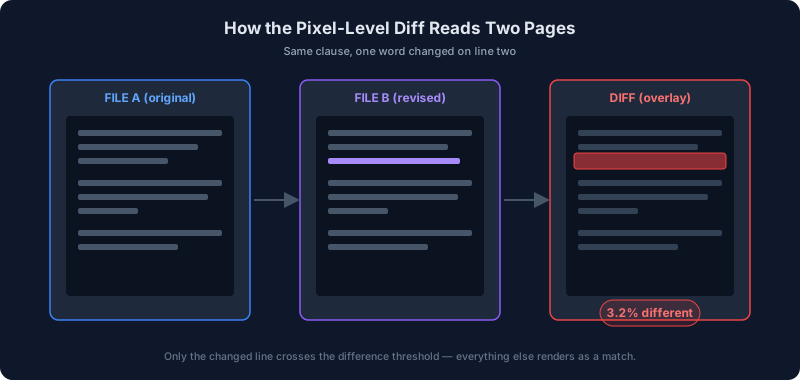
- Click Compare. Each page renders in your browser using the PDF.js engine and gets checked against its counterpart, pixel by pixel.
- Page through the matched pairs. The Diff tab highlights every changed region in red, and a badge above the viewer reports the exact share of the page that changed — or "Identical" if nothing did.
That badge isn't a rough impression. Under the hood, the tool measures how much a pixel's red, green, and blue values shifted between the two renders — a value that can run from 0 (no change at all) up to 765 (every channel maxed out) — and only counts that pixel as different once the combined shift passes a fixed threshold. Set low enough to catch a real edit like a font-weight change or a shifted line, and high enough to ignore the kind of one-or-two-value noise that shows up between two otherwise-identical renders. The page-level number you see is simply the share of a page's pixels that crossed that line, rounded to two decimal places: a page with one moved paragraph might come back "3.2% different." A page that's actually identical comes back exactly "Identical," not "close enough" or "99% similar."
Page-count mismatches don't get quietly dropped, either. If File B has three more pages than File A, those extra pages are compared against a blank canvas standing in for the missing page. Any real content on them — a paragraph of text, a logo, a table — pushes their diff score well above zero even though nothing about that page is "wrong," so an inserted or deleted page shows up as a real, flagged result in the run instead of disappearing off the end of the comparison because there was nothing on the other side to check it against.
It renders and compares entirely in your browser — the same PDF.js rendering pipeline used to display PDFs elsewhere in the app, not a screenshot service or a server-side render queue. The files never leave your device.
Practical Tips
Use visual for the final check, text for prose drafts. Visual answers "did anything change"; text answers "what did the change say." If you need the literal wording of an edit rather than just its location, read the flagged clause yourself once the diff has told you which page to look at.
Check metadata too. A file that looks identical on the page can still carry a different author or an edit history in its metadata — the Metadata Editor shows it, including whether the PDF was regenerated by different software than the original produced, which is its own signal that more happened to the file than the page content alone suggests.
Password-protected files need unlocking first. Compare PDF doesn't take a password for either file, so an encrypted PDF will fail to load during comparison. Strip the password with Unprotect PDF — or read how to unlock a PDF password without handing it to a stranger if you're not sure which approach is safe — then compare the decrypted copies.
Treat "no visual changes" as definitive. If a pixel-level diff shows zero differences across every page, the documents rendered identically. That's a stronger claim than any email subject line saying nothing changed, because it's a claim you checked rather than one you were told.
Re-run the compare after you flatten or re-export. Some editors quietly re-render text when a PDF is flattened or re-saved through a different application — kerning shifts by a fraction of a point, a font substitutes to a close match. That shows up as a tiny, uniform diffPercent across every page rather than one flagged page, which is a useful tell that the difference is a rendering artifact and not a real edit.
For a review pass that ends with annotating or signing, Annotate PDF and Sign PDF finish the workflow locally too.
FAQ
Does comparing PDFs work on scanned documents?
Yes, and it's actually where a visual compare has a real edge over any text-based tool. Because the comparison renders each page to an image and checks pixels directly, it never needs a text layer or OCR at all — a rescanned signature page or a photographed contract compares exactly the same way a native, text-based PDF does.
Can I compare password-protected PDFs?
Not directly. Compare PDF doesn't have a password field for either file, so an encrypted PDF will fail to open during comparison. Remove the password first with Unprotect PDF, then run the comparison on the decrypted copies.
What actually counts as a "difference"?
A pixel, not a word. The tool measures the combined change across a pixel's red, green, and blue values between the two renders and counts that pixel as different once the change crosses a set threshold out of a possible 765 (255 per channel, three channels) — enough to catch a genuine edit like bolding or a shifted line, not so sensitive that ordinary rendering noise reads as a false difference. The page-level percentage you see is just the share of pixels that crossed that line.
Is there a limit on file size or page count?
No hard limit is enforced by the tool itself, but every page gets rendered in your browser's memory before it's compared, so a very long document or a batch of high-resolution scans will simply take longer and use more memory than a five-page letter would. Nothing is uploaded either way, so there's no separate server-side size cap working against you — the ceiling is whatever your own device can render.
What happens if the two PDFs have a different number of pages?
The extra pages don't get silently dropped from the count. Each one without a counterpart is compared against a blank page, so any real content on it registers as a visible diff instead of a silent zero, and an inserted or removed page shows up as a real result instead of quietly disappearing from the comparison.
Does it tell me exactly what text changed, or just that something did?
Just that something did, and precisely where. A visual diff points you to the page and the highlighted region on it — it doesn't produce a word-level redline of the actual text the way a dedicated legal redlining tool does. Pair it with a close read of the flagged page, or a proper text-level compare, when you need the literal before-and-after wording. Use the visual pass as the sweep that makes sure nothing outside the page you expected to check also moved.
Why not just eyeball two PDFs side by side?
Because "looks the same" and "is the same" aren't the same claim, and the whole reason to run a comparison is to stop relying on the first one. A single-digit change in a total, a tightened tolerance, a widened indemnity clause — none of these are visually loud enough to catch reliably by scrolling through two documents in separate tabs, especially past the first page or two. A pixel-level diff checks every position on every page the same way, every time, which is the one thing manual side-by-side reading can't promise.
Compare your two PDFs here. Your documents stay with you.