Rohman
Quick answer: To convert Excel to PDF without mangled columns, fit the sheet to one page wide and let the rows flow across as many pages as they need — never use "Fit Sheet on One Page." Excel to PDF does this automatically, entirely in your browser.
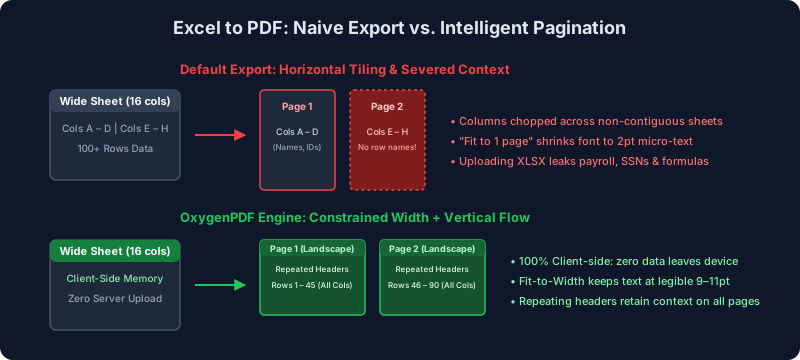
Exporting a spreadsheet should be straightforward, yet the transition from an open grid to a fixed document remains one of the most frustrating operations in digital document processing. You spend days polishing a financial projection, assembling a departmental budget, or validating an inventory schedule with sixteen clean columns. You hit export, open the resulting document, and discover a fragmented catastrophe: columns A through D occupy the first page, while columns E through H have been severed and exiled to page two. Every row identifier has vanished from the subsequent sheets, leaving anonymous numbers floating in white space.
When you attempt to rectify the mess by toggling the familiar "Fit Sheet on One Page" button, the software shrinks standard 11pt type down to an unreadable 2pt scrawl that looks more like a barcode than an executive summary.
The frustration is understandable, but the underlying breakdown is structural rather than accidental. When you convert excel to pdf, you are forcing two fundamentally contradictory visual paradigms to occupy the exact same physical coordinates. A modern spreadsheet is an unbounded, multi-dimensional Cartesian grid engineered for continuous computation, dynamic cell expansion, and freeform scrolling across more than a million rows. A Portable Document Format file, standardized under ISO 32000-1 and ISO 32000-2, is an unyielding, two-dimensional coordinate system with immutable physical boundaries measured in typographic points.
Compounding this geometric mismatch is a critical corporate security blind spot. Workbooks are rarely innocuous notes; they contain an organization's most sensitive data assets, including executive compensation models, unredacted payroll rosters, client pricing tiers, proprietary revenue forecasts, and unreleased quarterly filings. When frustrated employees turn to search engines and feed their .xlsx workbooks into free cloud-based conversion platforms, they silently upload proprietary intellectual property to unvetted remote servers. Understanding how pagination mechanics operate—and utilizing a secure, local-first engine like Excel to PDF—enables you to produce crisp, publication-ready documents without sacrificing readability or confidentiality.
Key takeaways:
- Why columns split: paper has a fixed printable width (504 pt on portrait US Letter); a spreadsheet wider than that gets tiled across pages, severing row labels from their numbers.
- Why "Fit Sheet on One Page" backfires: it scales both axes, so a tall sheet can shrink 11pt text to illegible 2pt micro-text. Fit columns to one page wide; let rows paginate.
- The privacy angle: online converters upload your workbook to a remote server. A client-side tool like OxygenPDF's Excel to PDF never sends a byte off your machine.
- Before you export: clear phantom cells with Ctrl + End, set a repeating header row, and confirm formulas show calculated values rather than errors.
1. The Geometric Collision: Unbounded Grid vs. The Physical Page
To understand why spreadsheet export engines fail so consistently, you must examine the physical geometry of the target canvas. In software design, spreadsheets and PDFs operate on opposite assumptions regarding space, containment, and boundaries.
+-------------------------------------------------------------------------+
| SPREADSHEET CANVAS (Dynamic, Unbounded)                                 |
| 1,048,576 rows x 16,384 columns | Fluid scrolling | Cells expand at will |
+-------------------------------------------------------------------------+
                                    |
                            [FORCED EXPORT]
                                    v
+-------------------------------------------------------------------------+
| PDF CANVAS (Rigid, Paginated, Immutable)                                |
| US Letter: 612 x 792 pt | Printable Width: 504 pt (Portrait)            |
| ISO A4:    595 x 842 pt | Printable Width: 482 pt (Portrait)            |
+-------------------------------------------------------------------------+
The Printable Surface Area
In desktop publishing and PDF vector architecture, dimensions are measured in PostScript points, where 1 point = 1/72 inch. Standard desktop paper stocks provide rigid, non-negotiable printable widths:
- US Letter (8.5 × 11.0 inches): Total page dimensions equal 612.0 × 792.0 points. When you apply standard office margins of 0.75 inches (54 pt) on both sides, the available horizontal canvas shrinks to: Printable Width = 612 pt − (2 × 54 pt) = 504.0 pt (177.8 mm)
- ISO A4 (210 × 297 mm): Total page dimensions equal 595.28 × 841.89 points. Applying conservative 20 mm lateral margins (56.7 pt) leaves a printable width of: Printable Width = 595.28 pt − (2 × 56.7 pt) = 481.88 pt (170.0 mm)
- Landscape Orientation: Flipping to landscape orientation expands US Letter printable horizontal width to 684.0 pt (241.3 mm) and A4 to 728.49 pt (257.0 mm).
Now consider a routine corporate spreadsheet: twelve monthly columns, an Account Identifier, an Account Description, a YTD Aggregate, and a Budget Variance column. This sixteen-column structure requires a minimum average column width of 65 pt to display currency figures without numerical clipping (### overflow). Sixteen columns multiplied by 65 pt demands at least 1,040 pt of horizontal room. Attempting to project 1,040 pt of structured tabular data onto a 504 pt portrait page guarantees mathematical failure.
The Horizontal Tiling Breakdown
When an export engine encounters a table wider than the physical printable boundary, its default behavior is horizontal and vertical tiling. Rather than reflowing the tabular data semantically, native spreadsheet print drivers slice the sheet along rigid dimensional boundaries:
| Physical Page Number | Columns Printed | Rows Printed | Primary Visual Deficiency |
|---|---|---|---|
| Page 1 | Columns A through D | Rows 1 through 45 | Complete record context (names, IDs, baseline metrics). |
| Page 2 | Columns E through H | Rows 1 through 45 | Context severed: Numbers appear without row labels or account titles. |
| Page 3 | Columns I through L | Rows 1 through 45 | Orphaned figures: Unlabeled percentages and secondary quarterly metrics. |
| Page 4 | Columns A through D | Rows 46 through 90 | Secondary data block; requires cross-referencing against Page 1. |
| Page 5 | Columns E through H | Rows 46 through 90 | Complete loss of reading orientation across both horizontal and vertical axes. |
This slicing shatters the document's utility. A reader examining Page 2 must physically align sheets side-by-side or continually flip back and forth between odd and even pages to discover whether an $84,200 entry belongs to Travel Expenses, Software Subscriptions, or Legal Retainers.
For screen readers and assistive technology governed by Section 508 and WCAG 2.1 AA, horizontal tiling is disastrous. Assistive tools navigate tables linearly using underlying structural tags (<Table>, <TR>, <TH>, <TD>). Slicing columns across separate pages destroys the table's logical Document Object Model, reading orphaned numerical values aloud without associated row headers.
2. The Micro-Text Scaling Collapse: Why "Fit to Page" Backfires
When spreadsheet creators spot severed columns in a print preview, their immediate reflex is to check the global scaling box: "Fit Sheet on One Page." In Microsoft Excel, this instructs the print engine to enforce PageSetup.FitToPagesWide = 1 and PageSetup.FitToPagesTall = 1. In LibreOffice, it triggers the SinglePageSheets export filter.
While this eliminates horizontal tiling, it introduces an even more destructive outcome: the micro-text collapse.
THE AUTO-SCALING FORMULA:
Sx = (Page Width - Lateral Margins) / Total Content Width
Sy = (Page Height - Vertical Margins) / Total Content Height
Final Scale Factor: S = min(Sx, Sy, 1.0)
The mathematical scaling factor S is bound strictly by whichever axis suffers the greatest dimensional disparity. Consider a departmental inventory worksheet consisting of 28 columns spanning 1,960 pt and 180 rows spanning 3,240 pt. When forced onto a portrait US Letter sheet (504 pt × 684 pt printable):
S_x = 504 / 1960 ≈ 0.2571 (25.7%)
S_y = 684 / 3240 ≈ 0.2111 (21.1%)
S = min(0.2571, 0.2111) = 0.2111 (21.11%)
When the export engine applies this 21.11% ratio across the document, the visual hierarchy disintegrates completely:
- Glyph Size Reduction: Body text originally set at standard 11pt Calibri or 10pt Arial shrinks to an actual printed height of 2.1pt to 2.3pt. Typographic research indicates that human readers with standard vision require at least 7pt to 8pt for effortless reading; 2pt text is physically illegible without high-power magnification.
- Disappearing Numerical Characters: High-density characters such as
8,3,6, and0become indistinguishable solid ink blots. Decimal points and negative sign dashes disappear entirely, converting financial audits into guesswork. - Gridline Dissolution: Default spreadsheet gridline strokes are typically set to 0.75 pt. Scaled down by 21%, the stroke width drops to 0.158 pt. This falls below the minimum rendering threshold of most office laser printers (typically 0.25 pt) and sub-pixel monitor rasterizers, wiping out cell borders and causing numbers to blend into an amorphous cloud.
The fundamental design mistake of "Fit Sheet on One Page" is treating horizontal width and vertical height as equivalent layout problems. Spreadsheets are naturally tall, sequential records. Height should flow across as many vertical pages as the data requires. The only dimension that demands strict containment is horizontal page width.
3. Hidden Pitfalls: Phantom Pages, Stale Print Areas, and Formula Leaks
Beyond raw dimensional mathematics, the internal structure of the OpenXML standard (.xlsx) contains hidden traps that derail exports and compromise proprietary data.
Phantom Blank Pages and the Trailing Cell Glitch
A common issue in spreadsheet conversion is the appearance of dozens of blank pages trailing behind valid content. A ten-page report suddenly exports as an eighty-page PDF, with pages eleven through eighty displaying empty gridlines or pure white sheets.
This anomaly stems from how spreadsheet applications record a worksheet's active dimensions. Inside the zipped .xlsx archive, the xl/worksheets/sheet1.xml file maintains an explicit boundary tag:
<!-- Example of an inflated worksheet dimension tag -->
<dimension ref="A1:AF950"/>
If an analyst previously entered a scratch calculation in cell Z850, applied cell formatting to column AF, or accidentally typed a space bar character before deleting the visible text, the spreadsheet retains that cell within its allocated coordinates. Clearing the text does not reset the bounding box. When you convert excel to pdf, the rendering parser reads the declared boundary, calculates an area extending to row 950 and column AF, and faithfully generates dozens of blank vector pages.
RESETTING PHANTOM BOUNDARIES IN EXCEL:
1. Press Ctrl + End to jump to what Excel considers the last active cell.
2. If this lands hundreds of rows below your data, highlight all empty rows.
3. Right-click and choose "Delete" (do NOT press Clear or Backspace).
4. Repeat for all blank trailing columns to the right.
5. Save the workbook immediately to force OpenXML to rebuild the <dimension> tag.
Stale Print_Area Named Ranges
Excel allows users to highlight specific cell ranges and set an explicit Print Area. This instruction is stored within the workbook metadata as a scoped defined name:
<definedName name="_xlnm.Print_Area" localSheetId="0">
  'Financial Report'!$A$1:$F$30
</definedName>
When new quarters are added—expanding the active table from column F through column M, and from row 30 through row 120—the defined name does not auto-expand. When converted to PDF, the engine prioritizes the Print_Area metadata and silently truncates columns G through M. Critical revenue columns vanish from the generated file without triggering an error message or user alert.
Uncalculated Formulas and Cached Values
Spreadsheet files created or manipulated by backend software libraries (such as Python's openpyxl, Node.js utilities, or legacy automation scripts) frequently contain formula definitions without calculated values:
<!-- Cell containing formula but missing pre-computed value -->
<c r="D12">
  <f>SUM(D2:D11)</f>
  <!-- Missing <v>14250.00</v> tag -->
</c>
Microsoft Excel evaluates formulas dynamically upon opening the file. However, standalone converters and headless command-line tools often lack a full calculation engine. When faced with an empty <v> tag, naive converters render the cell as empty, output #VALUE!, or print a zero. If your spreadsheet relies on calculated aggregates, ensure that formulas have been evaluated and saved before executing an export.
4. The Privacy Threat: Why You Must Never Upload Financial Sheets to Remote Servers
Spreadsheets are not generic marketing flyers; they represent an organization's most confidential numerical truth. Before using a random free website to convert xlsx to pdf, consider the data footprint residing inside your workbook cells:
+-------------------------------------------------------------------------+
| SENSITIVE ENTERPRISE ASSETS ROUTINELY EXPOSED IN SPREADSHEETS           |
+-------------------------------------------------------------------------+
| • Payroll schedules containing employee names, SSNs, and banking data   |
| • Cap tables, equity allocations, and executive compensation terms      |
| • Cost-of-goods breakdown, vendor pricing tiers, and margin structures   |
| • Unreleased quarterly earnings, pipeline metrics, and cash flow models |
| • Healthcare billing rosters subject to mandatory HIPAA enforcement     |
+-------------------------------------------------------------------------+
The Architecture of Server-Side Conversion
When you drag an .xlsx file into a traditional web converter, your document embarks on an uncontrolled remote journey:
[Your Computer]
       │ (HTTPS Upload of Raw .xlsx File)
       ▼
[Third-Party Web Server / Load Balancer]
       │ (Queued to Shared File System)
       ▼
[Headless Worker Node / Multi-Tenant VM]
       │ (Conversion via soffice, COM, or proprietary library)
       ▼
[Public Cloud Object Storage Bucket (S3/GCS)]
       │ (Public Download Link Generated)
       ▼
[Your Computer] (Download Resulting PDF)
This traditional server-side flow introduces severe compliance, operational, and legal hazards:
- Multi-Tenant Exposure: Your file is written to physical disks on shared, multi-tenant virtual machines. Even if the vendor promises "files deleted after one hour," temporary disk caches, system swap files, crash dumps, and unencrypted backup snapshots retain fragments of your data long after your session terminates.
- Third-Party Data Harvesting: The Federal Bureau of Investigation's Denver Field Office warned in March 2025 that scammers are increasingly using free online document converter portals to distribute malware and scrape personal information from uploaded files. Rogue conversion sites can harvest corporate spreadsheets to build executive identity dossiers, acquire insider trading leads, and extract financial formulas for competitive intelligence.
- Breach of Regulatory Safeguards: Under the European Union General Data Protection Regulation (GDPR Article 28), transferring personal data (such as employee payroll lists) to an external processor without a signed Data Processing Agreement (DPA) constitutes a direct legal violation. In healthcare, transmitting protected health information (PHI) without a Business Associate Agreement (BAA) triggers immediate civil penalties under HIPAA.
The Client-Side Advantage: Zero-Knowledge Document Handling
To eliminate data leakage entirely, conversion architecture must move from remote server queues to local browser execution.
OxygenPDF's Excel to PDF tool runs as pure client-side JavaScript, parsing your workbook directly into typed-array memory. When you process a workbook, the file is read directly from your local disk into browser memory via the HTML5 File API:
[Local File on Disk] ──> [Browser Memory (ArrayBuffer)] ──> [JavaScript Parser]
                                                                   │
                                                                   ▼
[Direct File Download] <── [pdf-lib Vector Synthesis] <── [Table Layout Engine]
At no point during the process does a single byte leave your machine. You can disconnect your Wi-Fi, sever your Ethernet cable, and verify in your browser's DevTools Network tab that zero outbound HTTP requests are transmitted. The document is converted entirely using your computer's local CPU, maintaining complete confidentiality for payroll, financial, and legal files.
5. Architectural Comparison: How Different Conversion Engines Handle Tables
Not all conversion mechanisms process spreadsheets identically. The table below outlines how common industry methods compare across platform locks, rendering quality, and security:
| Conversion Engine | Structural Mechanism | Security / Privacy Profile | Column Fitting Intelligence | Multi-Sheet Support |
|---|---|---|---|---|
| Microsoft Excel Native (Desktop) | Direct Windows GDI / macOS Quartz print pipeline via proprietary engine. | High: Local execution on workstation disk. | Manual: Requires explicit user configuration of page breaks and print areas. | High: Converts active sheet or entire workbook via UI dialogs. |
Headless LibreOffice (soffice) |
Linux server-side CLI invoking Calc layout engine via virtual X11/headless wrapper. | Moderate: High if self-hosted; catastrophic if sent to third-party SaaS wrappers. | Poor: Prone to font metric discrepancies; lacks dynamic column balancing. | Moderate: Requires complex export filter configuration parameters. |
| Traditional Online SaaS (CloudConvert, etc.) | File uploaded to remote server; converted via queued worker instances. | Fails Compliance: Direct transmission over public internet; violates GDPR/HIPAA without enterprise contracts. | Inconsistent: Uses blind generic "Fit to Width" or tiles columns without row headers. | Variable: Frequently converts only the first active worksheet. |
| HTML2Canvas / Screenshot Renderers | Renders HTML table in browser, captures DOM to PNG image, wraps PNG in PDF container. | High: Runs locally in client browser. | Destructive: Destroys vector sharpness; produces blurry text, non-selectable characters, and enormous file sizes. | Poor: Cannot manage vertical pagination across page breaks. |
OxygenPDF Engine (/tools/excel-to-pdf) |
Client-side OpenXML binary parsing + semantic vector generation via pdf-lib. |
Maximum: 100% client-side memory execution; zero server uploads; verifiable offline. | Intelligent: Auto-balances column widths and maintains legible typography. | High: Provides direct control over sheet selection and orientation. |
6. How Client-Side Vector Conversion Works
To achieve both absolute privacy and visual elegance, OxygenPDF employs a specialized multi-tier pipeline operating entirely within the client's web browser.
+-------------------------------------------------------------------------+
| OXYGENPDF CLIENT-SIDE CONVERSION PIPELINE                               |
+-------------------------------------------------------------------------+
|                                                                         |
|  [Step 1: OpenXML Parsing]                                              |
|  Extracts raw cell values, shared strings, number formats, & formulas.  |
|                                                                         |
|  [Step 2: Proportional Width Balancing]                                 |
|  Calculates string lengths and assigns column widths proportionally.    |
|                                                                         |
|  [Step 3: Vertical Flow Pagination]                                     |
|  Constrains horizontal width to 1 page; flows rows across N pages.      |
|                                                                         |
|  [Step 4: Vector Generation (pdf-lib)]                                   |
|  Draws crisp vector text, borders, and fills at native resolution.      |
|                                                                         |
+-------------------------------------------------------------------------+
Step 1: OpenXML Binary Ingestion
When you supply an .xlsx file, the browser treats it as an uncompressed zip container. The engine unpacks xl/workbook.xml to discover the sheet hierarchy, parses xl/sharedStrings.xml to build a zero-copy string lookup table, and reads the target worksheet XML.
Unlike naive converters that extract only raw unformatted values, this parser evaluates cell formatting strings (numFmtId). A raw numerical floating-point value like 45678.9 is correctly transformed into formatted currency $45,678.90 or percentage 45.6% based on the sheet's declared display rules.
Step 2: Proportional Width Balancing
Rather than blindly applying Excel's internal column width units (which are defined in terms of the maximum digit width of the normal style font), the layout engine examines the contents of each column to calculate optimal proportions:
- Content Measurement: The engine determines the longest string in each column, adding padding for cell margins.
- Horizontal Budgeting: It compares the total required width against the printable page width (504 pt for portrait, 684 pt for landscape).
- Proportional Adjustment: If total column widths exceed the page budget by a manageable margin (up to 25%), the engine applies one uniform proportional squeeze to every column, text and numeric alike, down to a minimum readable floor — it does not treat numeric columns specially.
- Orientation: Orientation isn't auto-detected — you choose Portrait or Landscape yourself. As a rule of thumb, switch to Landscape once your columns need more room than portrait can give while holding a legible font size (roughly 8 pt minimum).
Step 3: Pure Vector PDF Output
Unlike low-grade web converters that convert HTML tables to canvas bitmaps—resulting in blurry text that cannot be highlighted, searched, or cleanly printed—the engine generates native PDF vector drawing operators using pdf-lib:
- Text is encoded as true searchable font glyphs (
TjandTJoperators). - Cell borders and separator lines are drawn as vector path rules (
m,l, andSoperators), ensuring razor-sharp edges on high-DPI laser printers. - Document file sizes remain lean (typically under 200 KB for multi-page financial reports), compared to multi-megabyte bloated bitmap wrappers.
7. Step-by-Step Guide: Preparing and Converting Spreadsheets
Follow this protocol to ensure that your spreadsheets translate into clean, legible, and professional PDF documents every single time.
PRE-CONVERSION CHECKLIST:
[ ] Set orientation to Landscape if your sheet has more than 7 columns.
[ ] Clean trailing rows and columns with Ctrl + End.
[ ] Verify that all formula cells display calculated numbers, not #VALUE!.
[ ] Define row 1 as a repeating header row for multi-page tables.
Phase 1: Pre-Export Preparation in Excel or Google Sheets
- Audit Active Cell Extents: Press
Ctrl + End(orCmd + Fn + Right Arrowon macOS). If the cursor lands far outside your actual data table, delete the empty surrounding rows and columns, then save the file immediately. - Configure Repeating Header Rows: In multi-page spreadsheets, table headers must repeat at the top of every single printed page. In Excel, navigate to Page Layout > Print Titles. In the "Rows to repeat at top" field, select your table header (e.g.,
$1:$1or$1:$2). When paginated, every page will carry column labels above its rows. - Select Page Orientation Proactively:
- Use Portrait for tables with 1 to 6 columns.
- Use Landscape for tables with 7 to 15 columns.
- For ultra-wide datasets exceeding 15 columns, consider splitting the table into thematic subsections or exporting as a dedicated multi-page report rather than forcing columns horizontally.
Phase 2: Converting with OxygenPDF
- Launch the Converter: Navigate to Excel to PDF in your browser. (If you are working with raw comma-delimited data exports from databases, use the companion CSV to PDF tool instead).
- Load Your Workbook: Drag your
.xlsx,.xls, or.csvfile into the upload zone. The file is read instantaneously into local browser memory. - Select Target Sheets: If your workbook contains multiple tabs (e.g., Summary, Q1, Q2, Assumptions), choose whether to convert only the primary worksheet or export the entire workbook as a unified multi-page document.
- Review Layout Settings:
- Verify orientation (Portrait vs. Landscape).
- Toggle the repeating header row on or off for multi-page tables.
- Adjust the font-size slider (7-14pt) to trade off legibility against how many columns fit per page.
- Generate and Save: Click Convert to PDF. The vector compilation executes in your browser within milliseconds. Your new document downloads directly to your device without ever touching an external server.
8. Integrated Post-Processing Workflows
Converting your spreadsheet to a PDF is often just the first phase of assembling a broader corporate deliverable. Because OxygenPDF provides a cohesive suite of client-side utilities, you can route your converted spreadsheet through secondary workflows without leaving your browser:
- Assembling Formal Board Packages: Financial tables frequently accompany narrative memos and slide decks. Once your sheet is converted, use Merge PDF to stitch your executive summary cover letter, your newly converted financial tables, and project appendices into a single unified binder.
- Optimizing for Email Distribution: Native vector PDFs are remarkably compact, but if your spreadsheet included embedded corporate logos or large graphical headers, run the file through Compress PDF to streamline file sizes for seamless email delivery without sacrificing typography clarity.
- Legal and Audit Indexing: For regulatory filings, litigation discovery, or formal due diligence packages, pages must carry sequential numbering. Use Add Page Numbers or apply sequential legal stamps with Bates Numbering to ensure every sheet is accounted for.
- Securing Sensitive Financial Disclosures: If you are sharing confidential projections with external advisors or lending partners, safeguard the file with Protect PDF to add password protection, or apply a non-destructive watermark using Insert Watermark.
- Extracting Table Data from Inbound PDFs: If you are on the receiving end of a static document and need to pull structured numbers back into an active worksheet, use our companion reverse tool: Convert PDF to Excel.
9. Frequently Asked Questions
Why does Excel split my columns across multiple pages when printing?
This occurs because standard desktop paper sizes have fixed horizontal printable widths (504 pt for portrait Letter, 482 pt for A4). When the cumulative width of your spreadsheet columns exceeds this threshold, native print engines tile the overflow columns onto secondary pages. To prevent this, switch your page orientation to Landscape, or use Excel to PDF to balance column widths automatically.
Why is the text so small when I choose "Fit Sheet on One Page"?
"Fit Sheet on One Page" forces both the horizontal column width and the vertical row height to compress onto a single sheet. On a tall worksheet, the engine shrinks everything proportionally — 11pt body text can drop to unreadable 2pt micro-text. Fit all columns to one page wide and let rows flow across multiple pages.
Is it safe to convert financial spreadsheets using free online converters?
Most traditional free online converters upload your spreadsheet to multi-tenant cloud servers where files are stored, processed, and cached on remote disks. Because spreadsheets routinely contain payroll figures, Social Security numbers, banking details, and proprietary business formulas, uploading them introduces severe compliance risks under GDPR, HIPAA, and corporate confidentiality policies. OxygenPDF operates entirely within your browser's local memory, ensuring that zero data ever leaves your computer.
How can I convert multiple Excel worksheets into a single PDF?
Within OxygenPDF's Excel to PDF interface, you can select whether you wish to export only the currently active sheet or batch-convert all worksheets within the workbook into a single continuous, paginated PDF document.
Will converting to PDF reveal my hidden Excel formulas?
No. When a spreadsheet is compiled into a PDF document, formulas (such as =SUM(A1:A10) or complex lookup algorithms) are discarded. Only the evaluated visual result displayed within the cell is rendered into the final PDF document. However, make sure that all formulas have been properly calculated and evaluated before exporting so you do not accidentally publish #REF! or #VALUE! calculation errors.
Conclusion
Spreadsheets are designed for dynamic analysis; PDFs are designed for permanent presentation. Bridging the gap between the two does not require settling for chopped columns, unreadable 2pt micro-text, or compromising sensitive corporate assets on public cloud servers.
By understanding the geometric constraints of the physical page, clearing trailing phantom cell boundaries, ensuring headers repeat across page breaks, and utilizing a privacy-first local engine, you can generate flawless documents every time. Keep your horizontal width constrained to one page, let your vertical rows flow naturally, and maintain complete control over your financial data.
Ready to turn your spreadsheet into a publication-grade document? Convert your file securely with Excel to PDF today—free, instant, and completely private within your browser.