Rohman
Before writing this I printed a three-line text file to PDF on my Mac. Nothing in it was about me. The file's Producer field reads macOS Version 27.0 (Build 26A428) Quartz PDFContext: the exact operating system build it came from. The creation date carries my timezone. Then I printed a web page from Chrome, and its Creator field held the browser's full user-agent string, version number included.
That is the harmless case, a file made by the operating system with no account or author name set. A PDF exported from Word on a company laptop usually adds your name, sometimes your employer, and a revision trail that goes back further than you would expect.
Quick answer: To remove metadata from a PDF, clear both places it lives: the document properties (Title, Author, Creator, Producer, dates) and the XMP metadata packet, then save a full rewrite so earlier versions of the file don't survive. Editing the Author field alone leaves the XMP copy behind. Sanitize PDF with Deep sanitize on removes all of it in your browser.
What a PDF Silently Says About You
Here is what a typical PDF can carry that you never see on the page:
- Who and what made it. Author, Creator (the app that wrote the content, such as Microsoft Word) and Producer (the library that wrote the PDF). Producers often include version numbers, and some include the OS build.
- When. Creation and modification timestamps, usually with a timezone offset. That offset alone can tell someone which continent you were on when you last saved.
- Its family tree. The XMP packet can hold a document ID shared by every version of the file, an instance ID that changes on each save, and a history list of the steps taken to produce it.
- Earlier versions of itself. A regular save in Acrobat, and in other editors that support incremental saving, appends changes to the end of the file instead of rewriting it. As Acrobat consultant Karl Heinz Kremer explains, the original bytes stay in place, and you can recover the earlier version by cutting the file off at an earlier
%%EOFmarker. - Things riding along. Attached files, comments, hidden layers, application-private data (PieceInfo) and a file identifier in the trailer that stays the same across saves.
None of this is exotic. It is the default. A 2021 study by Supriya Adhatarao and Cédric Lauradoux looked at 39,664 PDFs published by 75 security agencies in 47 countries. They could recover the producing software and operating system for 76% of the files. Only 7 of those agencies sanitized any of their files at all, and 65% of the files they did sanitize still held hidden data. If national security agencies get this wrong, the rest of us are allowed to have questions.
The risk is rarely one dramatic leak. It adds up: a name on an "anonymous" submission, a timestamp showing a report was finished before the meeting that supposedly commissioned it, or a software version that tells an attacker which unpatched reader your team runs. The researchers found one agency employee who hadn't updated their software in five years, visible in nothing but PDF metadata.
The Two Places Metadata Lives
Most "remove metadata" advice skips this part, and it is the reason the advice often fails.
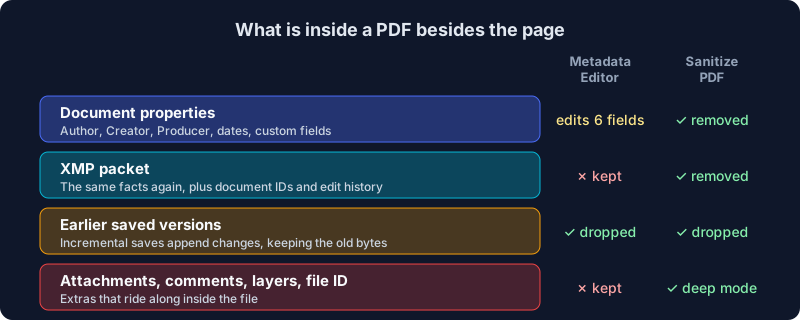
The same map as a table:
| Where it lives | What it holds | Metadata Editor | Sanitize PDF |
|---|---|---|---|
| Document properties (Info dictionary) | Title, Author, Subject, Keywords, Creator, Producer, dates, custom fields | Edits the six text fields | Deletes every entry |
| XMP packet | The same facts again, plus document IDs, edit history, tool names | Not touched | Deleted |
| Earlier saved versions | The whole file as it was before an incremental save | Dropped on save (full rewrite) | Dropped on save (full rewrite) |
| Attachments, comments, layers, IDs | Embedded files, annotations, hidden layers, trailer ID | Not touched | Annotations by default, the rest with Deep sanitize |
The document properties are what you see in a viewer's Properties or Get Info panel. They are old, simple, and what almost every tool edits.
The XMP packet is an XML block stored inside the PDF that repeats much of the same information, often with more of it. The PDF 2.0 standard deprecates the old properties in favor of XMP, except for the two dates, and PDF/A readers are told to ignore the old fields entirely. So when a tool blanks the Author field and leaves XMP alone, your name is still in the file, in the place newer software is more likely to read.
I checked this against our own Metadata Editor: blank every field, save, and search the output. The name I had put in the XMP packet was still there. That is by design, since the editor is a properties editor, but it is exactly why "I cleared the Author field" and "I removed the metadata" are different claims.
Edit or Wipe: Two Different Jobs
OxygenPDF has two tools here because people want two different outcomes.
Metadata Editor: set the fields you want others to see
Metadata Editor is for when metadata is supposed to be there and correct. It reads the six text properties (Title, Author, Subject, Keywords, Producer, Creator), shows them side by side, highlights what you changed, and writes a new PDF.
Use it to give a report a proper title for search results and browser tabs, fix an author name before publishing, or replace an ex-employee's name with the company's. Saving writes a fresh copy of the file, so incrementally saved earlier versions don't come along. The modification date is set to the moment you save.
What it doesn't do is remove anything else. XMP, attachments, comments and the file ID all stay. If the goal is privacy, it's the wrong tool, and it doesn't pretend otherwise.
(While writing this I found the editor displaying pdf-lib, the library we build on, as the Producer of every file it opened, instead of the file's real producer. The library stamps its own name on a document when it loads one, unless you tell it not to. That is fixed now, and the editor shows what the file actually says.)
Sanitize PDF: remove what you didn't mean to share
Sanitize PDF is the wipe. It has four switches, and the first three are on by default:
- Strip metadata deletes every document property, including custom fields like the Company entry Word adds, and deletes the XMP packet and the trailer file ID.
- Strip annotations removes every annotation on every page: comments, highlights, sticky notes and links. Form fields are annotations too, so they disappear as well. If you need the form's contents, flatten it first.
- Strip JavaScript removes scripts that run when the file opens, plus automatic actions.
- Deep sanitize goes further. It removes application-private data (PieceInfo), page-level action triggers, attached files and optional-content layers. Content on hidden layers is deleted from the page, so a layer switched off in your viewer can't reappear in someone else's, and visible layers are merged into the page.
Before you run it, the tool scans the file and lists what it found: an XMP packet, three embedded files, two hidden layers, and so on.
Every sanitize run saves a full rewrite. Earlier incremental versions are gone, and so is any object the cleaned file no longer uses. That last part is new, and it's the more important fix I made while writing this post. Our library writes out every object it has in memory, whether anything still points to it or not. So deep sanitize used to unlink an attachment without deleting it: the attachment was gone from every viewer's list, and its bytes were still in the file for anyone who opened it in a text editor. Now the tool deletes anything nothing points to before it saves, and a test makes sure an attachment's contents can't be found in the output.
How to Remove Metadata From a PDF, Step by Step
- Open Sanitize PDF and drop in your file. A password-protected PDF asks for its password. Standard PDF encryption is removed without turning the pages into images.
- Read the deep-scan findings. They tell you what is hiding in the file before you remove anything.
- Keep Strip metadata on. Turn on Deep sanitize if the file has attachments, layers, or came out of a long editing history. Switch Strip annotations off if you need to keep comments or form fields.
- Sanitize, download, and check the result in your viewer's Properties panel. The document properties should be blank.
If you want certain fields present on purpose, such as a clean title and your organization as author, run Metadata Editor on the sanitized file afterwards. The sanitized file has no XMP packet left to contradict what you set.
Both tools run in your browser. That matters more here than for most PDF jobs: the files people scrub are the ones they least want to hand to a stranger's server, and uploading a document to strip your name from it gives your name to one more party. Here's why every OxygenPDF tool works that way.
What Metadata Removal Can't Fix
Sanitizing cleans the structure around your pages. It does not read or rewrite what is drawn on them, and that leaves a few gaps you should know about:
- Text you hid visually is still text. White text, text under a black box, or text pushed off the page all survive, because they are page content, not metadata. Blacking out something with a rectangle is the classic version of this mistake. Use Redact PDF, which removes the text underneath, and read how to redact a PDF properly before you trust any black box.
- Photos can carry their own metadata. Some apps place a JPEG in a PDF byte for byte, with its camera EXIF block, including GPS coordinates if the phone recorded them. Neither tool rewrites image data. If a photo's origin is sensitive, strip its EXIF before you put it in the document, or export the page as a fresh image.
- Content gives people away too. A distinctive phrase, an internal project code on page 12, a header that the template added. No tool knows what counts as identifying in your document. Read it once as the recipient would.
- Pixels can hold hidden marks. Printers and some scanning setups add patterns to the image of the page that no metadata tool will ever see. If a document was printed and scanned, treat the scan itself as possibly marked.
Frequently Asked Questions
Does "Save As" remove metadata from a PDF?
No. Save As rewrites the file from scratch, which drops earlier incremental versions, but it keeps the document properties and the XMP packet. Many apps also update the modification date and Producer while they're at it. You still need to clear the metadata itself.
How can I see a PDF's metadata?
Your viewer's Document Properties panel shows the classic fields: Title, Author, Creator, Producer and dates. It usually doesn't show the XMP packet, attachments or earlier versions. Sanitize PDF's deep scan lists what else is inside before you remove anything.
Is removing PDF metadata enough before sending an anonymous document?
Not by itself. Metadata removal covers the file's structure. You also need to check the visible content for identifying details, make sure any blacked-out text was truly redacted rather than covered, and think about images that carry their own EXIF data.
Will removing metadata change how my PDF looks?
Stripping metadata and JavaScript changes nothing on the page. Stripping annotations removes comments, highlights, links and form fields, which are visible. Deep sanitize can remove content that sat on hidden layers, which by definition you weren't seeing. The printed page stays the same.
Can I remove metadata from a password-protected PDF?
Yes. Sanitize PDF asks for the password, and for standard PDF encryption it decrypts the file without converting pages to images, so text stays selectable. The output isn't password-protected. If it needs to be, protect it again after sanitizing.
What's the difference between editing and removing PDF metadata?
Editing sets the visible document properties to values you choose, and leaves everything else in place. Removing deletes them, along with the XMP packet, the file ID and, with Deep sanitize, attachments and layers. Edit to publish a document properly, remove to share one privately.
Check Before You Send
Metadata is the part of a PDF nobody proofreads. It gets written automatically, it's invisible where you normally look, and it outlives the edits you did review. Clearing it takes about a minute: run the file through Sanitize PDF, open the result, confirm the Properties panel is empty, then send it.
Scrub your PDF's metadata in your browser, without uploading the file you're trying to keep private.