Rohman
A 140-page PDF with no way to jump around is a document people give up on. The report was probably written in Word with a perfectly good contents page, then merged with three appendices, and the PDF everyone has now is the merged one. You want to add a table of contents to the PDF, and you don't have the Word file anymore.
There are two different things people mean by that, and most long PDFs should have both.
Quick answer: To add a table of contents to a PDF, open Table of Contents, load entries from detected headings, existing bookmarks or a page list, edit the titles, and click Insert. It adds a contents page with clickable entries. For a sidebar outline as well, run the file through Bookmarks first.
A Contents Page and a Bookmark Outline Are Different Things
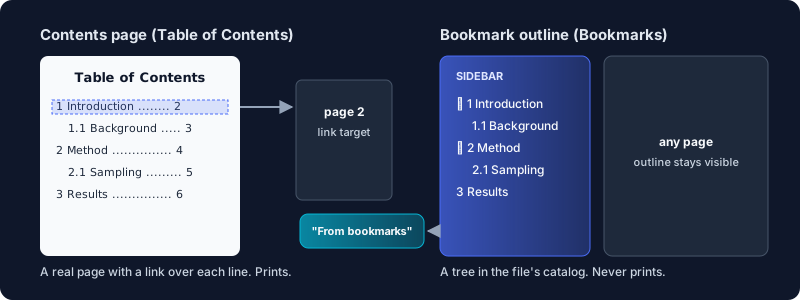
A contents page is a page. It's printed text, usually near the front, with titles, dotted leaders and page numbers. It survives printing, and in a good PDF each line is also a link.
A bookmark outline lives outside the pages. Adobe's Acrobat help describes a bookmark as "a link with representative text in the Bookmarks panel in the navigation pane." In the file format it's the document outline: a tree of titles, each pointing at a page. It never prints, but it stays one click away on every page, which a contents page at the front can't do.
Which one you need depends on the reader:
- A contents page for anything that might be printed or read like a book: a thesis, a manual, a board pack, a court bundle.
- A bookmark outline for anything people navigate on screen: long reports, spec sheets, merged files where readers jump between sections.
Most documents over thirty pages want both. They're also easy to build from each other, which is the trick below.
Why Your PDF Lost Its Table of Contents
Word can write both when it exports. Microsoft's Save as PDF instructions tell you to select "Create bookmarks using" and choose Headings. That checkbox sits behind an Options button, and if it was never ticked, the PDF has a contents page with no outline.
Merging loses more. A merged PDF keeps each part's pages, but its contents page still lists the page numbers of only one source file. Scans are worse: they have no headings a computer can read until you run OCR on them.
How to Add a Table of Contents to a PDF Step by Step
The cleanest route is to build the outline first and turn it into the contents page second.
- Open Bookmarks, drop in the PDF and pick Auto-generate. It scans the text for lines that are noticeably larger or bolder than the body text, and nests them up to three levels deep by size. Rename, reorder or delete entries in the tree, then click Save bookmarks and download.
- Open Table of Contents with that file. Under "Entries from", choose From bookmarks. Your outline becomes the list of entries, with its nesting intact.
- Set the title, the font size, dotted leaders and page numbers. "Insert before page" decides where the contents page goes: 1 puts it at the very front, 2 leaves a cover page in front of it.
- Leave Clickable links on. Turn on Back-to-TOC links if you want a small "Contents" link in the corner of each target page. Click Insert table of contents and download.
When I ran a five-chapter test file through Bookmarks, Auto-generate found all five headings and nested the two subsections correctly. Table of Contents then added one page at the front, with all five entries linked to the right pages. The page numbers it printed had already shifted by one to account for the new page.
If you only want the contents page, skip step 1 and pick Detect headings in Table of Contents. It uses the same heading detector. Page list gives you one row per page to title by hand, which is the fallback for scans.
What the Tools Can't Do
Heading detection reads the text layer. A scanned PDF has none, so nothing is found until you run OCR on it. Detection also guesses from font size and weight, so a document whose headings look like body text needs the match patterns in Bookmarks (such as ^Chapter\s+\d+) or a few manual entries.
The page numbers on the contents page are physical: the first page of the file is 1. If your document numbers its front matter i, ii, iii and starts "page 1" at the introduction, the contents page will disagree with the numbers printed on the pages. Add Page Labels can at least make the viewer's page box show i, ii, 1, 2 so readers aren't confused twice. If you'd rather stamp visible numbers on every page, adding page numbers covers how.
Table of Contents doesn't write bookmarks, and Bookmarks doesn't draw a contents page, which is why the steps above use both. Long titles are cut short with an ellipsis rather than wrapped, so keep entries short.
Password-protected files work in both tools and keep their selectable text and links, but the output is saved without the password. Protect it again afterwards if it needs one.
Everything runs in your browser. The PDF isn't uploaded.
Where This Fits
A contents page is the last step for a document assembled from parts. Merge the files first, add the bookmarks and contents page, and number the pages last. For legal bundles, Bates numbering is the usual stamp.
Frequently Asked Questions
How do I make a clickable table of contents in a PDF?
Use a tool that inserts the contents page and adds a link over each entry. Table of Contents does both, with Clickable links on by default, so each line jumps to its page.
What is the difference between bookmarks and a table of contents in a PDF?
A table of contents is a page inside the document, so it prints. Bookmarks are an outline shown in the viewer's sidebar, available from every page but never printed.
Can I create a table of contents from bookmarks?
Yes. In Table of Contents, choose From bookmarks under "Entries from" and the existing outline becomes your entries, nesting included.
How do I add bookmarks to a PDF automatically?
Open Bookmarks and choose Auto-generate. It finds lines that are larger or bolder than the body text and builds a nested outline you can edit before saving.
Why does my table of contents have the wrong page numbers?
Usually because pages were added or removed after it was made, or because the document uses roman numerals for its front matter. Regenerate the contents page after the last structural change.
Got a long PDF nobody can find their way around? Add a table of contents in your browser, with every entry linked to its page.