Rohman
You read the paper properly. Forty pages, a highlighter, a comment in the margin wherever something mattered. Then you sit down to write and realise every one of those notes is locked inside the PDF, and the only way to see them is to scroll back through it.
Exporting PDF highlights fixes that. Pull them out once, as text, and they become notes you can search, link, paste into a draft or feed to a script. The trick is getting the words you highlighted. A list of yellow rectangles with page numbers is no use to anyone.
Quick answer: To export highlights from a PDF, read its annotation layer and match each highlight to the text underneath it. Annotation Exporter does this in your browser: drop in the PDF and download one Markdown or JSON file holding every highlight's quoted text, your note, the page number, author, date and colour, grouped by chapter.
Why Highlights Don't Copy Out Easily
A highlight isn't text. In a PDF it's an annotation, a separate object floating over the page, and the specification gives it a position (a set of quadrilaterals called QuadPoints, one per highlighted line), a colour, an author, a date and an optional comment. It does not store the words it covers. Those live in the page's own text layer, underneath.
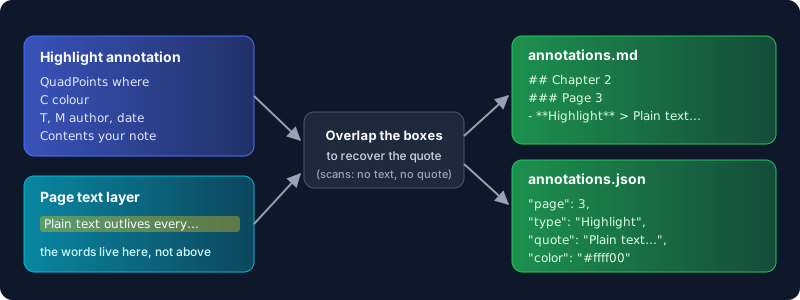
So any tool that exports highlights has to do a small piece of geometry: take each highlight's quadrilaterals, find the text on the page that falls inside them, and stitch that text back together in reading order. Skip that step and you get what a lot of exporters give you, a tidy list of comments with no idea what they were about.
That's also why Acrobat's own route is awkward for this job. It can export comments to an FDF or XFDF data file (Adobe, Importing and exporting comments), a format built for moving comments between copies of the same PDF, not for reading. Its Summarize Comments feature makes a printable summary, which is a PDF again.
How to Export PDF Highlights, Step by Step
- Open Annotation Exporter and drop in your annotated PDF. It reads every page's annotations and shows them grouped by page, and under chapter headings when the PDF has bookmarks.
- Choose the notebook format: Markdown for notes apps, JSON for scripts and pipelines.
- Under Annotation types, untick anything you don't want. Every type found in the file gets a checkbox, so link annotations or ink scribbles can be left out while highlights and sticky notes stay.
- Decide on the three switches: group under outline chapters, include highlighted text, and include author, date and colour. All are on by default.
- Export and download. The file is named after the PDF, such as
paper-annotations.md.
What the Markdown Looks Like
Here is the real output for a three-page test file with three highlights, one sticky note and two bookmarked chapters, exported with the default settings:
# Annotations — annotated.pdf

## Chapter 1: Why notes get lost

### Page 1

- **Highlight** > Spaced review beats rereading for long-term recall. Use this in the onboarding guide. _(Rohman · 2026-10-12 09:30 · #ffff00)_

### Page 2

- **Highlight** > A highlight without a note is a bookmark, not a thought. _(Rohman · 2026-10-12 09:30 · #80ff80)_
- **Text** Is there a source for this claim? _(Rohman · 2026-10-12 09:45)_

## Chapter 2: Building the archive

### Page 3

- **Highlight** > Plain text outlives every proprietary format. Quote for the intro. _(Rohman · 2026-10-12 09:30 · #ffff00)_
Each annotation is one bullet: its type in bold, the highlighted text after a >, your comment if you left one, then author, date and colour in italics. "Text" is the PDF name for a sticky note. Page headings stay even when you group by chapter, so every quote can be traced back to where it came from. The > sits mid-line, so it renders as a plain character rather than a block quote; if you want real block quotes, a find-and-replace does it.
The JSON export carries the same data as structured fields: the source file name, an export timestamp, the chapter list with page numbers, then one entry per page with each annotation's type, note, author, date, colour, quote and its rectangle on the page. That's the one to use if you're building a reading dashboard or piping quotes into another tool. Turning off "Include author, date and color" blanks those fields in both formats.
Getting Highlights Into Obsidian, Notion or Zotero
The Markdown file needs no conversion for the first two. Obsidian stores notes as Markdown files in a vault, which is just a folder on your disk, so the export can be dropped straight into it. Notion's importer accepts Text and Markdown files (.txt, .md or .markdown) and turns each into a page.
Zotero is the one to watch. Its built-in reader stores annotations in the Zotero database, not in the PDF file, so a PDF you copy out of your Zotero folder may have no highlights in it at all. Use Zotero's File → Export PDF (or Save As from the reader) to write a copy with the annotations embedded, then run that copy through the exporter. If you live inside Zotero anyway, its own "Add Note from Annotations" may be all you need.
If you want the whole document as text rather than just your marks, convert it with PDF to Markdown and keep the two side by side. Our PDF to Markdown guide explains what that conversion keeps.
Honest Limits
Flattened files have nothing to export. Flattening paints each mark into the page and deletes the annotation object, so a flattened highlight is just yellow pixels. Our explainer on flattening a PDF covers when that happens. Export first, flatten second, or keep an unflattened copy.
Scans have no quote to recover. A highlight on a scanned page sits over an image, so the exporter finds no words underneath and writes the bullet without a quote. Run OCR PDF before you annotate if you want quotes from a scan.
The quote is line-sized. Text is matched in the runs a PDF stores it in, which is often a whole line. When I highlighted only "Spaced review" in a sentence, the export quoted the full line. Trim it if precision matters.
It reads; it doesn't write. The tool produces a notes file and never changes the PDF. To add or edit the marks themselves, use Annotate PDF, and our guide to annotating a PDF explains why markups behave differently from page content.
One honest note from testing: the first run of this tool for this article came back with every quote empty, because the PDF library now returns highlight coordinates in a different array type than the exporter expected. That is fixed, and quotes now come through as shown above.
Everything runs in your browser. The PDF is read with pdf.js in the tab, the notebook is built there, and nothing is uploaded, which matters when the annotated file is an unpublished manuscript or a client contract.
Frequently Asked Questions
How do I extract highlighted text from a PDF?
Use a tool that maps each highlight annotation back onto the page's text layer. Annotation Exporter does this and writes the quoted words, your note and the page number into a Markdown or JSON file.
Can I export PDF comments as well as highlights?
Yes. Sticky notes, underlines, strikeouts, squiggles, free text and ink marks are all read. Each type gets a checkbox, so you can export only the ones you want.
Why are my highlights missing after exporting?
Usually the marks aren't annotations any more. Flattened or printed-to-PDF files have the highlight baked into the page, and PDFs copied out of Zotero may hold no annotations because Zotero keeps them in its database.
Can I export PDF annotations to Markdown for Obsidian?
Yes. Export as Markdown and drop the .md file into your vault folder. It uses chapter and page headings, so it reads as a normal note.
Does it work on scanned PDFs?
It reads the annotations, notes and metadata, but can't quote highlighted words because a scan has no text layer. OCR the PDF first if you need the quotes.
Your highlights did the hard part already. Export them as notes you can search, link and quote, without uploading the PDF anywhere.