Rohman
The file is a payslip, or a signed lease, or a scan of your passport for a visa agent. It's about to go out as an email attachment, and it will sit in at least two mailboxes, probably a few backups, for years. Putting a password on it first is the right instinct.
Here's the irony most search results skip over. The popular way to do it is to upload the PDF to a website that locks it for you. To encrypt your file, that site has to receive the unencrypted file and the password you chose, together. You've protected the document from the recipient's inbox by handing it, and its key, to a stranger's server.
Quick answer: To password protect a PDF without uploading it, open Protect PDF, drop in the file, type a password of 15 or more characters twice, and download the locked copy. Encryption happens in your browser. Then send the password by text or phone, never in the same email as the file.
What the password actually does
A PDF can carry two different passwords, and they do very different jobs.
The open password, which the spec calls the user password, is real encryption. Every text string, font and image stream in the file is scrambled with a key derived from that password. Without it, a PDF viewer has nothing to render. This is the one you want before emailing something sensitive.
The permissions password, or owner password, controls what someone can do after the file is open: print, copy text, edit, fill forms. On its own, with no open password, anyone can read the document. The restrictions are flags that PDF viewers are asked to respect, and plenty don't. The developers of qpdf, a widely used open-source PDF tool, put it plainly in their documentation: restrictions "may or may not be enforced by any particular reader." Our post on unlocking PDFs walks through why an owner password is an honor system and an open password isn't.
OxygenPDF splits these across two tools, and it's worth knowing exactly what each one writes:
| Protect PDF | PDF Permissions | |
|---|---|---|
| Needs a password to open | Yes | No |
| Password fields | One (used as both open and owner password) | Owner password only |
| Print, copy, edit restrictions | None; everything is allowed once opened | Your choice of four toggles |
| What really stops a reader | The encryption | The viewer's goodwill, unless you pick hard enforcement |
| Encryption written | RC4, 128-bit key | RC4, 128-bit key |
PDF Permissions also has a "hard enforcement" switch that turns every page into an image. There's then no text to copy, whatever the viewer does, but the change is permanent and the text layer is gone for good. That's a different tool for a different job. For keeping a document away from the wrong eyes, you want the open password.
The encryption, stated plainly
Protect PDF writes the PDF Standard Security Handler at revision 3: RC4 with a 128-bit key, the scheme introduced with PDF 1.4 and Acrobat 5. It opens in every PDF reader in use, Acrobat, Preview, Chrome, Edge, Firefox and phone apps included, which is why it's still common.
It's also old. PDF 2.0 (ISO 32000-2) deprecates RC4; PDFlib's summary of PDF encryption says it "no longer offers adequate security," and the only scheme PDF 2.0 still recommends is AES-256 with the hardened password handling introduced in Acrobat X. Since version 11, qpdf refuses to write RC4-encrypted files unless you pass --allow-weak-crypto. We'd rather you hear that from us than find it in a security review.
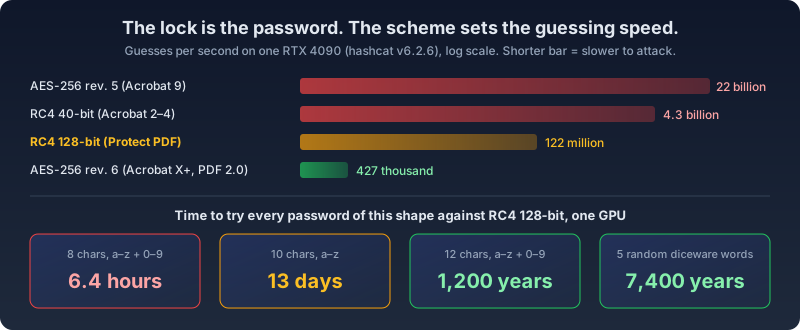
So what does "weak" mean in practice? Nobody attacks a password-protected PDF by breaking RC4's 128-bit key. They guess the password. Each guess means running the scheme's key derivation and checking the result against the file, and the only question that matters is how many guesses per second an attacker gets. The public hashcat benchmark for a single RTX 4090, a consumer graphics card, answers it:
| PDF scheme | Guesses per second, one RTX 4090 |
|---|---|
| RC4 40-bit (PDF 1.1–1.3, Acrobat 2–4) | 4.3 billion |
| RC4 128-bit (PDF 1.4–1.6, what Protect PDF writes) | 122 million |
| AES-256 revision 5 (Acrobat 9) | 22 billion |
| AES-256 revision 6 (Acrobat X and later, PDF 2.0) | 427 thousand |
Two things jump out. Modern AES-256 is about 285 times slower to guess than our RC4 scheme, and that's a real advantage. And "AES-256" on a label guarantees nothing: Acrobat 9's version of it is the fastest to attack in the table, because its password check was badly designed.
Why password length beats everything else
At 122 million guesses a second, here is how long one card needs to try every possible password of a given shape against an RC4-128 PDF (our arithmetic, from the benchmark above):
- 8 characters, lowercase letters and digits: about 6.4 hours.
- 10 lowercase letters: about 13 days.
- 12 characters, lowercase letters and digits: about 1,200 years.
- Five random words from a diceware list: about 7,400 years.
Those are exhaustive searches. A real attacker tries dictionary words, names, dates and leaked passwords first, so Summer2026! falls in seconds no matter what the character count says.
The practical rule follows. Length and randomness do almost all the work, and a long random password makes the RC4-versus-AES gap academic for most documents. NIST's current guidance, SP 800-63B-4, requires at least 15 characters when a password is the only thing protecting an account, and a PDF open password is exactly that: one secret, no second factor, no lockout after ten wrong tries. Use 15 or more, generated by a password manager, or four or five random words.
Our strength meter calls anything 12 characters or longer with three kinds of character "strong." Treat that as the floor, not the goal.
When you need more than Protect PDF
For most documents headed to a person you trust, like a payslip to your accountant or a contract to a client, a long random password on Protect PDF is fine. Four situations call for something else.
The document is high-value and could be targeted. Think merger terms, source code escrow, anything worth renting a rack of GPUs to open. Use AES-256 revision 6. qpdf is free, open source and runs locally: qpdf --encrypt "open-password" "owner-password" 256 -- in.pdf out.pdf writes the PDF 2.0 scheme. Acrobat's "Encrypt with password" does the same if you already pay for it.
A policy names the algorithm. If your employer, client or regulator says documents must be encrypted with AES-256, an RC4 file doesn't comply, however long its password. The same two tools solve it.
You know exactly who should open it. Passwords get forwarded. Cert Cryptor encrypts the PDF to the recipient's certificate instead (AES-256 content encryption, with the key wrapped for each recipient using RSA-OAEP), so only the holder of the matching private key can open it. The catch: the output is a .p7m envelope, not a PDF that opens in a normal viewer, so it only suits recipients with a certificate and the software to use it.
Parts of the document shouldn't reach anyone at all. Encryption is all or nothing: whoever has the password sees everything. If the recipient shouldn't see an account number or a name, redact it properly first, then encrypt what's left.
How to password protect a PDF in your browser
- Open Protect PDF and drop in your PDF. You can drop several; batch mode applies the same password to each file.
- If the PDF is already password-protected, enter its current password when asked. The tool removes the old encryption before adding the new one, so the password you're about to set becomes the only one that opens it.
- Type your new password and confirm it. The meter shows weak, medium or strong as you type.
- Click Protect and download
yourfile-protected.pdf. - Open the downloaded copy once, in a different app from the one you usually use, and check the password works before you delete anything.
The file never leaves your device. The PDF is read, encrypted and written by code running in your browser tab, so there's no upload and nothing saved on a server afterwards. You can confirm it the blunt way: drop your file in, switch off Wi-Fi, then click Protect.
One more thing to know before you lose a password: there's no reset. We never see it, so we can't recover it, and neither can anyone else except by the guessing described above. Keep the unprotected original somewhere safe, or keep the password in a password manager.
Sending it without undoing the work
The password is the whole lock, so don't put it in the same email as the file. Anyone who gets into that mailbox, or gets the email forwarded to them, then has both. Send it by text message, say it on a call, or agree on it in person.
Rename the file, too. Encryption covers what's inside the PDF, including its title and author fields, but not the filename in the email. Jane-Doe-passport-scan.pdf tells a stranger most of what the password was protecting.
And if the recipient needs to reply with the same document, filled in or signed, ask them to password-protect their copy too. Otherwise the locked file goes out and the unlocked one comes back.
Frequently Asked Questions
Can I password protect a PDF for free without uploading it?
Yes. Protect PDF encrypts the file in your browser, so neither the document nor the password is sent to a server. It's free and needs no account. Desktop options that also work locally include qpdf and, on a Mac, Preview's export dialog.
What encryption does OxygenPDF's Protect PDF use?
The PDF Standard Security Handler, revision 3: RC4 with a 128-bit key. It opens in every mainstream PDF reader. PDF 2.0 deprecates RC4, and the modern AES-256 scheme is about 285 times slower to guess, so for high-value documents use a long random password or an AES-256 tool such as qpdf.
Is a password-protected PDF safe to email?
It's far safer than an unprotected one, provided the password is long and random and you send it through a different channel. With a 15-character random password, guessing is out of reach even for an RC4-encrypted file. A short or guessable password can fall in hours.
What is the difference between a user password and an owner password?
The user password (open password) encrypts the file, and nothing can be read without it. The owner password (permissions password) only governs printing, copying and editing after the file opens, and many viewers ignore those restrictions. Protect PDF sets one password that acts as both; PDF Permissions sets an owner password with restrictions and no open password.
Can I stop people from printing or copying my PDF?
Only partly. Permission flags ask the viewer to block printing and copying, and many viewers don't. PDF Permissions can also rasterize every page so there's no text left to copy, which works in any viewer but can't be undone. Anyone who can see the page can still take a screenshot.
How do I remove the password later?
Use Unprotect PDF with the password. It decrypts the file in your browser and gives you an unlocked copy. Without the password, no tool can decrypt it; the only route is guessing.
Lock it here, not on someone's server
Encrypting before you send is a two-minute habit. Pick a long password, lock the file where it already lives, and send the key by a different road. Password protect your PDF here. It runs in your browser, and neither the file nor the password leaves your device.