Rohman
You fed forty sheets into a duplex scanner because a few of them had writing on the back. The PDF came out at eighty pages, and most of the even ones are the empty backs of single-sided letters. You need to remove blank pages from the PDF before anyone else has to scroll through it.
Deleting them by hand works for eight pages. At eighty it's a chore, and a duplex batch of a few hundred is worse.
Quick answer: To remove blank pages from a PDF, open Remove Blank Pages and drop in the file. It renders every page in your browser, compares each one with its own paper colour, keeps any page that carries a real mark, and marks the empty ones Remove. Click any page to switch it between Keep and Remove, then click Remove and download the cleaned PDF.
Why Duplex Scans Fill Up With Blank Pages
A duplex scanner captures both sides of every sheet whether there's anything on the back or not. That's the point of it: you don't have to sort two-sided pages from one-sided ones before scanning. The price is a blank image for every single-sided sheet.
Most scanner software can drop those pages as it scans. Ricoh's ScanSnap has a Blank page removal option, for example. But the same vendor's FAQ warns that "White documents that have only a small number of characters" may be detected as blank and not saved. Its fix is to clear the checkbox. So plenty of people scan with it off, and clean up afterwards, where they can see what's being cut.
Exports do it too. Word documents with section breaks set to "odd page" and print-ready files padded to an even page count both end up with spacer pages nobody wants on screen.
How Blank-Page Detection Works
There's no "blank" flag inside a PDF. A scanned page is a photo of paper, and a photo of empty paper still has pixels. So detection is a measurement.
Remove Blank Pages renders each page at a modest resolution (one pixel per PDF point, enough to judge and fast to compute) and takes two measurements, both against the page's own paper colour rather than against pure white:
- Is there a real mark? Any connected patch of ink, meaning pixels far darker or more colourful than the paper, counts as content once it is bigger than a speck of dust and doesn't touch the edge of the page. A page number or a signature line is a mark. Scanner dust is too small to count, and a shadow along the edge from the scanner lid touches the edge, so it doesn't count either.
- How much of the page is paper? Pixels close to the paper colour count as paper. Faint show-through from the other side of the sheet stays inside that tolerance.
A page is marked blank only when it has no mark and its paper share reaches the sensitivity setting. The default is 98%, and the slider runs from 90% to 99%. Moving it re-scores every page instantly, because the slow part (rendering) only happens once.
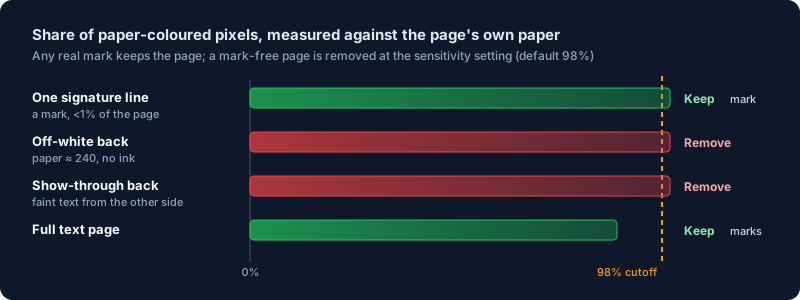
Measuring against the page's own paper is what lets an off-white or grey-cast scan count as blank. Looking for marks rather than counting ink is what keeps a page with one short line on it, because a line can be a tiny share of the page and still be the only thing on it you need.
The "Nearly Blank" Problem
I built a test PDF with ten pages to see where the line falls: two full text pages, a pure white page, a page with only a page number, an off-white page, a page of very faint text, a "This page intentionally left blank" page, a page with a single signature line, a cream page with stronger mirrored text showing through, and a cream page with dust specks and a dark strip down one edge like a lid shadow. Here's what the tool marked at the default 98%:
| Page | What's on it | Verdict |
|---|---|---|
| Full text | 40 lines of body text | Keep |
| Pure white | Nothing | Remove |
| Page number only | "3" at the foot | Keep |
| Off-white paper | Even rgb(240, 240, 237), no ink | Remove |
| Very faint text | 40 lines at rgb(247, 247, 247) | Remove |
| "Intentionally left blank" | One centred line | Keep |
| Signature line | "Signature: ____" | Keep |
| Show-through | Mirrored text in light grey on cream paper | Remove |
| Dusty back | Specks plus a dark strip along one edge | Remove |
The verdicts were the same at 90% and at 99%. Every page here either has a mark or is plain paper, and the slider only judges pages in between: mark-free pages with a lot of faint texture, like heavy show-through or a blotchy scan. Drag it toward 90% if those are left as Keep.
The page number and the signature line are kept because each is a mark, however small a share of the page it covers. That's the opposite of the failure ScanSnap warns about, and it has a cost: the "intentionally left blank" page is kept too, because its sentence is a mark. So is a back with a punched hole, a smudge or a hair on it, if the scan picked it up dark enough. Those are the pages to click and switch to Remove.
The off-white page and the show-through page are marked for removal because the measurement starts from the paper's own colour, so a recycled, yellowed or grey-cast sheet scores the same as white, and faint text from the other side stays inside the paper tolerance.
How to Remove Blank Pages Step by Step
- Open Remove Blank Pages and drop in your scan.
- Wait for the scan to finish. Every page appears as a thumbnail marked Keep or Remove, with a count above the grid.
- Look over the grid and click any page to switch it between Keep and Remove. It works from the keyboard too: Tab to a page and press Space or Enter. Your choice for a page sticks if you move the sensitivity slider afterwards.
- Click Remove, and download the cleaned PDF. Rename it first if you like. The tool won't let you remove every page.
Limits Worth Knowing
The kept pages are copied into a new PDF unchanged, so text, links and images stay as they were. That holds for a password-protected file too: enter its password when asked (a file locked only against editing opens without one), and the cleaned PDF comes out without the password, with its text still selectable and its links still working.
Several files can go through in one batch with the same sensitivity, which helps when a whole drawer of paperwork came off the scanner. The pages you switch by hand apply to the file on screen; the other files in the batch go by the detector alone.
And the file never leaves your computer. Rendering, scoring and rebuilding all happen in the browser tab. That's worth caring about when the scan is a tax return or a medical record.
After the Blanks Are Gone
A scan is usually still heavy after the blanks are out. Compressing it is the next step if it's going by email. If your scanner photographed two book pages per image, split the spreads in half before you look for blanks, so each empty half is its own page.
Frequently Asked Questions
How do I delete blank pages from a scanned PDF?
Open the scan in a blank-page remover, check the pages it marks, then remove them. Remove Blank Pages does this in your browser, and you can switch any page between Keep and Remove before anything is deleted.
Why are some blank pages not detected?
Usually because something on the page counts as a mark: a punched hole, a smudge, a hair, or a stamp the scanner picked up dark enough. A mark-free page can also be kept when heavy show-through or a blotchy scan takes too much of it away from the paper colour. Click the page to switch it to Remove, or drag the sensitivity toward 90% for the blotchy ones.
Will it delete pages that only have a page number or a signature?
No. A page number or a signature line is a mark, so the page is kept at every sensitivity setting. If you do want a page like that gone, click it to switch it to Remove.
Can I remove blank pages from a PDF without Adobe Acrobat?
Yes. Remove Blank Pages runs in any modern browser on Windows, Mac, Linux or a phone, with no install or account.
Does removing blank pages reduce the file size?
A little. Blank scanned pages are still images, so each one removed takes its share of the file with it. For a big reduction, compress the PDF afterwards.
Got a duplex scan full of empty backs? Remove the blank pages in your browser, check the list first, and keep every page that matters.