Rohman
The deck is done. The client asked for "a PDF, please," because half their team is on phones and the other half doesn't have PowerPoint. Or you're the one without PowerPoint: a Chromebook, a locked-down work laptop, a colleague's .pptx that just landed in your inbox and needs to be printed in ten minutes.
Either way, converting PowerPoint to PDF looks like one click. The click is easy. The settings behind it decide whether the result has your speaker notes, your fonts, your hidden backup slides, and whether a screen reader can make sense of it.
Quick answer: If you have PowerPoint, use File > Export > Create PDF/XPS on Windows or File > Save As > PDF on a Mac, and never Print to PDF. Without Office, PPTX to PDF converts a .pptx in your browser, one page per slide, with nothing uploaded. It handles text-and-image decks best.
If you have PowerPoint, use its exporter
I'll start with the advice that doesn't involve our tool, because it's the right advice. PowerPoint owns the layout engine that drew your slides, so its own exporter is the most faithful converter there is. Microsoft's support article lays out the paths:
- Windows: File > Export > Create PDF/XPS Document > Create PDF/XPS.
- Mac: File > Save As (or File > Export), then choose PDF as the file format.
- PowerPoint for the web: File > Export > Download as PDF.
- Keynote and LibreOffice Impress both open .pptx files and export PDF from their File menus.
The Windows dialog has the most control, and most people never open its Options button. It's worth thirty seconds.
The settings that change what you send
"Optimize for" has two choices. Standard is for printing and keeps images at full quality. Minimum size is for email, and it compresses images harder. A photo-heavy deck can drop from tens of megabytes to a few, but check your charts afterwards, because fine lines and small labels are the first things to blur.
"Publish what" is where people lose their speaker notes. The default is Slides, which gives you one page per slide and no notes at all. Handouts puts several slides on a page, which is good for printing a deck people will scribble on. Notes pages prints each slide above its speaker notes, and that's the one you want when the notes are the real content, as in training decks or anything you're handing to someone who has to present it after you. Outline view exports just the text.
Hidden slides are left out unless you tick "Include hidden slides." That's a feature when your hidden slides are appendix material you don't want the client to see. It's a problem when they're the backup charts your colleague expected to find.
"Document structure tags for accessibility" should stay on. Tags are what tell a screen reader which text is a title, which is a list, and in which order to read things. The University of Washington's accessibility team is blunt about the alternative in its PowerPoint guidance: "Do not use the 'Print to PDF' option when creating PDFs from PowerPoint. Printing to PDF removes the document's accessibility tag structure." On a Mac, the equivalent choice is "Best for electronic distribution and accessibility."
That's also the general rule: Export or Save As produces a better PDF than Print does. Print to PDF goes through the print pipeline, which knows about ink on paper, not about headings, links or reading order.
What no PDF can keep
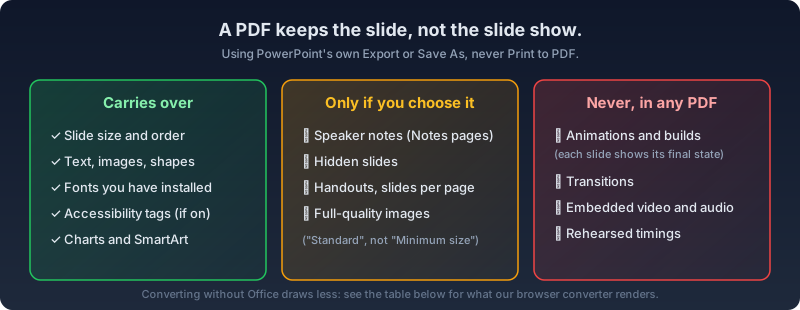
Some losses have nothing to do with which converter you pick, because a PDF simply has no place to put them.
Animations and builds collapse. A slide that reveals five bullets one at a time exports as one page with all five showing, and an object that flies off-screen is shown wherever it sits in the slide's final layout. If the reveal order is the point, duplicate the slide once per build step before exporting. It's tedious, and it's the only way to get the sequence onto paper.
Transitions, embedded video and audio are gone too. A video usually leaves its poster frame behind, a still image, so add the link as visible text on the slide if people need to watch it.
Speaker notes only come along if you export notes pages, as above. Everything else in this section is lost no matter what you do.
Fonts: the problem you find out about on someone else's screen
A .pptx doesn't normally contain its fonts. It names them. If you designed the deck in a brand typeface and the machine doing the conversion doesn't have that font installed, the converter substitutes another one, line lengths change, and text that fit in a box now overflows it.
When you export on your own machine, the fonts you see are the ones that get embedded in the PDF, so this problem mostly goes away. It comes back when you send the .pptx to someone else to convert, or convert it with a tool that isn't PowerPoint. The fix on the PowerPoint side is to embed fonts in the presentation: File > Options > Save > "Embed fonts in the file" on Windows, or PowerPoint > Preferences > Save on a Mac. Microsoft notes some fonts can't be embedded because of their licensing.
Without Office: your options, honestly compared
No PowerPoint on this machine? There are four realistic routes.
Google Slides opens .pptx files well and exports PDF from File > Download > PDF document. For notes, use File > Print preview, pick "1 slide with notes" and download from there. The cost is that the deck has to be uploaded to your Google Drive first, which is fine for a public talk and less fine for next quarter's pricing.
On a Mac, Keynote is already installed. It opens .pptx files and exports from File > Export To > PDF, locally, though it lays slides out with its own engine and substitutes fonts it doesn't have.
LibreOffice Impress is free, open source and entirely local, and its PDF export has real options. It's a desktop install, which is exactly what a locked-down work laptop won't let you do.
PPTX to PDF is ours. It runs in the browser tab, needs no install and no account, and never uploads the file. It's also a much simpler renderer than PowerPoint, so here's precisely what it does and doesn't draw:
| In your .pptx | In our PDF |
|---|---|
| Slide size and order | Kept: one PDF page per slide, 16:9 stays 16:9 |
| Text boxes and placeholders | Drawn as real text with bold, italic, size, color, alignment and bullets |
| Photos and pictures (PNG, JPEG) | Placed where they sit on the slide |
| Solid fills, lines, rectangles and ovals | Drawn |
| Tables | Simplified to one line of text per row, cells separated by a vertical bar |
| Charts, SmartArt, SVG or EMF graphics | Not drawn |
| Gradients, rotation, shadows and effects | Not reproduced; solid fills only, shapes unrotated |
| Backgrounds and logos set on the slide master | Not drawn; only a slide's own solid background color is used |
| Your theme's fonts | Replaced with Inter, plus Noto for other scripts |
| Animations, transitions, video, notes | Not included |
Read that table before you trust it with a pitch deck. A deck built from a heavily designed corporate template, with a master-slide background, a logo in the corner and charts on every other slide, will come out visibly plainer. A lecture deck of headings, bullet points and photos, or a set of slides you need to print and annotate, comes out well, with selectable, searchable text rather than pictures of slides.
It also only reads .pptx. The older binary .ppt format from PowerPoint 2003 and earlier has to be opened and re-saved as .pptx first, which Google Slides or LibreOffice can do.
How to convert PowerPoint to PDF in your browser
- Open PPTX to PDF and drop in your .pptx file. It's unzipped and parsed in your browser; nothing is sent to a server.
- Check the slide list. It shows every slide the tool found, with the first line of text on each, so you can confirm the count before converting.
- Convert and download. Each slide becomes one page at the deck's own proportions.
- Scroll through the PDF once, looking at slides with charts, template artwork or custom fonts. Those are where differences show up.
If the file is big because of photos, run it through Compress PDF before emailing. If you want printed handouts with several slides per sheet, N-up puts 2, 4 or more pages on each sheet.
Before you hit send
Whichever tool made the PDF, open the finished file and look at it the way the recipient will, ideally on a phone. Four checks catch nearly everything:
- The slide count matches, and any hidden slides you meant to include are there.
- Every font looks like your font, with no text spilling out of its box.
- Charts and small labels are still readable at the compression level you picked.
- If you exported notes pages, the notes are actually under the slides.
The decks people most often need to convert are rarely the public ones. They're board updates, sales proposals with pricing in them, and internal training. If you're going to use an online converter for those, it's worth knowing the file goes to someone else's server first. PowerPoint's own export, LibreOffice and our browser-based converter all keep it on your machine.
Frequently Asked Questions
How do I convert PowerPoint to PDF with speaker notes?
In PowerPoint for Windows, choose File > Export > Create PDF/XPS, click Options, and set "Publish what" to Notes pages. Each page then shows a slide above its notes. In Google Slides, use File > Print preview with "1 slide with notes." Our browser converter doesn't include notes.
Why do my fonts look different in the PDF?
The conversion ran somewhere that didn't have your fonts installed, so they were substituted. Export from the machine where the deck looks right, or embed the fonts in the .pptx first (File > Options > Save > Embed fonts in the file).
Do animations and transitions work in a PDF?
No. A PDF has no timeline, so every slide exports in its final state with all builds showing, and transitions and video are dropped. If a build sequence matters, duplicate the slide for each step before exporting.
Can I convert PowerPoint to PDF without Office?
Yes. PPTX to PDF runs in your browser with no install or upload and works best on text-and-image decks. Google Slides and LibreOffice Impress also open .pptx files and export PDF, with fuller rendering of charts and templates.
How do I make the PDF smaller for email?
In PowerPoint, choose "Minimum size" under Optimize for. For a PDF you already have, Compress PDF shrinks the images in your browser. Check charts and small text afterwards, since they blur first.
Can I turn the PDF back into PowerPoint?
You can get close with PDF to PPTX, but a round trip never restores the original: animations, notes and the slide master aren't in the PDF to bring back. Keep the .pptx as your source file.
Keep the .pptx, send the PDF
Export from PowerPoint when you can, with notes pages if the notes matter and tags on for accessibility. When you can't, convert your PowerPoint to PDF here. It runs in your browser, and the deck never leaves your machine.