Rohman
Somebody pressed Print, picked the wrong printer from the list, and saved a file. That's how most XPS files are born today. "Microsoft XPS Document Writer" sits right next to "Microsoft Print to PDF" in the Windows print dialog, both ask for a filename, and only one of them makes a file the rest of the world can open.
So you end up with an invoice, a boarding pass or a payslip in .xps or .oxps, and a Mac, a phone or a fresh Windows 11 laptop that shrugs at it.
Quick answer: To convert XPS to PDF on Windows, install the free XPS Viewer (Settings, then System, then Optional features), open the file and print it to "Microsoft Print to PDF". On a Mac, a phone or any computer without that viewer, drop the file into XPS to PDF. It reads both .xps and .oxps, renders every page in your browser and gives you a PDF with one page per XPS page. Nothing is uploaded.
What an XPS File Actually Is
XPS is Microsoft's answer to PDF from the Windows Vista years: a fixed-layout format where every page is a set of positioned glyphs, vector paths and images. Open one in a zip tool and you'll see it's a zip archive full of XML. A sequence file points at documents, each document lists its pages, and each page is an XML file that says "draw these letters with this font at these coordinates." Fonts and images ride along in a resources folder.
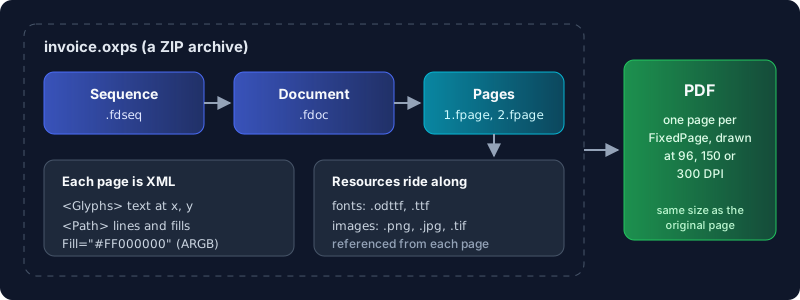
That design is why XPS converts cleanly. Nothing reflows. A page in an XPS file is already a page, and a converter's job is to paint it faithfully, not to guess at a layout the way a Word-to-PDF converter has to.
XPS or OXPS? Why There Are Two Extensions
In 2009 Ecma International standardised the format as ECMA-388, the Open XML Paper Specification, usually called OpenXPS. It keeps the structure but changes the XML namespaces and some details, and it uses the .oxps extension.
Then Windows 8 switched the default. As Microsoft's own 2012 support blog put it, "The 'Microsoft XPS Document Writer' defaults to creating an OXPS file." Every Windows version since does the same unless someone changes it. Two consequences you'll run into:
- Windows 7 and older can't open
.oxpsat all. The old XPS Viewer reports that it "cannot open this document." - Renaming doesn't work. The same post is blunt about it: "You can't simply rename the OXPS file to XPS because, these formats aren't exactly the same."
If someone sends you an .oxps, it almost certainly came out of the print dialog of a Windows 8, 10 or 11 machine.
Why Your PC Won't Open It Anymore
You'd think Windows could at least open its own format. Since Windows 10 version 1803 it often can't, out of the box. Microsoft's list of removed features says that on a new device or clean install, you have to add XPS Viewer yourself "from Apps and Features in the Settings app or through Features on Demand." Windows 11 treats it the same way: it's an optional feature that most machines never install.
The XPS Document Writer, meanwhile, is often still there in the printer list. Windows keeps making a format it no longer opens by default.
Two Ways to Convert XPS to PDF
On Windows: XPS Viewer and Print to PDF
- Open Settings, go to System, then Optional features, and choose to add a feature.
- Search for "XPS Viewer", install it and wait for it to finish.
- Open the
.xpsor.oxpsfile in XPS Viewer. - Press Ctrl+P and pick "Microsoft Print to PDF" as the printer. Save.
This route costs nothing and stays on your machine. It's the one to use if you're on Windows, have admin rights to add the feature, and need the text in the PDF to stay selectable, since printing to PDF hands the page to a PDF driver instead of turning it into a picture.
Anywhere else: in your browser
- Open XPS to PDF and drop in the
.xpsor.oxpsfile. - Check the page count it reports. Every page converts, in order.
- Pick a quality. Standard renders at 96 DPI for the smallest file, High (the default) at 150 DPI for sharper text, Print at 300 DPI when the document is going to a printer.
- Convert, then rename the file before you download it if "document.pdf" won't mean anything next week.
This works on a Mac, a Chromebook, a locked-down work PC where you can't install optional features, or a phone. The package is unzipped and drawn in the browser tab, which matters when the file is a payslip or a bank statement.
What Survives the Conversion
The converter draws each page element by element: vector paths and fills, gradients, embedded images (including TIFF, which XPS allows and browsers don't decode on their own) and text set in the document's own embedded fonts. When a font can't be loaded it falls back to a clean sans-serif rather than skipping the line.
Each finished page is placed in the PDF as an image at the resolution you chose. That's the trade-off to know about: the PDF looks like the XPS, but you can't select or search its text. If you need that, run the result through OCR PDF afterwards; our guide to making a PDF searchable covers what OCR gets right and wrong. A handful of rare XPS features are approximated, mostly visual brushes, opacity masks and radial gradients, which tend to show up in designed documents more than in printed receipts.
Testing the tool for this guide turned up real bugs, and they're worth admitting. Run against the sample OpenXPS pages Microsoft ships with its printer-driver samples, text written in XPS's alpha-first colour notation (#FF000000 is black) came out invisible, .oxps files were greyed out in the file picker, and some shapes drew with the wrong geometry. All three are fixed. If a file fails to convert, the Report Bug button on the error sends us the error message, never the file.
After It's a PDF
A PDF converted from XPS is an ordinary PDF, so the usual tools apply. Render at Print quality and the file can get large: Compress PDF brings it back down for email. If the XPS was one of several printouts, Merge PDF puts them into one file. And if you're the one making these files, change the habit instead: pick "Microsoft Print to PDF" in the print dialog and the person on the other end won't need this article.
Frequently Asked Questions
How do I open an XPS file without converting it?
On Windows 10 and 11, install XPS Viewer from Settings, then System, then Optional features. On a Mac or phone there's no built-in viewer, so converting to PDF is the practical route.
What is the difference between XPS and OXPS?
OXPS is the standardised version of XPS (ECMA-388). Windows 8 and later save .oxps by default from the XPS Document Writer. The two are close, but not interchangeable: renaming one to the other doesn't work.
Can I convert OXPS to PDF directly?
Yes. XPS to PDF reads .oxps as it is. On Windows, XPS Viewer opens both formats and can print either one to PDF.
Will the text in the PDF be selectable?
Not from the browser converter, which places each page as an image so the layout stays exact. Run OCR PDF on the result to add a searchable text layer, or use XPS Viewer's Print to PDF on Windows.
Is it safe to convert an XPS file online?
It depends on where the file goes. Most online converters upload it to a server. This one renders the file inside your browser tab, so the XPS never leaves your computer. Our reasons for building every tool this way are in why local-first PDF tools.
Got a file nothing will open? Convert it from XPS to PDF in your browser, .xps or .oxps, without uploading it anywhere.