Rohman
You email a 30-page report to your Kindle, open it on the train, and get a full A4 page squeezed onto a 6-inch screen. The words are there. You just can't read them without zooming in and dragging the page around, line by line.
Getting a PDF to Kindle is the easy part. Getting it there in a shape you can read takes one decision first: is this document text, or is it pictures of pages?
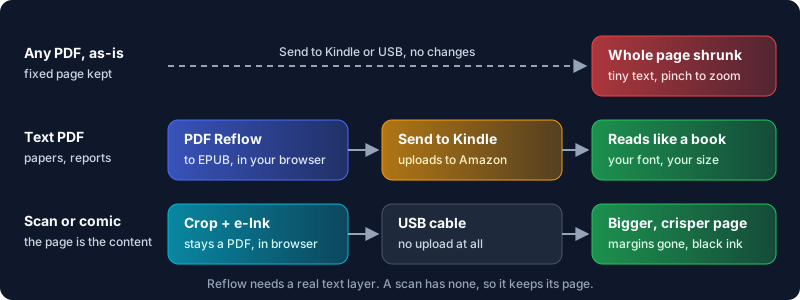
Quick answer: To read a text PDF comfortably on a Kindle, convert it to EPUB, then send the EPUB with Send to Kindle. PDF Reflow rebuilds a fixed or two-column PDF into one reading column and exports an EPUB in your browser, so the Kindle can wrap the text at any font size. Scans and comics should stay PDFs.
Why a PDF Looks Tiny on a Kindle
A PDF is a fixed page. Every word has an exact position on a sheet of a given size, and Amazon's own help calls PDFs "print format/fix layout documents", in contrast to adjustable layout files like Word or plain text. A Kindle can't rewrap a fixed page. It can only scale it.
Do the arithmetic. An A4 page is 210 mm wide. The 2024 Kindle Paperwhite has a 7-inch screen and the base Kindle a 6-inch one. Fit a whole A4 page on the smaller panel and it shrinks to well under half its size, so 11-point body text lands below 5 points. Two-column academic layouts are worse, because each column is narrow before it gets scaled.
An EPUB has no page. It's a stream of paragraphs and headings that the reader lays out on whatever screen it's given, at whatever size you pick. That's the whole fix: stop sending a page, and send the text.
What Send to Kindle Accepts Today
Amazon's help page lists the channels: the web uploader, your Send to Kindle email address, the Kindle phone app, desktop apps for Mac and Windows, and a Chrome extension (Amazon, Learn About Sending Documents to Your Kindle Library). Supported files include PDF and EPUB, alongside Word, TXT, RTF, HTML and common image formats.
The limits differ by route:
- Web uploader: 200 MB or smaller per document, per the Send to Kindle page.
- Email: up to 25 attachments and 50 MB total per message, from up to 15 approved addresses (Amazon, Learn How to Use Your Send to Kindle Email Address). Your address has to be on the Approved Personal Document Email List first.
- EPUB: accepted since 2022, when Amazon added it and began retiring MOBI (TechRadar, May 2022). Amazon converts it to its own Kindle format on the way in.
- USB: still works, covered below.
What about typing "Convert" in the email subject line? Older guides recommend it as a way to make a PDF reflowable. Amazon's current email help doesn't mention it, and an Amazon forum moderator answered in June 2025 that "you don't need to include a subject line". I wouldn't build on an undocumented switch. Convert the file yourself, where you can see the result before it goes anywhere.
How to Convert a PDF for Kindle, Step by Step
This is for text PDFs: papers, reports, manuals, an ebook someone gave you as a PDF.
- Open PDF Reflow and drop in the PDF. A password-protected file asks for its password, which goes straight to the PDF reader; the text is never flattened to images.
- Check the live reader preview. The tool reads where every line sits, works out the column layout, puts blocks in reading order, and rejoins lines into paragraphs. A paragraph that runs over a page break comes out as two, so give long documents a quick skim.
- Leave "Remove repeated headers and footers" on. Page numbers spliced into the middle of a sentence are the most annoying thing about badly converted PDFs.
- Decide on "Keep images in place". Figures land next to the paragraph that mentions them. Turn it off for a smaller, text-only file.
- Set Export format to "EPUB e-book (.epub)" and export. Chapters break at the document's top-level headings, with a table of contents the Kindle can jump through.
- Send the EPUB with the Send to Kindle web uploader, the app, or as an email attachment.
Skip the theme and font size controls. They style the preview; on the Kindle you pick font and size in its own settings, which is the point of an EPUB.
If you want the full story of what goes into the EPUB and what doesn't, our guide to converting a PDF to EPUB goes deeper.
Scans and Comics: Keep the PDF, Fix the Page
Reflow needs a real text layer, and a scanned PDF has none. PDF Reflow detects that and points you to OCR PDF instead of producing an empty book. OCR can give you text to reflow, but for a scanned book full of figures, or a comic where the drawing is the content, keep the page and make it read better on e-ink.
Two changes do most of the work:
- Crop the margins. A scan's white border is wasted screen. Trim it with Crop PDF, which takes margins in points (72 to the inch), and the Kindle scales what's left up to fill the screen. Our crop PDF guide shows how to pick the numbers.
- Clean it up for e-ink. A cream or gray scan background turns muddy on e-paper, and thin strokes fade. The e-Ink Optimizer has a Binarize mode that turns each page into black ink on white, with stroke bolding of up to 3 pixels, and a Grayscale mode for pages with photos.
For manga and comics on a Kobo or a KOReader device, a CBZ is often a better container than PDF; see converting a PDF to CBZ.
Uploading vs. Sideloading
Be clear about where your file goes. Every OxygenPDF tool in this post runs in your browser and uploads nothing. Send to Kindle is different: every route, email included, sends the file to Amazon, which stores it in your library and converts EPUBs on its servers. Amazon's help page says these documents are protected with end-to-end encryption. A copy still lives on Amazon's side.
If that's not acceptable for a contract or a medical record, use a cable. On Windows, the Kindle shows up in File Explorer as "Kindle" with no extra software. On a Mac, Kindle Scribe and 2024-released Kindles need Amazon's Send to Kindle app for macOS, whose USB File Manager lets you drag files into the Kindle's Documents folder (Amazon, Connect, Browse, and Transfer Files on E-Reader). Older models mount without it.
The catch is format. Amazon's USB help doesn't list EPUB among files the Kindle reads directly, and EPUB support arrived as part of Send to Kindle's conversion service. So the cable is the right route for a cropped, e-ink-optimized PDF, and Send to Kindle is the practical route for an EPUB.
Honest Limits
Reflow can't fix a bad text layer. If a PDF stores its text out of order or with broken character mapping, the EPUB inherits the mess. Complex tables are the usual casualty, and equations come through as preformatted text rather than typeset math. Amazon's troubleshooting page also warns that large or complex tables can make conversion fail.
The reflowed PDF export is not for Kindles. PDF Reflow can also export a re-typeset single-column PDF, but it's laid out on A4 pages at a fixed size. Better than two columns, worse than an EPUB.
Some documents should stay fixed. Forms, slide decks, sheet music and design-heavy brochures lose their meaning when reflowed. Read those on a tablet.
Big files bounce. Email stops at 50 MB. Shrink a heavy scan with Compress PDF, or use the web uploader's 200 MB limit.
Frequently Asked Questions
How can I convert a PDF to Kindle format?
Convert the PDF to EPUB and send that through Send to Kindle, which turns EPUBs into Amazon's Kindle format. PDF Reflow builds the EPUB in your browser and rebuilds two-column layouts into one column first.
Can I read my own PDF files on a Kindle?
Yes. Send them with Send to Kindle or copy them over USB. They open as fixed pages, so text-heavy PDFs read far better once converted to EPUB.
Why is my PDF not showing on my Kindle?
Check that your sending email address is on the approved list and that the attachment is under 50 MB. Amazon also says to remove password protection before sending, since a secured document can fail conversion. Send to Kindle retries delivery for up to 60 days, so make sure the Kindle is online.
How do I put PDF files on my Kindle?
Upload at amazon.com/sendtokindle, email the file to your Send to Kindle address, share it from the Kindle phone app, or connect a USB cable and copy it into the Documents folder.
Why is the text in my PDF so small on my Kindle?
The Kindle scales the whole fixed page to fit the screen. Convert text PDFs to EPUB so they reflow, or crop the margins of scans so the content fills more of the screen.
Make the Words Bigger
Sending a PDF to a Kindle unchanged gets you a shrunken page. For anything that's mostly text, reflow the PDF into an EPUB in your browser, check the reading order, and send that instead. Then set the font size yourself and read it like a book.