Rohman
Bright white pages are fine on paper and harsh on a laptop at 11 pm. So you go looking for a way to change the PDF background color to something softer, a warm cream or a pale grey, and find two kinds of answers. One changes how your own viewer paints the page. The other changes the file. They're not the same, and only one of them survives being sent to someone else.
Quick answer: To change a PDF's background color permanently, open Background Color, drop in the file, pick a preset such as Warm cream or any custom color, set the opacity, and click Apply Background. A solid color is drawn behind every page, and text stays selectable. It works on digital PDFs, not scans, and runs entirely in your browser.
Viewer Setting or Real Change?
Adobe Acrobat and Reader can already show any PDF with a different background. Under Preferences, then Accessibility, there's an option Adobe describes as Replace Document Colors: "you can choose from a list of contrasting color combinations for text and background, or you can create your own." Browser dark modes and e-reader apps do something similar.
That's the right tool if only you need to see the change. The file on disk isn't touched, so the next person who opens it, or the printer, still gets white pages.
Changing the file is different. You do it when the color is part of the document: a handout printed on cream paper, a branded proposal with a tinted page, study notes you read on three different devices and want to look the same on all of them.
How the Color Gets Into the File
A PDF page has no "background color" property to edit. Unless something paints over it, a page is just empty, and viewers show empty as white. So adding a background means drawing something.
Background Color draws one filled rectangle covering the whole page, then places the original page content on top of it. The original page goes in as an embedded page object, so the text is still text and vector graphics stay vector.
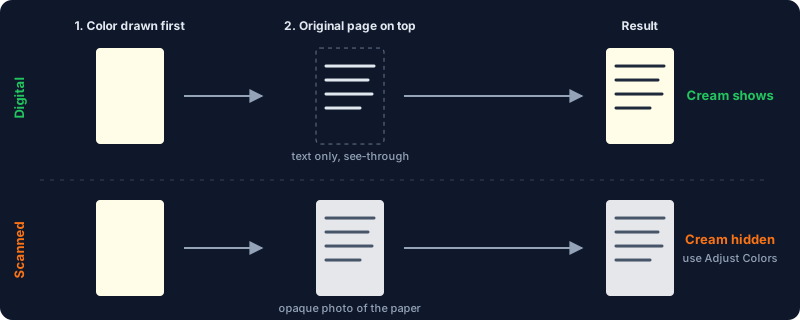
That design explains both what works and what doesn't.
How to Change PDF Background Color
- Open Background Color and drop in your PDF.
- Pick a color. The presets are Warm cream, Light blue, Light green, Light pink, Light gray, Parchment, White and Black, and the color picker takes any other shade. Warm cream (
#fffde7) is selected when you open the tool. - Set the opacity. At 100% you get the exact color. Lower values make the tint paler, because the rectangle is blended with the white page under it.
- Click Apply Background and download. Every page in the file gets the same color; there's no option to color only some pages.
For reading comfort, the pale presets work better than saturated colors. Strong colors lower the contrast between text and background, and that's the thing that makes text readable.
Why It Does Nothing on a Scanned PDF
This is the part most guides skip. A scanned PDF page is a photo of a sheet of paper. That photo includes the paper itself, edge to edge, in whatever off-white or grey your scanner saw.
Because the new color is drawn behind the page content, the scan sits on top of it and hides it completely. I tested this with a page whose whole surface was filled with white before any text was drawn, which is how a scan behaves. After applying Warm cream, the result looked exactly like the original. The tool did its job; you just can't see it.
Some digital PDFs behave the same way. Slide decks and designed brochures often have a full-page white or colored shape as their first object. The tool leaves those alone, so the new color stays hidden behind them.
For a scan, change the photo itself instead:
- To warm it up or make it sepia-toned, use Adjust Colors. It has brightness, contrast and gamma controls plus a sepia option, and it works on the page images.
- To make a grey, muddy scan white, raise contrast first, then brightness. Our guide on how to increase PDF brightness explains why brightness alone makes things worse.
Dark Backgrounds Need a Different Tool
The Black preset exists, but on a normal PDF it gives you black text on a black page. The text is still there and still selectable; you just can't see it. To read a PDF in dark mode, you need the text to turn light as well.
Invert Colors flips the whole page, so black text on white becomes white on black. It also turns photos into negatives, which is why we wrote a separate guide to reading a PDF in dark mode that compares the options. If you want light text on a dark background you chose yourself, combine two tools: set the background here, then recolor the text with Text Color. Our sibling guide on changing text color in a PDF covers what that tool can and can't recolor.
Limits Worth Knowing
- Scans and full-page shapes hide the color, as explained above.
- Links, form fields and comments don't come through. Only the page content is carried into the new file.
- Printing a colored background uses ink. A full-page tint on every page uses far more toner than the text does. For print, consider tinted paper instead.
Nothing is uploaded. The PDF is read and rebuilt inside your browser tab with pdf-lib, and the result is handed straight back to you.
Frequently Asked Questions
How do I change the background color of a PDF to white?
If the PDF is digital and has a colored shape as its background, choosing White in Background Color won't remove it, because the new color goes behind the existing content. If it's a scan with grey paper, use Adjust Colors and raise the contrast, then the brightness, until the paper turns white.
Can I make a PDF background sepia or cream?
Yes. Pick Warm cream or Parchment in Background Color for a digital PDF. For a scanned PDF, use the sepia option in Adjust Colors, since a background drawn behind a scan is hidden.
Why didn't the background color change on my PDF?
The page almost certainly has something opaque covering it already: a scanned image or a full-page white rectangle. The new color is drawn underneath that layer, so it can't show through.
Does changing the background color affect the text?
No. The original page content, including text, is placed on top unchanged, so text stays selectable and searchable. That holds for password-protected files too: once you enter the password, the file is decrypted with its text intact, not converted to images.
How do I change the PDF background color only on my screen?
In Acrobat or Reader, turn on Replace Document Colors under Preferences, then Accessibility, and pick a page background. That changes your view only, and the file stays as it was.
Want a softer page that stays soft on every device? Change your PDF's background color in your browser, with nothing uploaded.