Rohman
You open a scanned lease to change one date. You click on the date and nothing happens, or the cursor drags a box across the entire page. The words look like words. The file says they aren't.
The file is right. A scan is a photograph of paper in a PDF wrapper, so to edit a scanned PDF you either paint over the photograph or turn it into text first. Which of those you want depends on how much needs to change, and picking wrong is how a five-minute fix turns into an afternoon spent fighting a typeface you will never match.
Quick answer: Decide how big the edit is first. For a date, a name or a figure, cover the old text in Edit PDF with a rectangle in the paper's color and type the new value on top. For rewriting sentences or paragraphs, convert the scanned PDF to Word with OCR in PDF to Word, edit it there, and save it back to PDF. If what you actually need is to search or copy the text, skip editing and add a searchable layer with OCR PDF. With the on-device engines, all three run in your browser and the scan is never uploaded.
Why You Can't Click Into a Scan
A PDF made from Word or a web page stores characters: this font, this position, these letters. A scanned PDF stores one image per page. There are no letters in the file to select, which is why every editor that expects text finds nothing. (If you're not sure which kind you have, the 30-second test in our OCR guide settles it.)
So "editable" can mean three quite different things for a scan, and every tool you try is quietly picking one of them:
| What you change | What the file holds afterwards | Good for |
|---|---|---|
| The pixels | The original scan with new shapes and text drawn over it | A date, a name, a figure, a signature line |
| A hidden text layer | The original scan plus invisible OCR text behind it | Search, copy and paste, screen readers. Nothing visible changes |
| Reflowable text | A new document built from the OCR output | Rewriting, reformatting, reusing the content elsewhere |
Adobe Acrobat blurs the first and third. When you choose Edit on a scan, per Adobe's own help page, "Acrobat automatically applies OCR to your document and converts it to an editable PDF copy," and "the new text matches the original font." The same page then tells you to double-check the OCR before editing and, if a font is missing, to install it. That is the third row wearing the first row's clothes. It also needs Acrobat itself: Adobe's troubleshooting page blames failed edits on opening the file "in Adobe Reader instead of Adobe Acrobat, which is used for editing".
Word has its own version. Open a PDF in Word and it makes a converted copy, which Microsoft says works best with files that are mostly text, adding that "if the PDF contains mostly charts or other graphics, the whole page might show up as an image. When that happens, the text can't be edited." To a converter, a scan is a page that is all graphic.
Pick the Route by the Size of the Edit
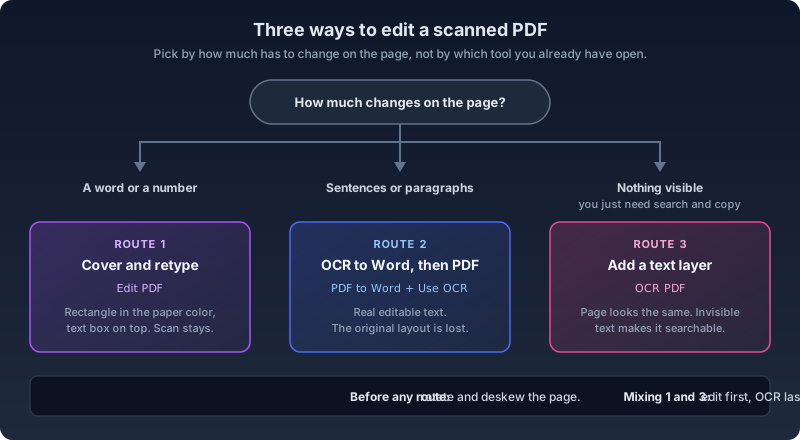
Count what has to change on the page, not in the document.
A few words or numbers per page is route one. You keep the scan exactly as it is and patch it. Sentences and paragraphs are route two, because patching a paragraph means matching a typeface for a hundred words instead of five, and nobody wins that. When nothing on the page needs to look different and you just want Ctrl+F and copy-paste to work, that's route three, and it isn't editing at all.
My own threshold is lower than most people expect. Once I'm covering more than three or four separate spots on one page, the patches start to show as a pattern, and retyping from OCR text is faster than hiding them.
Route 1: Fix a Word or a Number in Place
This is the fastest way to edit a scanned PDF online for free, and it works on any scan in any language, because nothing reads the text. You're drawing.
- Straighten the page first. If it's crooked, run it through Deskew PDF; if it's sideways, Rotate PDF. A text box typed perfectly level on a page tilted two degrees looks pasted on, because it is.
- Open the file in Edit PDF. The editor loads and saves the document locally in your browser.
- Cover the old text. The Whiteout tool (W) draws a solid pure-white box, which is invisible on a bright white scan and obvious on anything else. For cream, grey or yellowed paper, use the Rectangle tool (R) instead, switch its fill on, and set both fill and border to the paper color with the custom color picker. It takes a hex or RGB value, so nudge it until the rectangle's edge disappears against the page.
- Type the replacement with the Text tool (T). Size matters more than typeface here. Zoom in, then step through the size presets (8 to 72 pt) until the new capitals stand as tall as the ones beside them, and drag the box so its baseline sits on the same line as the old text.
- Set the text color to a dark grey, not black. Scanned "black" ink is almost never true black, and pure black next to it reads as new.
- Download. The edits are drawn into the page, so every viewer and printer shows them the same way.
Why the new text still looks a little off
Even with the right typeface and size, typed text looks different from scanned text, because the scan isn't really a typeface anymore. It's ink that spread into paper fibers, then got blurred by the scanner optics, compressed into JPEG blocks and tilted by a fraction of a degree. The replacement is a mathematically sharp outline. Your eye picks up the difference in edge softness long before it notices the letterforms.
Two things help more than hunting for a better font. Keep the replacement short, since one changed digit hides far better than a changed phrase. And if the character you need already appears elsewhere on the same scan, crop it from a screenshot of the page and place it with the Image tool (I) as a PNG or JPEG. It carries the same ink and the same blur as its neighbors. It's fiddly, and it's the only way I know to get a genuinely invisible fix.
Route 2: Convert the Scanned PDF to Word, Edit, Save It Back
When you need to rewrite text rather than patch it, stop trying to preserve the scan. Turn the scanned document into a Word file, edit it like any other document, and make a new PDF at the end.
- Straighten first, again. Tesseract's documentation says its line segmentation "reduces significantly if a page is too skewed, which severely impacts the quality of the OCR". Deskew before you convert, not after.
- Open PDF to Word and drop in the scan. Turn on the Use OCR switch, which is off by default because most PDFs don't need it.
- Choose an engine. The On-device tab runs in your browser: Tesseract is the default and has the language picker, the PaddleOCR engines are the better pick for Asian scripts, and the Florence-2 models need a WebGPU-capable browser. The first run downloads the engine's model; the scan itself stays on your machine. The Cloud AI tab is different on purpose: those engines send page images to Replicate using your own API token, which is worth it for a messy layout and a bad idea for a medical record.
- Convert and download the .docx. Be clear about what's in it. OxygenPDF's OCR-to-Word path writes the recognized text as plain paragraphs in Calibri at 11 pt, with a page break between scanned pages. Tables, images, columns and headings don't come through. That's the honest trade: you get editable words and lose the layout, which is also why converting a scanned document to Word never looks like the original.
- Proofread against the scan before you edit anything. Put the two side by side and check every number and date first. The full method is in how to verify an OCR result.
- Make the PDF. If the formatting matters, rebuild it in Word and export from there; Microsoft describes Word for the web's File > Export > Download as PDF as a way to share a copy "while preserving its formatting". OxygenPDF's Word to PDF suits a plain letter or memo: it reads the document's text and lays it out on A4 or Letter at a single font size, so bold, headings and tables drop out.
If your original was a born-digital PDF rather than a scan, you want a different conversion entirely, and what PDF to Word does to a real text PDF covers it.
Route 3: Keep the Scan, Add a Searchable Layer
A lot of "edit scanned PDF" searches are really "I can't copy this paragraph." If nothing on the page needs to look different, don't edit it. Run OCR PDF and download the searchable PDF. The page stays a picture, now with invisible OCR text laid over it, so search and copy-paste work while the page looks the same as before. Making a PDF searchable explains how that hidden layer behaves in different readers.
Route three also combines with route one. Make your in-place edits first, then OCR the edited file, so the hidden layer is read from the page as it now looks. One catch: OCR PDF's Auto-detect text option skips recognition when a file already contains a little real text (50 characters, across the whole document), and a single-line text box you typed is saved as real text, so it counts. After a route-one edit, switch Auto-detect off before running OCR, or the tool will extract your typed words and skip the scan.
What the Other Tools Do With Your File
Most of the pages that rank for this job are upload tools. Fine for a takeout menu, less fine for a lease.
PDF24's OCR is free with no signup, and says plainly that "the text is recognized on our servers in the cloud," with files deleted from its server after one hour. Sejda's web tools are free within "page and hourly limits" and are, in Sejda's words, tools "where you upload your documents and process them on our servers." Smallpdf's pricing lists Edit Text and OCR among what Pro adds over the free plan. iLovePDF's OCR page asks you to "upload your file and transform it." Even Acrobat's browser editor saves your changes to Adobe cloud storage.
None of that is sinister. It does mean your passport scan spends some time on someone else's disk, so decide whether that's acceptable before you click upload.
Mistakes That Ruin the Edit
Editing before straightening. A crooked page makes every patch visible and every OCR pass worse. Deskew and rotate first, always.
Trusting OCR numbers. Tesseract leans on dictionaries and word lists to settle uncertain characters, and an invoice total or an account number isn't in any dictionary. A misread letter usually leaves a word that looks wrong. A 3 read as an 8 looks perfectly fine.
Fighting the font. Past a word or two, no amount of preset-hopping hides a patch. Switch to route two instead of trying harder.
Running OCR before editing. OCR the file first and then white out an old figure, and the invisible text layer still holds the old figure. Search for it and your reader will highlight a white box.
Treating whiteout as redaction. This is the one that bites. Both the Whiteout box and a filled rectangle are drawn on top of the scan; the original page image is still inside the file, untouched. Extract Images pulls embedded images out as their original bytes, not as screenshots, and anyone running a tool like it on your file gets the scan back with the old number intact. To remove something from a scan, use Redact PDF and read how to redact a PDF first, especially the part about scanned pages.
Frequently Asked Questions
Can I edit a scanned PDF without OCR?
Yes, as long as you're changing pixels rather than text. Covering old content with a rectangle and typing new text on top (route one) needs no OCR at all. What you can't do without OCR is retype a word where it sits. Edit PDF's Edit Text tool reads the file's text layer, and on a plain scan it finds none and tells you so: "No editable text found. This may be a scanned document — try OCR first."
Can I edit a scanned PDF online for free without uploading it?
Yes. Edit PDF, PDF to Word and OCR PDF process the file in your browser when you use the on-device engines. The file itself isn't sent anywhere; what the first OCR run downloads is the engine's model. The Cloud AI engines are the exception, and the engine picker puts them on a separate tab.
Can I edit a scanned PDF on my phone?
The editor has a mobile layout with its own toolbar and properties sheet, so small in-place fixes work in a phone browser. For OCR on a phone, Tesseract and PaddleOCR Fast (about 20 MB) are the practical choices. The Florence-2 models need WebGPU and fall back to PaddleOCR where it's missing, and at 190 to 480 MB they're a download to save for Wi-Fi.
Will converting a scanned PDF to Word keep the formatting?
Not with OCR. The recognized text arrives as paragraphs, and the layout, tables and images stay behind in the scan. If you need the result to look like the original, route one keeps the scan intact; if you need to rewrite it, rebuild the formatting in Word before exporting.
Can I edit handwriting on a scanned page?
Covering and replacing handwriting works exactly like printed text, since route one doesn't care what the pixels say. Getting handwriting into editable text is a harder OCR problem with its own engine trade-offs, covered in handwriting OCR.
Edit your scanned PDF in your browser. Nothing is uploaded.