Rohman
You hit Ctrl+F on a scanned PDF, type a word you can see on the page, and get zero results. The document is right there. The word is right there. Your PDF reader insists neither exists.
That gap has a specific cause and a specific fix, and the fix takes about a minute. What takes longer, and what almost nobody tells you, is checking whether the fix worked. OCR fails quietly. A scanned invoice can come back looking perfect with one digit changed.
The Fast Answer
Optical character recognition (OCR) is the process of analyzing an image of text and converting the letter shapes it finds into machine-readable, searchable characters. It never touches the image itself — it adds a hidden, selectable text layer behind it. Three things decide whether that layer comes out right:
- Ctrl+F finds nothing because there's no text in the file, only a picture of text. Extraction can't read pixels. You need recognition, which is what OCR does.
- Scan quality outweighs every software setting. 300 DPI, greyscale rather than black-and-white, flat on a scanner and squared up, with the right language selected before you run it.
- Verify the output before you trust it, numbers first. OCR accuracy is usually quoted per character, digits are the least reliably recognized characters of all, and most errors cluster on a handful of your worst-scanned pages rather than spreading evenly.
The rest of this guide is the detail behind each of those three, plus what to do when the output comes out wrong.
Your PDF Contains No Text (Really)
A PDF page is a set of drawing instructions. Text can arrive two completely different ways, and which one you have decides everything.
As text operators. The page says "use font F1, move here, draw these character codes." The characters exist as data. There's a font resource attached, and usually a map from character codes back to Unicode. This is a born-digital PDF, exported from Word or a browser or a design tool.
As one big picture. The page says "draw image /Im1, scaled to fill the page." That's the whole instruction. The letters exist only as pixels inside a photograph. Nothing in the file knows the word "invoice" is on the page.
A scanned PDF is the second kind. Your scanner made a JPEG of the paper and wrapped it in a PDF envelope.
This is why "Export as Text" hands you an empty file. Text extraction reads character codes that are already in the document. Your scan has none. The tool isn't broken, and trying a different converter won't help, because every converter is looking for the same absent data.
Getting text out of a scan needs a different operation: recognition, not extraction. That's OCR.
The 30-second test
Click and drag across a line of text.
If individual words highlight with a text cursor, the PDF is born-digital and OCR would be a waste of time. If the whole page selects as one rectangular block, or nothing highlights at all, you have a scan.
Two more signals worth knowing. Check Document Properties → Fonts: a born-digital PDF lists embedded fonts, a scan lists none. And zoom to 400%: real text stays sharp at any magnification because it gets redrawn from outlines, while a scan dissolves into pixels.
What OCR Actually Does to Your File
Here's the part that surprises people: OCR doesn't replace your scanned page. It adds a layer behind it.
The engine renders the page, cleans it up, finds the text lines, recognizes the characters, and then writes those characters back into the PDF as text you cannot see. The original page image stays exactly where it was, untouched. Your eyes read the picture. Ctrl+F reads the invisible characters underneath.
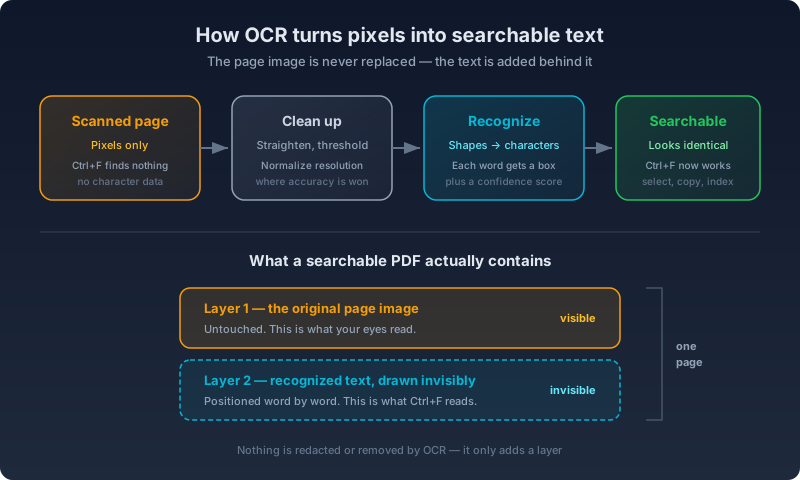
The PDF format has a dedicated feature for this. Text rendering mode 3 draws text that is neither filled nor stroked, which means present but invisible. Tesseract's source code, which powers a large share of the world's OCR, sets it with a comment that reads "use invisible ink".
There's a fussy detail underneath that explains a lot of broken output. PDF won't let you attach a Unicode map to nothing, so Tesseract embeds a deliberately empty font called GlyphLessFont purely to have something to hang the character mapping on. It then stretches each word horizontally to match the pixel width of the word in the image below. That stretching is what makes your selection highlight land on the right words instead of drifting across the page.
The result gets called a searchable PDF, or a sandwich. This matters practically, in two ways.
First, OCR done this way is non-destructive. Your original scan survives at full fidelity. Second, it does not make your PDF editable. The visible page is still a photograph, so there is nothing there to edit. Tools that do make a scan editable work differently, by replacing the scanned letters with real fonts and swapping your page image for a lower-resolution one, which turns every recognition error into a permanent typo in the document you can see. For anything with legal weight, the searchable-image approach is the one you want.
Scan Quality Decides Almost Everything
You can't fix a bad scan with a better OCR setting. Get these right and the rest mostly takes care of itself.
Scan at 300 DPI. Tesseract's own guidance is that it "works best on images which have a DPI of at least 300 dpi". The classic controlled experiment on this, run at the University of Nevada in 1996, scanned every page at 200, 300, and 400 DPI and found "a substantial increase in errors can be expected when decreasing the resolution from 300 to 200 dpi".
Don't scan at 1200 DPI thinking more is better. The same experiment found "little or no benefit may be obtained when increasing the resolution from 300 to 400 dpi". And past a point it actively hurts: Tesseract's neural engine has a documented upper limit of roughly 30 pixels of x-height, above which it "doesn't produce accurate results". The engine wants letters of a particular pixel size. DPI is just the dial you use to hit it. Reach for 400 to 600 only when the print is actually small, like footnotes or dense tables.
Scan in greyscale, not black-and-white. This one is counterintuitive and your scanner's default is probably wrong. "Document mode" or "text mode" produces a 1-bit image, which means your scanner already decided, permanently, which pixels are ink and which are paper. That decision is better made by the OCR engine, which can adapt it region by region. In the Nevada tests, feeding one engine greyscale instead of a thresholded bitonal scan of the same pages took it from 97.02% to 98.50% character accuracy, roughly halving the errors.
Use a scanner, not a hand-held photo. A camera adds perspective distortion, uneven lighting, and page curl. Research-grade software that specifically corrects warped document photos still measures character error rates between 20% and 45% on a benchmark of real camera captures, against roughly 2% for flat scans of clean printed pages. Different corpora and different decades, so treat it as an order-of-magnitude comparison rather than a controlled one. The direction is not in doubt. If a phone is your only option, use its built-in document-scan mode, which does corner detection and shadow removal before you ever see the file. The actual DPI math behind why a phone photo underperforms a flatbed scan even at a matching resolution setting is its own rabbit hole — see why a phone photo reads as garbage if you want the numbers.
Square the page and get it right side up. Skew "dramatically harms the quality of Tesseract's line segmentation". The problem isn't that tilted letters are hard to read, it's that at enough angle the letters from two adjacent lines fall into the same horizontal band and the lines merge into each other.
Set the language before you run it. This is not a cosmetic preference. It changes both the character set and the language model. Modern AI-based engines handed a script they don't know will confidently invent fluent text rather than report failure, which is worse than an error.
The Step Every Guide Skips: Check the Output
"99% accurate" is close to meaningless, and the reason is structural.
Accuracy is usually quoted per character. You care about words. Tesseract's own published results on standard test sets show 1.6% to 2.2% character error alongside 2.6% to 5.0% word error on the same pages. Read that again: 98% of characters right is 95% of words right. A 500-word page has about 25 broken words in it.
Two things make this worse than the average suggests.
Errors clump. The Nevada study split every document set into five groups by page quality and found that "50 to 75% of all errors are made on the worst 20% of each sample". Your average is fine. Your five worst pages are a mess. Photocopies of photocopies and signatures crossing printed text are the usual culprits.
Digits fail more than letters. In the same per-character analysis, lowercase letters scored 98% to 100% while digits, capitals, and punctuation clustered around 90% to 93%. That is exactly backwards from what you need, because the things you care about on an invoice, a bank statement, a tax form, or a prescription are the numbers. And a wrong digit doesn't look wrong. One forum post on the subject is simply titled "OCR changed a number from '556' to '656'".
So after every OCR run, three checks:
- Ctrl+F for three words from different parts of the document. Include one from a heading or a table, not just body text.
- Select a paragraph and paste it somewhere you can read it properly.
- Check every number you actually care about against the image. Never treat OCR'd figures as verified data.
When the Output Comes Out Wrong
Symptoms map to causes fairly reliably. Work down this table rather than re-running the same settings and hoping.
| What you see | What's wrong | What fixes it |
|---|---|---|
| Nothing recognized, blank result | Page is rotated, or a dark scanner-lid border is being read as content | Rotate first. Crop dark edges, which "can be misinterpreted as characters" |
| Words run together, lines merged | Skew | Deskew, or rescan squared against the scanner edge |
| Two columns interleaved into nonsense | Column detection failed | Deskew first, then crop each column and run it separately |
| Small print mangled | Letters below roughly 10 pixels tall, where there is "very little chance of accurate results" | Rescan at 400 to 600 DPI |
| Phantom punctuation, speckled look | A single brightness cutoff failing on an uneven background | Use a higher quality setting so the page gets cleaned before recognition |
| Accented or non-Latin characters wrong | Wrong language selected | Set the document's actual language |
| Handwriting produces nothing usable | Traditional OCR cannot read cursive | Stop tuning. This needs different technology entirely |
| Table cells scrambled | Recovering table structure is a separate problem from recognizing characters | Expect to rebuild the structure by hand |
The handwriting row deserves emphasis because people burn hours on it. Classical OCR engines were built on assumptions that only hold for printed text, and no combination of settings changes that. Cursive needs a handwriting-specific model or a modern vision model.
Where Your Document Goes
Most free online OCR runs on somebody else's server, which means your document gets uploaded, decrypted, written to a disk you don't control, and processed by a chain of subcontractors you didn't pick.
The mainstream services are not villains about this, and it's worth being accurate rather than alarmist. PDF24 states plainly on its OCR page that "files are automatically deleted from the PDF24 server after one hour" and that recognition happens "on our servers in the cloud." iLovePDF says files are "automatically and permanently deleted within two hours of being processed", with an explicit carve-out retaining signed documents for up to five years to meet legal requirements. Google Drive's viewer offers OCR too, and it's the one a lot of people reach for by default since they already have the account — but it quietly caps recognition at the first ten pages of a scanned PDF and never says so, which turns a partial read into a silent one. If you already pay for Adobe's desktop suite, Acrobat's OCR is real, but buried a few menus deep and priced separately from Reader — worth knowing before you go looking for a free alternative to something you already own.
One hour is a short window. It is not zero, and "short" is not the same as "never left my laptop."
Where it stops being abstract is regulated documents. Under HIPAA, a service that processes protected health information on your behalf is a business associate, and disclosure to one requires "satisfactory assurance... documented through a written contract". The violation isn't a leak later, it's the upload itself without that contract in place. No free consumer OCR site offers one, which isn't carelessness on their part. They just aren't built for that job and don't claim to be. Under GDPR, a scanned medical letter is Article 9 special-category data, and Article 9 sits in the higher enforcement tier. This isn't legal advice, and whether a specific upload creates real exposure depends on your data, your jurisdiction, and your own compliance obligations — but it's a question worth answering before a patient chart or a benefits form goes into a site you found from a search result.
If you need to redact, do it before you OCR
This is the highest-stakes thing in this entire article, and it catches professionals.
A black rectangle drawn over a page is not redaction. Federal court guidance on the subject is blunt: "it is not sufficient to use PDF annotations such as black rectangles to cover sensitive text and images", because information hidden or covered in an electronic document "can easily be recovered." In 2019, Paul Manafort's attorneys filed a court document with black boxes over sensitive passages, and reporters copy-pasted the text out within minutes.
Searchable PDFs add a second, less obvious version of the same trap. If a page was OCR'd and then covered with a black box, the recognized characters are still sitting in the file in invisible-text mode. They remain searchable and copyable. The box hides pixels. It does not touch the text layer. As one PDF engineering vendor puts it, that hidden layer means someone can "copy and paste the 'redacted' text".
Real redaction removes content, and removing content destroys the text layer, which is precisely why the order matters:
Redact by removal → flatten the page → then OCR.
Do it the other way round and you have published the thing you were hiding.
Doing This in OxygenPDF
The OCR PDF tool runs recognition in your browser. The page image goes into a canvas in your own tab, not into an HTTP request body, so there's no retention window to reason about and no contract to negotiate.
A few things worth knowing before you run it.
Smart mode is on by default. It checks for an existing text layer first and extracts that directly instead of running recognition, so a born-digital PDF that got mixed into your pile doesn't get a redundant second layer of guessed text stacked on top of perfectly good data.
Pick your engine deliberately. Tesseract is the default and is a reasonable choice for English printed text. PaddleOCR is markedly better on Chinese, Japanese, and Korean, and comes in a small model and a more accurate larger one. Florence-2 is an on-device vision model for harder layouts and needs WebGPU, which today means Chrome.
Three cloud engines are also available: Surya, GOT-OCR 2.0, and Text Extract. These are more accurate on complex layouts, tables, and mathematics. They also send your page images to a server, which is the whole tradeoff, so they are opt-in and labelled. If the document is sensitive, stay on a client-side engine.
Turn the quality up for small print. The quality setting controls how large the page is rendered before recognition, and whether it gets a cleanup pass first. Fast skips the cleanup entirely. Balanced and Best convert to greyscale and raise the contrast before the engine sees the page. On dense or small type, Best is worth the extra seconds.
Set the language. Twenty are available, including Chinese, Japanese, Korean, Arabic, Russian, Hindi, Hebrew, and Thai.
When it's finished you get a per-page confidence score, and three ways out: copy the text, download a .txt, or download a searchable PDF with the invisible layer written back behind your original pages. That last one is the one to keep, because it means you only ever have to OCR the document once.
That per-page breakdown is worth watching rather than skimming past. The results panel only bothers to show you individual page scores when they actually differ from each other — a batch of uniformly clean pages just reports one number. Feed it a mixed stack, a typed cover letter stapled to a photocopied appendix, and the pages that drop below the rest are the tool pointing at exactly which ones to check by hand. Treat a divergent low score as a to-do item, not noise to average away.
Can't I Just Ask an AI to Read It?
This comes up constantly, and it's a fair question. Modern document vision models are strong, particularly on the things classical OCR is worst at: handwriting and dense tables.
Two honest caveats.
They fail differently. Classical OCR fails visibly, producing garbage characters you can spot at a glance. Vision models fail fluently, producing confident, readable text that is wrong. The most common form is the output collapsing into endless repetition of the same line, and the model authors publish the rate: DeepSeek measured its own repetition rate on real user uploads at 4.17%, improved from 6.25%. Roughly one in twenty-four real documents still degenerates, on a model built specifically for this.
And bigger is not better here. On the OmniDocBench leaderboard for document parsing as of September 2026, a 0.9-billion-parameter open specialist scores 96.34, ahead of Gemini 3 Pro at 92.91, GPT-5.2 at 86.59, and a one-trillion-parameter general model at 84.53. For reading documents specifically, reaching for the largest frontier model is the wrong instinct.
Also worth remembering: sending your document to a hosted model is an upload, with all the questions from the previous section attached.
The Short Version
- Ctrl+F finding nothing means there's no text in the file, only a picture of text. Extraction can't help. You need recognition.
- Scan quality beats every software setting. 300 DPI, greyscale rather than black-and-white, flat on a scanner, squared up, right language.
- Always verify, and check the numbers first. 98% character accuracy is 95% word accuracy, digits are the worst-recognized characters, and most of your errors are hiding on a handful of bad pages.
- Redact before you OCR, never after. A black box over a text layer is not a redaction.
Frequently Asked Questions
Does OCR work on handwriting?
Not reliably, and that's a difference in technology, not a setting you can tune. Classical engines like Tesseract are built to match the geometry of printed letterforms; cursive doesn't hold a predictable enough shape, so the usual result is either nothing recognized or confident-looking gibberish. A handwriting-specific model, or a modern vision model built for harder layouts, is a different tool for a different job — no amount of DPI or quality tuning closes that gap.
Is it safe to run a HIPAA- or GDPR-covered document through a free online OCR tool?
Usually not without checking first. Under HIPAA, sending protected health information to a service that processes it on your behalf makes that service a business associate, which legally requires a signed contract before the file is ever uploaded — a privacy policy doesn't cover it. Under GDPR, a scanned medical or health record is Article 9 special-category data, sitting in a stricter enforcement tier than ordinary personal data. A tool that runs recognition in your browser instead of uploading the file sidesteps the question, because there's no disclosure to a third party to authorize in the first place. This isn't legal advice — confirm your specific obligations with counsel.
Why did OCR change a number on my document?
Because digits are the characters OCR gets wrong most often. Published per-character accuracy studies consistently show letters recognized far more reliably than digits, capitals, and punctuation, and a misread digit looks exactly as clean and confident on the page as a correct one — nothing visually flags it as wrong. That's why every OCR workflow needs a manual check of any number you actually rely on, not just a glance at the overall accuracy score.
Can I edit the text after running OCR on a scanned PDF?
No, not the way you'd edit a Word document. A searchable PDF keeps your original scanned image exactly as it was and adds an invisible text layer behind it purely so the page can be searched, copied, and indexed — the visible page is still a photograph. Tools that make a scan look editable do it by replacing the image with re-rendered text, which turns every recognition error into a permanent, visible typo. For anything you need to stay provably faithful to the original, that's the tradeoff to watch for.
What DPI should I scan at for OCR?
300 DPI for almost every case. That's the baseline Tesseract's own documentation names for reliable recognition, and the classic controlled study on scan resolution found a real accuracy jump moving from 200 to 300 DPI but almost none moving past it to 400. Save 400-600 DPI for genuinely small print, like footnotes or dense tables — pushing resolution higher than the text actually needs can start hurting accuracy instead of helping it.
Should I use an AI vision model instead of traditional OCR?
For handwriting and complex tables, often yes. For everything else, not automatically. Vision models fail differently than classical OCR: instead of visible garbage, they produce fluent, confident text that's simply wrong, including a documented tendency on some documents to loop into repeated lines. Bigger isn't better here either — specialist document-parsing models regularly outscore much larger general-purpose models on document-reading benchmarks. Either way, sending a page to a hosted model is still an upload, with the same privacy questions attached as any other cloud OCR service.
Make a scanned PDF searchable in your browser, without the file leaving your device. If your PDF turns out to have a text layer already, PDF to Text will pull it out instantly, and our guide on why PDF text extraction fails covers what to do when the text is there but comes out garbled. For why the engine misreads a page in the first place, see how OCR text recognition works.