Rohman
You laid the book face down on the scanner, pressed the button eighty times, and got an 80-page PDF. Except the book has 160 pages, and every page of your PDF is a landscape spread with the spine running down the middle. To split scanned pages in half, you need a tool that cuts each page, not one that cuts the document. Most of the "split PDF" tools you'll find do the second thing.
Quick answer: To split scanned pages in half, open Split Scanned Pages, drop in the PDF, keep Left / Right, and drag the split position onto the gutter. Pick the reading order (Right → Left for Arabic or Hebrew books), skip any page that shouldn't be cut, and split. It runs in your browser; the scan is never uploaded.
Splitting a Page Is Not Splitting a PDF
Search "split PDF" and you get tools that divide a document into files: pages 1–10 here, 11–20 there, or one file per page. Our guide to splitting PDF pages covers those, and even their "split in half" preset means half the page count. Run one on a book scan and you get two files full of spreads.
A spread needs a cut through the middle of each page. Page 1 of your PDF should become pages 1 and 2 of the output, page 2 becomes 3 and 4, and so on, with the left half first for a left-to-right book.
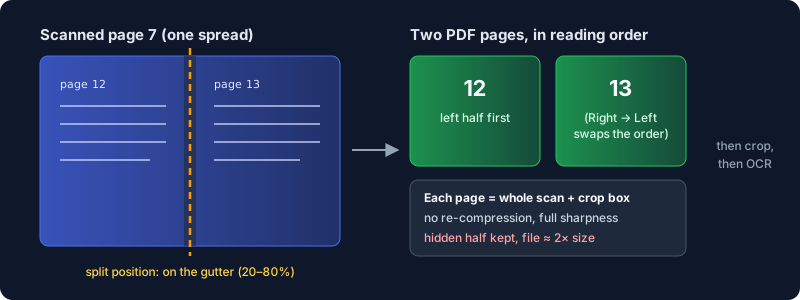
The cut itself is lossless. A PDF page has a media box and a crop box, and the PDF specification defines the crop box as "the region to which the contents of the page shall be clipped (cropped) when displayed or printed." Split Scanned Pages copies the page twice and gives each copy a box covering one side. Nothing is re-rendered or re-compressed, so the text in your scan stays as sharp as the scanner made it.
How to Split Scanned Pages in Half
- Open Split Scanned Pages and drop in the scanned PDF.
- Leave Direction on Left / Right for a book or a two-page magazine spread. Use Top / Bottom for a calendar or a document scanned with two half-sheets stacked.
- Look at the preview. Each page shows the cut line and the order the halves will come out in. If the gutter isn't centered, drag Split Position (20% to 80%) until the line sits on the spine.
- Set Reading Order. Left → Right for English; Right → Left for Arabic, Hebrew or a manga volume, so the right-hand page comes first.
- Click any page that shouldn't be cut, like a full-width cover or a fold-out map, to mark it Skip. Skipped pages pass through whole, in place.
- Split, check the page count it reports, and download.
One position applies to every selected page. If your scans drift, so the gutter sits at 48% on some pages and 53% on others, split in two passes: select only the first group and split, then load the output, select only the pages still in one piece, move the slider and split again. Pages that are already split stay untouched because they're unselected.
Get the Order Right Before You Crop or OCR
The order of operations matters more than any setting.
Split first, crop second. Scans usually carry a dark border from the scanner lid, and it's tempting to trim it off the spread before cutting. Don't. Our test turned up a real bug here: after Crop PDF trims a spread, Split Scanned Pages still measures from the page's original corner, so the halves bring back the trimmed strip and the cut misses the gutter. Split the raw scan, then crop the single pages. Keep the left and right trims equal, because Crop PDF applies one set of margins to every page and the gutter is on the right of left-hand pages and on the left of right-hand ones. Our Crop PDF guide explains why mirrored margins are hard.
Split first, OCR last. A cut page still contains the whole scan, just hidden outside its crop box. OCR the spread first and each half inherits the text layer of both pages, so a search for a word on page 13 also lands on page 12. Run OCR PDF after splitting and every page only knows its own words. The guide to OCR on a scanned PDF covers how to check the result.
What It Won't Do
- It won't make the file smaller. Each half carries its own copy of the full spread image. In our test, a 385 KB file came back at 1.83 MB because the five output pages each held the whole 2400 × 1600 scan. For a normal scan, expect a fully split file to be roughly twice the size. If that's too big to email, try Compress PDF on the result.
- The hidden half is still in the file. Someone with the right software can recover it. That's fine for a book. Don't use this to "remove" half of a page with personal details on it; that's a job for redaction.
- It doesn't straighten or detect the gutter. You set the position by eye from the preview. A crooked scan stays crooked.
- Rotated pages need the other direction. Some scanners save a landscape spread as a portrait page with a rotation flag. On those files the preview shows the right cut, but Left / Right comes out as a top strip and a bottom strip. Switch to Top / Bottom and choose Bottom → Top; that produced the two pages in the right order in our test. Check the first few output pages before you throw the original away.
Frequently Asked Questions
How do I split a PDF page in half?
Use a tool that cuts pages rather than documents. In Split Scanned Pages, choose Left / Right or Top / Bottom, set the split position on the preview, and every selected page becomes two pages in reading order.
Can I split a scanned book into separate pages for free?
Yes. Split Scanned Pages is free and runs in your browser, so a scanned book or a signed notebook never leaves your computer.
Why is my PDF bigger after splitting the pages?
Each new page keeps the entire original scan and displays only its half. With two copies of each spread image, a fully split scan is roughly twice the size. Compress it afterwards if that matters.
What if the book is read right to left?
Set Reading Order to Right → Left. The right-hand page of each spread then comes first in the output, which is what Arabic and Hebrew books, and most manga, need.
Can I leave the cover page in one piece?
Yes. Every page is selected by default; click a page in the preview to mark it Skip and it passes through unsplit, in the same position.
Should I OCR before or after splitting?
After. A split page still contains the hidden half of the scan, and OCR on the spread gives both halves the text of both pages. Split first, then run OCR on the single pages.
Got a stack of two-page scans? Split them down the gutter in your browser and get one page per page, in the right order.