Rohman
The lecturer's slides go up as a PDF the night before class. You open them in GoodNotes, pick up the Pencil, and there's nowhere to write. Every slide runs edge to edge. Your notes end up squeezed between bullet points or on a blank page three swipes away from the slide they're about.
Paper handouts used to solve this with a wide margin. You can add margins to a PDF the same way, as real extra page space with lines in it, before the file ever reaches your notes app.
Quick answer: To add margins to a PDF for notes, open Scratchpad Margins, drop in the file, choose a side (right, left, both or bottom), a width and a template: blank, ruled, grid, dot grid or Cornell. Every page grows outward and the slide itself is not resized. Download it and import it into GoodNotes, Notability or any PDF app.
Why Not Just Shrink the Page?
Two other fixes get suggested in forums, and both have a cost.
The first is printing several slides per sheet, or "fit to page" with a smaller scale, so white space appears around the content. That shrinks the slide. On a tablet, where you're already reading at a size someone picked for a projector, you lose legibility for nothing.
The second is inserting a blank page after every slide. It gives you room, but your notes now live on a different page from the thing they're about, and every review session becomes a swipe back and forth.
A margin keeps notes and slide on the same page. The tool does it by enlarging the page box, the rectangle that defines where a PDF page starts and ends. The content stays at its original coordinates and original size, and the new area appears next to it.
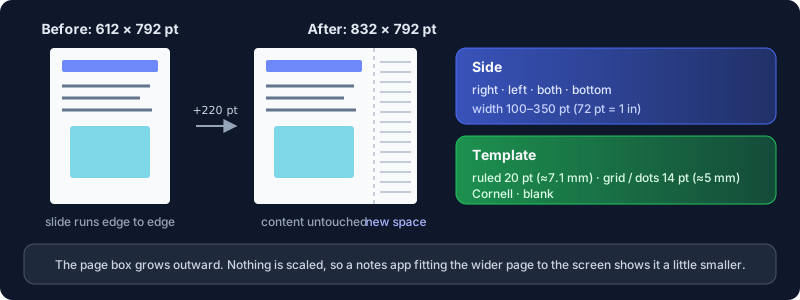
That matters for annotation apps too. The result is a normal, larger PDF page, so GoodNotes, Notability, Apple's Markup or Acrobat treat it like any other page. The lines are drawn into the page content, not added as comments, so they show up in every viewer and when you print.
Pick a Side and a Width
The side is a choice about how you read and write.
- Right is the default and suits right-handed writers: the slide on the left, your notes on the right, and your hand doesn't cover the content as you write.
- Left puts the note column on the other side, for left-handed writers or anyone who likes a cue column before the content.
- Both adds the same width on each side. Useful for wide diagrams you want to annotate from two directions.
- Bottom adds a strip under the content. This is the one to use on an iPad in portrait, for a reason below.
Width runs from 100 to 350 points in 10-point steps; 72 points is an inch. The default is 220 points, a little over three inches, which adds 36% to a Letter page's width.
That's the trade-off nobody mentions. A wider page fits the screen at a smaller zoom. Add 220 points to a portrait Letter page and it's almost square (832 × 792), so on an iPad held upright everything on it, slide included, displays about a quarter smaller than before. In landscape, or with a bottom margin in portrait, the page shape suits the screen much better. Try one file before converting a whole term's worth.
Ruled, Grid, Dots or Cornell
The template decides what's drawn in the new space. All four, plus Blank, are drawn in your choice of blue-grey, warm brown, green or light grey, thin enough to write over.
- Ruled lines are 20 points apart, about 7.1 mm, the same as US college-ruled paper. (If you're unsure which line height suits your writing, here's college ruled vs wide ruled explained.)
- Grid uses a 14-point pitch, close to 5 mm. It suits maths working, diagrams and chemistry structures.
- Dot grid uses the same 14-point pitch as dots, which keeps the alignment and gets out of the way when you're sketching.
- Cornell splits the margin into a narrow cue column, a ruled notes area and a summary band along the bottom.
A note on Cornell, since the original is specific. Cornell's own Learning Strategies Center describes a page with a 2½-inch cue column, a 6-inch note-taking column and a 2-inch summary at the bottom, adapted from Walter Pauk's How to Study in College (Cornell LSC). A margin is narrower than a whole sheet, so the tool scales it: the cue column takes up to 40% of the margin (never more than 1.4 inches) and the summary band is up to 2 inches tall. The cue column sits against the slide, so your cue questions line up with the content they're about, and the ruled notes area takes the outer part of the margin. On a bottom margin the cue column is on the left.
Step by Step
- Open Scratchpad Margins and drop in the PDF. Drop several at once and the same settings apply to each file as a batch.
- Choose the margin side. Right for most people, bottom for iPad portrait.
- Set the width. Start at the default and check the preview thumbnails.
- Choose a template and a line colour.
- Click Add Margins, then download. The file is saved with
-scratchpadadded to its name. - Import it into GoodNotes, Notability or whichever app you write in, and annotate as usual.
The PDF is processed in your browser tab, and the slides never go to a server. That's handy when the course pack is copyrighted material you're not supposed to redistribute, or an exam paper you shouldn't be uploading anywhere.
What It Won't Do
It doesn't reflow anything. A margin can't fix a slide set in 9-point type, and if the slides are a scan, the margin is the only clean part of the page. For a scanned handout, make it searchable first if you'll want to search your annotated copy later.
Testing the tool on generated files, and reading its source, also turned up four bugs. All four are fixed:
- Rotated pages. Some PDFs store a landscape slide as a portrait page with a rotation flag. The margin used to go on the page's unrotated right side, which on screen came out along the bottom. It now goes on the side you picked as the page is displayed, so a deck that mixes orientations gets its notes column in the same place on every page.
- Cropped pages. On a page that was already cropped, adding a margin used to undo the crop and bring back the hidden part of the page. The crop is now kept, and the margin goes beside the area you could see.
- Password-protected PDFs. These used to be rebuilt from rendered page images, so the text couldn't be selected or searched. Now the tool only removes the encryption: enter the password once and the output keeps its real text.
- The Cornell cue column was drawn on the outer edge of the margin, furthest from the slide. It now sits against the slide, as described above.
If you just need blank paper, not margins on an existing file, Lined Paper and Graph Paper generate whole pages at the ruling you want. And when your notes are done and you want to send the slides back marked up, annotating a PDF so the marks survive every viewer covers the export side.
Frequently Asked Questions
How do I add margins to a PDF for notes?
Open Scratchpad Margins, choose a side, a width and a template such as ruled or Cornell, and download. The page grows outward, so the original content keeps its size and position.
Can I add note space to a PDF in GoodNotes?
Add the margin to the PDF first, then import the expanded file into GoodNotes. The new space is part of the page, so you write in it like anywhere else, and it stays next to the slide it belongs to.
Does adding margins shrink the original page?
No. The content stays at its original size. The page gets bigger, so a notes app fitting the whole page to your screen will show it at a smaller zoom.
How do I make Cornell notes from a PDF?
Choose the Cornell template in Scratchpad Margins. It draws a cue column, a ruled notes area and a summary band into the margin beside each page, so every slide gets its own Cornell layout.
Can I add margins to a PDF on an iPad?
Yes. The tool runs in Safari on an iPad, and the settings open in a bottom sheet once a file loads. Download the result to Files, then open it in your notes app.
Is there a free way to add space to a PDF?
Yes. Scratchpad Margins is free, needs no account and runs in your browser without uploading the file.
Slides due tomorrow and nowhere to write? Add a notes margin to every page before class starts.