Rohman
A three-page receipt, a menu that a restaurant split across pages for no reason, a chat export somebody saved as a PDF. You want it as one thing you can scroll top to bottom, or screenshot in one go, or drop into a design tool without stitching four images together by hand.
That is what people mean when they ask how to combine PDF pages into one page. It's a different request from fitting four pages onto one sheet of paper, and most of the search results answer the wrong one.
Quick answer: To combine PDF pages into one page, open Combine to Single Page, drop in the PDF, choose Vertical (one tall page) or Horizontal (one wide page), set a gap in points if you want one, and download. Pages keep their full size and stay vector, so text remains sharp and selectable. It runs in your browser.
One Long Page vs Several Pages Per Sheet
There are two operations hiding behind "put my pages on one page", and they produce opposite results.
Stacking keeps every page at 100% and makes the page bigger. Five A4 pages stacked vertically become one page 210 mm wide and roughly 1.48 metres tall. Nothing shrinks. You read it by scrolling, the way you read a web page.
N-up keeps the paper the same size and makes the pages smaller. Four A4 pages on one A4 sheet means each one is printed at about half its width. That's the print dialog's "pages per sheet" setting, and it's what N-Up PDF bakes into a file. We covered it in detail in how to print multiple pages per sheet.
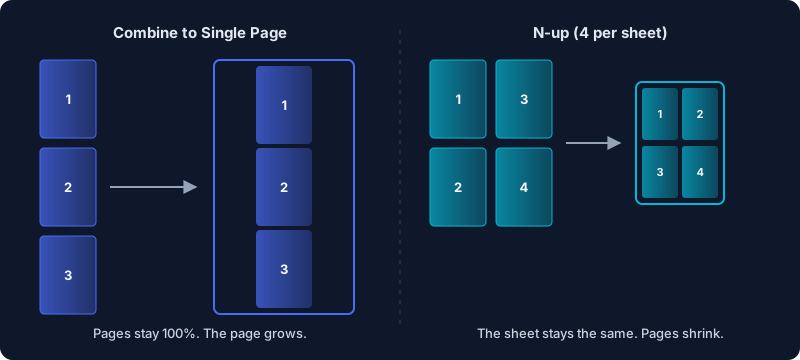
A simple test: if the result is going to a printer on ordinary paper, you want N-up. If it's going to a screen, a long-scroll viewer, an image, or a large-format printer, you want a stacked single page.
When a Single Long Page Is the Right Call
- Receipts and statements you want to read in one sweep. A long scroll has no page breaks cutting a table row in half.
- Screenshots and social posts. Convert the one-page result with PDF to PNG and you get a single tall image instead of a folder of separate pages.
- Comparing slides side by side. Horizontal mode lays pages out left to right like a filmstrip, which is handy for reviewing a short deck or a before-and-after pair.
- Design and print work. Two business cards or two labels placed next to each other, ready for a template or a print shop that wants one artboard.
What it's not for: a 60-page report. A page that tall is awkward in every viewer, and it runs into a hard limit we'll get to below.
How to Combine PDF Pages Into One Page
- Open Combine to Single Page and drop in your PDF. The preview shows how many pages will collapse into one.
- Choose a direction. Vertical stacks pages top to bottom into one tall page. Horizontal places them left to right into one wide page.
- Set the spacing. It's measured in PDF points, and 72 points is one inch. The default is 0, so pages touch. Something like 12 to 24 points gives a visible gap between them.
- Click Combine Pages, rename the file if you like, and download it. The output is named
yourfile-combined.pdfby default.
The pages appear in the order they're in the source file. To change that, reorder or delete pages first, then combine. If you need just a few pages out of a longer document, pull them out with Split PDF before you start, and if your pages live in separate files, join them with Merge PDF first. Our guide to merging PDF files covers that step.
What Happens to Mixed Page Sizes
Real documents mix sizes more often than you'd think: a Letter cover page in front of A4 content, or one landscape table in a portrait report. The tool handles this without scaling anything.
In vertical mode the combined page is as wide as the widest source page, and narrower pages are centred horizontally. In horizontal mode it's as tall as the tallest page, and shorter pages are centred vertically. The empty space beside a narrower page is left blank, so it shows as white in most viewers. If you'd rather every page had the same width before stacking, normalise them first with Fix Page Size. Not sure what sizes you have? Our sibling guide on how to check PDF page size shows how to see every page's dimensions.
The 200-Inch Ceiling
The PDF format itself doesn't stop you making an enormous page, but readers do. The PDF specification (ISO 32000-1, Annex C) says the maximum page size "should be 14,400 by 14,400 units" in default user space. One unit is 1/72 inch, so that's 200 inches, about 5.08 metres. Adobe Acrobat enforces it: it opens a larger page but only shows a 200-inch window of it, and warns that content might be truncated.
That ceiling arrives sooner than you'd guess. Seventeen A4 pages stacked vertically come to about 199 inches. The eighteenth tips it over.
Combine to Single Page checks this before it builds anything. When I fed it a 20-page A4 file, it refused with a plain explanation: the combined page "would make one page 234 in tall, past Adobe Acrobat's 200 in limit", and "up to 17 pages fit" at that spacing. Split the document into chunks of 17 or fewer A4 pages, or switch to horizontal mode for short documents, and combine each part. Why Acrobat draws the line there, and how to rescue a page that is already too big, is the subject of our guide to a PDF page that's too large.
What Stays Sharp, and the Limits
Each source page is embedded as a page object inside the new page, not as a picture of it. Text stays as text, so you can still select it and search it, and vector drawings stay crisp at any zoom. A five-page test file of mine came out at under 4 KB.
One limit is worth knowing before you rely on it: links, form fields and comments don't carry over. The page content is kept. Interactive layers attached to the original pages aren't.
Password-protected files are fine. Once you enter the password, the file is decrypted with its content intact, so the text on the combined page stays selectable. That includes files with only editing restrictions.
It also works on one file at a time and always uses every page in it; there's no page-range picker inside the tool.
Everything happens in the browser tab. The file is read, rebuilt with pdf-lib and handed back to you without being uploaded, which matters when the pages are bank statements or a medical report.
Frequently Asked Questions
How do I merge multiple PDF pages into one page?
Use Combine to Single Page to stack all pages at full size into one tall or wide page. If you want them shrunk onto one sheet of normal paper instead, use N-Up PDF with 2, 4, 9 or 16 pages per sheet.
Can I convert a multi-page PDF into one long image?
Yes, in two steps. Combine the pages into one tall page, then convert that single page with PDF to PNG or PDF to JPG. You get one image instead of one per page.
Why does my combined PDF look cut off in Adobe Acrobat?
Acrobat won't display more than 200 inches (14,400 points) in either direction. A page past that is clipped. Combine fewer pages at a time; with A4 pages and no gap, 17 is the most that fits vertically.
Will the text still be searchable after combining?
Yes. Pages are embedded as vector content, so text stays selectable. That includes password-protected files, which are decrypted with their text intact before combining.
Can I put two PDF pages side by side on one page?
Yes. Choose Horizontal in Combine to Single Page and the pages sit left to right on one wide page at full size. For two pages side by side on one sheet of regular paper, use 2-up in N-Up PDF.
Got a PDF that should read as one continuous page? Combine its pages into one in your browser, without uploading it.