Rohman
It is late, the room is dark, and the PDF you have to finish is a rectangle of pure white light. Everything else on your machine went dark years ago. This one file did not get the message.
There are two ways to fix that, they are not variations of the same thing, and picking the wrong one costs you something you will not notice until later.
Quick answer: PDF dark mode is either a viewer setting that repaints your screen while leaving the file untouched, or an inverted copy of the file that stays dark on any device but loses its text layer with most tools. Reading on your own machine: use the viewer. Sending it elsewhere: invert a copy.
The File Has No Opinion About Color
Here is the thing that makes PDF dark mode more awkward than dark mode anywhere else: a PDF is a description of marks on a page. It carries no theme, no alternate palette to switch to. Black text on white paper is not a style choice in the file. It is the content.
So there is nothing to toggle. Something has to actively change what you see.
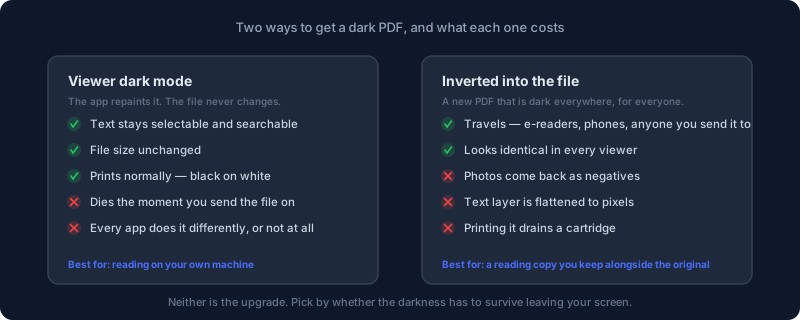
Here is the same comparison as plain text, since a diagram alone doesn't reach a screen reader or a text-only crawler:
| Viewer dark mode | Inverting the file | |
|---|---|---|
| What actually changes | Only what your screen displays | The PDF itself, permanently |
| The file on disk | Untouched — same bytes, same text layer | A new, different file |
| Travels with the document | No — only in a viewer that supports it | Yes — dark on any device, for anyone you send it to |
| Text stays selectable and searchable | Always | Only with a color-transform inverter; lost with the more common rasterize-and-recolor kind |
| Printing | Comes out normal, black-on-white | Prints a near-solid dark background at full ink coverage |
| Best for | Reading on your own machine | Emailing, e-readers, or anyone whose viewer has no dark mode at all |
The viewer repaints it. Acrobat has one buried in its accessibility settings, and Sumatra and Foxit both ship their own. The browsers mostly do not: desktop Chrome, Edge and Firefox have no dark mode for the PDF content itself. Firefox users have been filing the same request against its built-in viewer for years — a bug from August 2020 and a still-open report from mid-2026 both describe the same gap: the system dark-theme preference is ignored on PDF.js pages. That gap is why so many people end up hunting for an extension. Browser-based viewers are in the same position — OxygenPDF's own reader included: the page renders exactly as the file specifies, so the darkness has to come from the file or the OS. Chrome on Android is the odd exception, where dark mode does carry over to the PDF.
Whichever one you use, the file on disk never changes: text stays selectable and the size stays the same. Printing still comes out normal black-on-white, because the document itself was never touched.
Or you invert the file. Now you have a new PDF that is dark on every device, for everyone you send it to. That portability is the whole point, and it is also where the costs come from.
If you are reading on your own machine, use the viewer. If the darkness needs to survive being emailed, loaded onto an e-reader, or opened by someone whose reader has no dark mode at all, you need it in the file.
The Part Most Tools Do Not Mention
"Invert PDF colors" describes two structurally different operations, and almost nothing tells you which one you just used.
A color transform rewrites the color instructions inside the page while leaving the text objects alone, which is also how you change the text color in a PDF without touching anything else. Searchable text stays searchable, because searchability lives in the text objects, not in the colors they happen to render in.
A rasterize-and-recolor renders each page to a bitmap, inverts the pixels, and builds a new PDF out of the images. Visually the result can be identical. Underneath, every word is now a picture of a word: nothing to select, nothing to copy, nothing to search, nothing for a screen reader to read.
Most inverters in circulation, ours included, work the second way. Our own Invert Colors tool renders every page to a canvas at twice its normal display resolution, flips every red, green and blue value on every pixel — each channel becomes 255 minus itself — and rebuilds a fresh PDF out of those inverted page images. That is a real tradeoff and it deserves to be stated plainly rather than buried: run a PDF through it and you get a dark file that looks right everywhere and has no text layer left. The file also gets bigger, because page images at reading resolution cost more than the text they replaced.
The practical rule that follows: invert a copy, keep the original. The inverted file is your reading copy, while the original stays searchable and printable. If you only ever keep one, keep the one with the words in it.
Inversion Also Ruins Your Photographs
Flip every channel and text goes white-on-black, which is what you wanted. The same operation turns every photograph into a color negative. Faces go gray-green, skies go orange. A chart whose colors meant something — red for loss, green for gain — now means the opposite.
Diagrams are the worst case, because they look plausible. An inverted heat map is still a heat map. It is just lying to you.
Smarter approaches exist. Inverting lightness while preserving hue is far less jarring, and the better tools detect images and leave them alone, inverting only the page behind them. That is exactly what Apple's Smart Invert does on iOS and macOS, and why it looks so much less broken than a plain color flip. Our own tool doesn't do either of those things — it's a straight per-pixel channel flip, images included, the same way most inverters you'll find work. If your document is mostly prose, that's fine. If it is full of photographs or color-coded figures, invert it, look at the figures, and be ready to go back to the original for those pages — or reach for Adjust Colors instead, which changes brightness, contrast and gamma without touching hue at all.
Does Dark Mode Actually Help Your Eyes
This is where the confident internet and the actual literature part company.
The best-built studies on reading performance favor dark text on light backgrounds. A 2013 study of younger and older adults, published in the journal Ergonomics, measured visual acuity and proofreading accuracy under both polarities — black text on white, and white text on black — in each age group. Dark-on-light won on both measures, for younger and older readers alike. The authors' recommendation was explicit: present dark characters on a light background, regardless of the reader's age.
The mechanism turns out to have nothing to do with color. A light background is simply a brighter screen: brighter light contracts your pupil, and a smaller pupil sharpens the image on your retina by reducing the effect of your eye's own optical imperfections. A 2014 follow-up from the same research group measured pupil size directly and found it tracked the effect exactly — smaller pupils, better proofreading, with dark-on-light. A separate 2009 study held total screen luminance constant while flipping which side was dark, and the reading advantage disappeared completely. Brightness was doing all the work, not color.
Which is exactly why the answer isn't universal. Light-scattering conditions inside the eye, cataracts being the obvious example, are the textbook reason to expect the opposite result — the 2013 study's own authors raised it as an open question, since a scattering lens could in principle reverse the usual advantage. The evidence on that specific population is thinner and less tidy than the general finding, though: a 2026 study of patients with multifocal intraocular lens implants — a population chosen precisely because those lenses can scatter light the way an aging natural lens does — found no statistically significant difference in reading performance between the two polarities. That's not proof that light-on-dark helps this group; it's a reminder that the tidy "scattering flips the result" story is still short of study support at that sample size. What is well established is that operating systems have shipped invert-colors accessibility settings for decades, for exactly this population and for anyone who finds bright screens hostile for other reasons, and trying it costs nothing.
Two more things worth getting straight, because they are constantly conflated:
Dark mode is not a blue-light filter. The melatonin and sleep research is about the spectrum of light, and dark mode does not change color temperature — it reduces how much light your screen emits in total, which is a genuine and separate benefit at night. Night Shift and f.lux do the other thing: they shift color temperature without dimming much. Running both is reasonable; assuming one is the other is not.
Newer research measuring physical strain instead of accuracy leans a little the other way. A 2025 study of tablet users measured visual fatigue, critical flicker frequency and dry-eye symptoms before and after exposure to each mode. Overall self-reported visual fatigue didn't differ significantly between light and dark — but flicker frequency and dry-eye symptoms did, and the authors concluded dark mode may carry a lower risk of eye fatigue even though the blunt fatigue score didn't move. Reading accurately and reading comfortably keep turning out to be different questions with different answers.
So: in a bright room, reading something you need to get right, light background. At midnight, grinding through a long document, dark. With a light-scattering eye condition, or any screen that feels aggressively bright for reasons of your own, try dark and trust your own eyes over either study.
Frequently Asked Questions
Does inverting a PDF remove its text?
Only with certain tools. A rasterize-and-recolor inverter — the type behind our own Invert Colors tool and most others in circulation — renders every page to an image before flipping the pixels, so the output has no selectable or searchable text even if the source PDF did. A true color-transform inverter rewrites color values on the existing text objects and keeps them searchable. Check which kind you're using before you invert anything you'll need to search or copy from later.
Does dark mode actually reduce eye strain?
Not for most readers under normal conditions. A 2013 study found dark text on a light background gave better visual acuity and proofreading accuracy than the reverse, in both younger and older adults, and traced the effect to pupil size rather than color itself. Dark mode's real, separate benefit is emitting less light at night, not sharper reading during the day.
Can I print an inverted PDF?
You can, but a fully inverted page is close to worst-case ink coverage — a normal page is mostly bare paper with a thin scattering of ink, and inverting swaps that ratio entirely. Print from the original file and keep the inverted copy for on-screen reading only.
Will inverting damage the photos and charts in my PDF?
Yes, if the tool does a plain channel flip, which is what most inverters — ours included — do. A face becomes gray-green, a sky becomes orange, and a chart where color carries meaning starts saying the opposite of what it did before. Check any figure-heavy pages after inverting, and use Adjust Colors for brightness and contrast changes that leave hue alone.
Why don't Chrome, Edge or Firefox just support PDF dark mode?
Nobody has shipped it for the desktop PDF renderer yet. Firefox users have filed the same request against pdf.js repeatedly — a 2020 bug and a still-open 2026 report both describe the same gap — and Chrome and Edge have no equivalent setting. Chrome on Android is the one mainstream exception, where the system's dark mode does carry over to PDF content.
Should I invert the file, or just turn on my PDF viewer's dark mode?
Use the viewer's dark mode if you're reading on your own device — it costs nothing and touches nothing. Invert the file only when the darkness has to travel with the document: emailed to someone else, loaded onto an e-reader, or opened in a viewer that has no dark mode of its own.
Inverting a PDF
- Open Invert Colors
- Drop your PDF in — or several at once; the tool queues them and inverts each one separately
- If a page is password-protected, an inline prompt asks for the password before processing continues
- Let it process, then download the inverted copy (or copies)
It runs entirely in your browser: the file renders to canvas and gets inverted on your own machine, and nothing is uploaded to a server. That matters when the document is a contract or a medical report, and it is the reason the tool works without an account.
Prefer something gentler than full inversion? Adjust Colors gives you brightness, contrast and gamma directly, plus a sepia option for a warmer, paper-like tone — often enough to take the glare off a scanned page without flipping anything. For a digital PDF, you can also change the background color to cream or pale grey and leave the text as it is. For a bright scan that is merely harsh rather than blinding, that is the better tool.
Passwords, Batches, and Other Edge Cases
A locked PDF doesn't need a separate decryption step first. Both Invert Colors and Adjust Colors show an inline password prompt the moment they detect encryption, and processing picks up right where it left off once you enter the right one — there's no intermediate "unlocked" file for you to manage or lose track of.
Multiple files work the same way as one. Drop in a folder's worth of scanned reports and the tool queues them, processes each independently, and lets you switch between them to check the result before you download. Batching them doesn't merge them into a single output — each file still comes back as its own inverted PDF.
Big, image-heavy PDFs take longer to process and come back larger than text-heavy ones, and that's inherent to how rasterize-and-recolor inversion works, not a bug: every page renders to a bitmap at twice its normal display resolution before the pixels flip, and a raster of a scanned page is simply a bigger chunk of data than the vector text it might be replacing. A fifty-page contract inverts in seconds; a two-hundred-page scanned book takes longer and comes out heavier than it went in. If output size matters more than having every single page look perfect, it's worth asking whether you actually need the whole document inverted, or just the chapters you'll read on a dark screen tonight.
Before You Hit Print
Don't. An inverted page is close to worst-case toner coverage: a normal page is mostly bare paper with a thin scattering of ink, and inverting swaps that ratio entirely. There is no dark paper to save you. Print from the original and read from the inverted copy.
Check a figure-heavy page before committing to the whole document. Page one is usually prose and tells you nothing about what happened to the charts on page forty.
Run OCR first if the text matters. A scanned PDF has no text layer to lose, but if you want one, OCR it before inverting rather than after: recognition works better on dark-on-light.
Dark mode for PDFs is worth having, just not as an upgrade to the document itself. Treat it as a second copy, chosen for whatever room you are reading in — and since the whole point for a lot of people is a document they'd rather not hand to someone else's server, everything above runs the same way our other tools do: in your browser, not ours.
Invert your PDF here, all inside your browser, with nothing uploaded.