Rohman
You ran a 20-page report through a PDF-to-HTML converter expecting a web page. What came back opens in a browser and looks almost right, and the source is four thousand absolutely-positioned <div> elements with a stylesheet that pins every line of text to a coordinate.
Nothing malfunctioned. That output is the correct answer to a question you did not realise you were asking.
Quick answer: PDF stores glyph positions, not structure — there are no paragraphs, headings or tables inside the file, so every PDF to HTML converter either pins each text run to its coordinates (div soup) or guesses the structure (semantic HTML). For clean output, convert the PDF to Markdown first, then render that to HTML.
The Two Formats Do Not Share a Concept
A PDF page is a coordinate system. The content stream is a list of drawing operators: begin a text object, select a font, move the text matrix to an (x, y) position, show these glyphs, end the text object. That is the whole model.
There are no paragraphs in a PDF. No headings, no lists, no reading order, no table cells. What you perceive as a paragraph is a run of glyph-drawing commands that happen to sit near each other. In many PDFs there is not even a concept of a word — the space between two words is a coordinate offset between glyphs, not a character. A single visual line of text is often split across several drawing operators with manual kerning nudges between them.
HTML is the opposite kind of thing. Content flows, reflows to the viewport, and carries structure in its markup: <h2>, <p>, <ul>, <table>.
So a converter cannot translate. It has to infer — reassemble glyphs into words from inter-glyph spacing, words into lines from vertical proximity, lines into paragraphs from indentation and leading, then guess at headings from relative font size, at columns from whitespace gaps, at tables from the alignment of text and the position of drawn rules. Every one of those is a heuristic, and heuristics are wrong sometimes.
IDRsolutions, which has sold a commercial PDF-to-HTML converter for two decades, frames the job as four increasingly ambitious methods — from rasterising the page into an image, through hiding selectable text behind that image, up to rebuilding the content as real HTML5 — and notes that each step up the ladder trades fidelity for structure. Even their own write-up concedes the top rung cannot reproduce the PDF layout exactly, because the layout was never recorded as layout.
Two Honest Approaches, and You Have to Pick One
Every converter resolves the mismatch in one of two directions. This is the fork that explains the div soup.
| Visual / pixel-perfect | Semantic / reflow | |
|---|---|---|
| Output | One absolutely-positioned div per text run | Headings, paragraphs, lists, tables |
| Looks like the PDF | Yes, nearly identical | Approximately |
| Responsive | No | Yes |
| Accessible | No | Yes |
| Editable | Practically no | Yes |
| Search-indexable | Poorly | Yes |
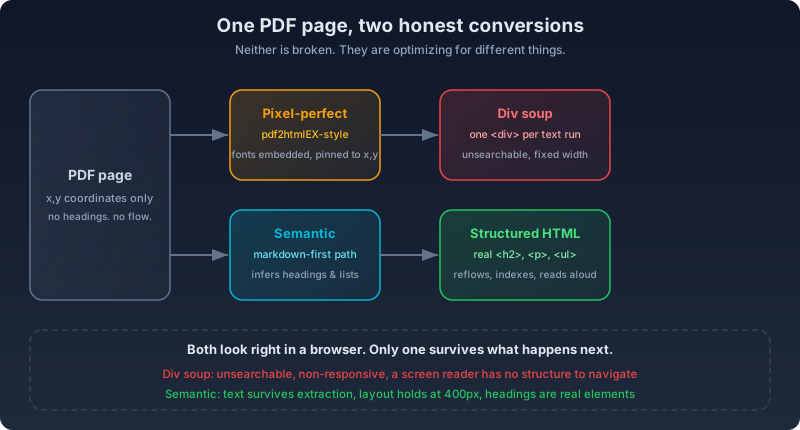
pdf2htmlEX — the best-known free option, built on Poppler, Cairo and FontForge — chose the left column deliberately. It extracts the embedded fonts, converts them to WOFF, and pins every text run to its original position. That is why the output looks so faithful and why it is so unpleasant to work with afterwards. It is not a misconfigured semantic converter. It is a fidelity tool doing its job. (The original project is unmaintained; the active community fork is where the bug fixes live.)
Poppler's simpler pdftohtml sits closer to the middle and degrades harder on complex layouts. PyMuPDF's get_text('html') throws away block structure and merges paragraphs into flat lines. Commercial SDKs like BuildVu, Aspose and PDFix will produce genuinely semantic HTML5 with headings, landmarks and ARIA attributes — which is the right answer, and is also a licence negotiation rather than a command.
Pick the column that matches the job. If you need an archival facsimile, take absolute positioning and stop fighting it. If you need a web page, take reflow and accept that it will not be a pixel match.
What Reliably Breaks
Budget for cleanup on all of these, because no converter handles them all:
Tables without visible borders. A PDF has no table structure — a table is text and lines drawn at coordinates. When there are no rules to detect, the converter is inferring a grid from alignment alone. Merged cells get misidentified. Nested tables flatten to text.
Multi-column reading order. Two columns of text, a sidebar beside body copy, and an actual two-column table look identical at the coordinate level. Get it wrong and the output interleaves paragraphs from both columns.
Fonts. PDFs embed subsets containing only the glyphs used, which makes them incomplete as web fonts. Font licensing may forbid web embedding outright. Type 3 bitmap fonts are unsupported almost everywhere. Substituted fonts have different metrics, so text overflows the containers that were sized for the original.
Headers, footers and page numbers. They repeat on all 40 pages in the PDF and should appear once or never in HTML. Converters that do not deduplicate produce output littered with page furniture mid-document.
Then the things that have no HTML counterpart at all. Formulas get drawn as individually positioned glyphs or flattened into images, and reassembling them into MathML takes detection that general-purpose converters do not have. PDF carries CMYK, spot colours and ICC profiles where CSS has RGB and HSL, so colour shifts are routine rather than a bug. AcroForm validation has no equivalent, and signature fields cannot convert in any form — they are cryptographic assertions about a specific byte sequence, and the bytes are about to change.
The Output That Looks Right and Is Not
This is the failure worth naming separately, because it passes a visual check.
Converted output can render correctly in your browser while being unsearchable (text rendered as images), unstructured (no heading hierarchy for a screen reader to navigate), non-responsive (correct only at the original page width), and uneditable (every text change fights the coordinate CSS).
If you are converting because you want the content on the web, "it looks the same" is the wrong acceptance test. Open the result and check three things: does the source contain real heading elements, does the text survive being read as plain text, and does the layout hold at 400px wide.
The Accessibility Case, Which Is Usually the Real Driver
Most people converting PDFs to HTML at scale in 2026 are doing it for compliance, not aesthetics.
The DOJ's ADA Title II rule on web and mobile accessibility set two compliance dates: April 2026 for public entities serving populations of 50,000 or more, and April 2027 for smaller entities and special district governments — and the first of those has already passed. The annual governmentwide Section 508 assessment keeps finding that document conformance lags web conformance across federal agencies, with PDFs the recurring weak spot. Fixing a PDF's accessibility means tagging structure, reading order and alt text inside a format that resists all three. Converting to HTML means working in a format built for it.
The scale of that work is why AI-assisted conversion is showing up in government. North Carolina's IT department is using Google's Gemini to turn agency PDFs into HTML pages. Torchbox built an LLM-based converter inside the Financial Reporting Council's CMS to work through a library of more than 7,800 PDF documents. And LocalGov Drupal's AI-powered Publications Importer — which converts council PDFs into structured HTML publications — is described by the project as award-winning. None of that would exist if hand-remediating PDFs were tractable.
If accessibility is your driver, the semantic column is not a preference. Absolutely-positioned divs fail the thing you are converting for.
Where Your File Goes While You Do This
Nearly every online PDF-to-HTML converter is server-based, and the free tiers are meters. As of September 2026: Zamzar allows two conversions a day at 25 MB, Smallpdf two tasks a day at 5 MB, CloudConvert 25 conversion-minutes a day, Convertio ten conversions a day.
The retention picture matters more. Published policies vary widely — Smallpdf says it deletes uploaded files after one hour, while other converters keep files for a day or longer, and some terms of service permit content access for "service improvement," language broad enough to cover a lot. If the report you are converting is a published annual review, none of this is a problem. If it is an internal document, a client deliverable, or anything with names in it, you have handed a copy to a third party to get an HTML file back. That is a trade worth making deliberately rather than by default.
What to Actually Do About It
Being straight with you: there is no PDF-to-HTML tool on OxygenPDF. Sixty-plus tools and that is not one of them.
What works instead is a two-step that lands you in the semantic column on purpose, and it is a better path than most direct converters take.
Convert the PDF to Markdown in your browser. Markdown has no coordinates — it only has structure, so the conversion is forced to commit to headings, paragraphs and lists rather than pinning text to positions. Then run the Markdown through any renderer and you get clean semantic HTML: real <h2> elements, real <p>, real <ul>, nothing absolutely positioned. You will fix some heading levels and rebuild the difficult tables by hand. You were going to do that anyway — the difference is you are editing structure instead of untangling CSS.
For content-only jobs where layout is irrelevant, extract the text and mark it up yourself. If the PDF is a scan with no text layer at all, run OCR first or you are converting pictures of words. And if you need the figures out of the document as real assets, pull the pages as SVG rather than letting a converter re-encode them.
All of it runs locally, which means no upload, no daily cap, and no retention window to read.
The Short Version
- PDF stores coordinates, not structure — so every converter either pins text to positions (div soup) or infers structure (semantic HTML).
- Pick pixel-perfect output for archival facsimiles; pick semantic output for anything that needs to reflow, be indexed, or be read aloud.
- Tables without borders, multi-column layouts, subset fonts and repeating page furniture are where every converter guesses wrong.
- "Looks identical" is not an acceptance test — check for real headings, extractable text and a layout that survives 400px.
- The practical path: PDF to Markdown in the browser, then render the Markdown to HTML. No upload, no daily cap.
Frequently Asked Questions
How accurate is PDF to HTML conversion?
It depends which of the two output modes you pick. Pixel-perfect converters reproduce the page's appearance almost exactly but produce uneditable, non-responsive markup. Semantic converters produce clean, reflowable HTML but approximate the layout — expect to fix some heading levels and rebuild complex tables by hand either way.
Is converting a PDF to HTML enough to make it accessible?
Only if the output is semantic. Real headings, lists, tables and a sensible reading order are what screen readers need, and absolutely-positioned divs provide none of them. Even good semantic output still needs a manual pass for alt text, reading order and table headers before it meets WCAG.
Do online PDF to HTML converters keep my file?
Most server-based converters upload your document and keep it for some window — published retention policies range from about an hour to a day or more, and some terms permit content review for service improvement. Browser-based tools like OxygenPDF's process the file locally, so nothing is uploaded in the first place.
Why does my converted HTML look right but search engines ignore it?
Because visual fidelity and machine-readability are different properties. A converter that renders text as images or pins it to coordinates produces a page that looks identical to the PDF while containing almost nothing a crawler or screen reader can use. Check the source for real text and heading elements, not just the rendered page.
Worth knowing the reverse direction is much easier, and for the same reason: going from HTML to PDF means throwing structure away to fix a layout, and discarding information is always simpler than inferring it. Converting PDF to HTML is asking a converter to guess what the author knew and the format did not record.