Rohman
You fed a 40-page lease through the office scanner, it chewed through the stack without a jam, and the PDF opens on the signature page. Page 40 first, page 1 last. Every page is sharp and every page is there, in exactly the wrong order.
Nothing is broken. The scanner did what scanners do. You just need the order flipped.
Quick answer: to reverse PDF page order, open Reverse PDF, drop in the file and click Reverse Pages. The last page becomes the first, and nothing else changes: the pages are copied, not re-rendered, so text stays searchable and images stay sharp. It runs in your browser, so the file is never uploaded.
If your problem is only that, you're done. If you scanned double-sided pages on a single-sided scanner, keep reading, because reversal alone won't fix it.
Why scans come out backwards
A sheet feeder takes paper from one end of the stack. Which end depends on the machine, and which way you loaded the paper decides what that means for your PDF.
Load a stack face-down on a feeder built for face-up paper and the scanner meets your last page first. It scans the stack bottom to top, faithfully, and writes the pages in the order it saw them. That's the classic backwards scan, and it's the most common reason people search for this.
Printers do the mirror image. A printer that stacks output face-up leaves page 1 at the bottom of the pile. Some people reverse the PDF before printing so the stack comes out in reading order.
Then there's the trickier case.
The duplex problem: when reversing isn't enough
A double-sided document on a single-sided scanner takes two passes. You scan the fronts, flip the stack over, and scan the backs. The fronts come out in order: 1, 3, 5, 7, 9. The backs come out backwards, because flipping the stack put the last sheet on top: 10, 8, 6, 4, 2.
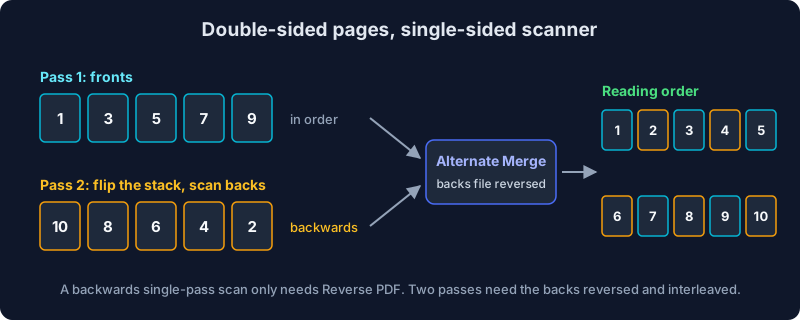
Reversing either file on its own doesn't help. You need the backs flipped and woven between the fronts: 1, 2, 3, 4, and so on. Doing that by hand in a page organizer means dragging every other page, and on a 60-page document you'll get one wrong.
Alternate Merge does both steps at once. Drop in the fronts file and the backs file, mark the backs as reversed, and it interleaves them: first page of one, first page of the other, and so on. Any leftover pages go at the end, which matters if the last sheet had a blank back that your scanner skipped.
If your scanner has a true duplex feeder, it handles all of this for you and you won't hit this problem.
What reversing keeps, and what it doesn't
"Reverse" sounds too simple to have fine print. It has a little.
Reverse PDF builds a new PDF and copies each page into it, last to first. Copying a page brings everything drawn on it: text, vector graphics, images at their original quality, and page-level annotations. A text-based PDF stays searchable. A scanned PDF with an OCR layer keeps it.
Two things live at the document level rather than on any page, so they don't come along:
- Bookmarks. The outline panel in your viewer belongs to the document, not to a page. The reversed copy starts without one. For most scans that's nothing lost, since scanners rarely write bookmarks.
- Document properties. The title, author and similar metadata aren't copied into the new file. If they matter, set them again with Edit Metadata.
Password-protected files are the other catch. When you reverse an encrypted PDF, you enter the password and the tool decrypts it by rendering each page as an image, so the reversed copy has no selectable text. If the text matters, remove the password first with Unprotect PDF, which decrypts without rasterizing when it can, then reverse the unlocked file.
Step by step: reverse a PDF in your browser
- Open Reverse PDF. It works in any modern browser on Windows, macOS, Linux or ChromeOS, and on a phone.
- Drop in the PDF. You can drop several at once. Each file is reversed on its own, not merged.
- Check the preview. Thumbnails show the new order, each labelled with the page number it used to be ("was 40"), so you can confirm you're flipping the right file before you commit.
- Click Reverse Pages. Page 1 is now the last page.
- Download. The file comes back named
yourfile-reversed.pdf, and you can rename it before downloading.
Only part of the document is backwards, say pages 12 to 20 from a second scanning session? Reverse PDF flips the whole file, so use Organize PDF instead and drag that run into place. For a clean split first, Extract Pages pulls a page range out into its own file.
Other ways to reverse page order
You probably have something on your machine that can do this already. None of them is a one-click job, and one of them rebuilds your file.
macOS Preview. There's no Reverse command. You can drag thumbnails in the sidebar (fine for five pages, miserable for fifty), or use the print trick: File > Print, set the page order to Reverse under Paper Handling, then choose Save as PDF from the PDF menu. That works, but it sends the document through the print system and saves a newly generated file, not your original pages reordered.
Adobe Acrobat. Acrobat also has no dedicated reverse command. The long-standing answer on Adobe's own forums is a one-line JavaScript run through the Action Wizard: for (var i = this.numPages - 1; i >= 0; i--) this.movePage(i); (Adobe Community thread). It works well once you've set it up, and it needs Acrobat Pro.
qpdf on the command line. If you're comfortable in a terminal, qpdf does it in one line: qpdf in.pdf --pages . z-1 -- out.pdf. Here z means the last page, and a range written high-to-low comes out reversed, so 20-12 gives you just pages 20 down to 12. It's the most flexible option on this list, and it's free.
An upload site. Plenty of websites will reverse a PDF, and many are fine. But a reversed lease is still a lease, with your name and signature on it, and the job is simple enough that it doesn't need a server.
Frequently asked questions
How do I reverse the order of pages in a PDF for free?
Open Reverse PDF, drop in the file and click Reverse Pages. It's free, there's no account, and the file is processed in your browser instead of being uploaded.
Why did my scanner save the pages in reverse order?
Usually because the stack went into the feeder face-down, or the other way from what that feeder expects. The scanner reads from the bottom of the stack up and records pages in the order it sees them. Loading the stack the other way round next time fixes it at the source.
How do I fix a double-sided scan from a single-sided scanner?
Scan the fronts, flip the stack, and scan the backs as a second file. The backs come out in reverse. Put both files into Alternate Merge, mark the backs file as reversed, and it interleaves them into reading order.
Can I reverse only some pages?
Not with Reverse PDF, which flips the whole document. Use Organize PDF to drag a range into a new position, or extract the range with Extract Pages, reverse that file, and merge it back.
Will reversing a PDF reduce quality or remove text?
No, for normal PDFs. The pages are copied, not re-rendered, so text stays selectable and images keep their quality. The exception is an encrypted PDF, which is decrypted by rendering pages as images. Remove the password first with Unprotect PDF to avoid that.
Can I reverse several PDFs at once?
Yes. Drop in multiple files and each one is reversed separately. They aren't merged into one document.
The short version
A backwards scan is an ordering problem, not a quality problem, so the fix shouldn't touch quality. Flip the order, keep the pages exactly as they were, and use Alternate Merge when the backs and fronts came through as separate files.
Reverse your PDF's page order in one click, right in your browser.