Rohman
Most guides to adding a QR code to a PDF are really about making one QR code. Generate it on a website, save the PNG, open an editor, place it, resize it, save. Fine for one flyer. It falls apart the moment the job is "every page of this 200-page asset register needs its own code", or "each of these 40 delivery notes needs a barcode with its own file name".
That is a stamping job, the same kind as page numbers or Bates numbers, and it should be done in one pass.
Quick answer: To add a QR code to a PDF, open Barcode Stamp, drop in the file, choose QR code or Code 128, and choose what it encodes: fixed text or a link, the file's name, or a counter that gives every page its own number. Pick a corner and a size, then download. The PDF is stamped in your browser and never uploaded.
Three Things a Code Can Carry
The data source is the decision that matters, and it maps onto three different jobs.
Fixed text or a link. The same value on every page you select. A URL to the online version of a manual, a feedback form at the end of a handout, or a product SKU on a spec sheet. Rendered once and reused on every page, so a 300-page file stays small.
The file name. Each file's name, minus .pdf, becomes its code. Drop 40 delivery notes named DN-20481.pdf through DN-20520.pdf and each one gets a code matching its name. This is the useful one for document tracking: a scanner at the warehouse or the mailroom reads the code and gets back the exact file to look up.
A counter per page. Prefix, zero-padded number, suffix, so ASSET-0001, ASSET-0002 and onward. You set the start number (0 to 999,999) and the digit count (1 to 10). The count runs over the pages you stamp, not the page numbers, so if you stamp pages 3 to 10 the first one still gets your start number. I stamped a three-page test file with the prefix INV- and decoded the result: INV-0001, INV-0002, INV-0003, one per page.
If that sounds like Bates numbering with a scanner attached, it is. For legal productions you still want Bates Numbering, because courts ask for a human-readable label, and our Bates numbering guide covers the conventions. The barcode is for when a machine has to read the number.
QR Code or Code 128?
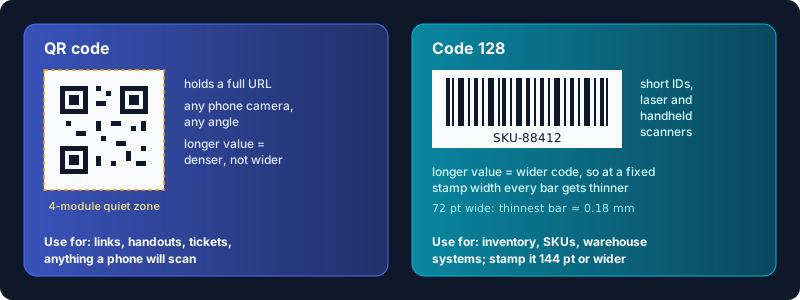
QR is the default and the right answer most of the time. Any phone camera reads it, from any angle, and it holds a full URL. It's two-dimensional, so a longer value makes the square denser rather than wider.
Code 128 is a one-dimensional barcode that can encode all 128 ASCII characters (ISO/IEC 15417). It's what warehouse and inventory systems with handheld laser scanners expect, and many of them read nothing else. It suits short IDs like SKU-88412. Every extra character makes the code wider, so at a fixed stamp width each bar gets thinner.
"Print the value under the code" prints the human-readable text under either kind of code, and it's on by default. For QR codes the caption is sized to fit the width of the square, so the code itself doesn't shrink to make room: a short ID such as ASSET-0001 reads comfortably, while a long URL comes out in very small type. Untick the box if the caption only adds clutter.
Size It So It Scans
Stamp width runs from 24 to 288 points (72 points is an inch); the default is 72 points, one inch. The stamp's height follows the code's shape. The edge margin, default 24 points, is how far it sits from the page edge.
Some numbers from the files I stamped for this guide:
- A short QR value (version 1, 21 modules square) at the default inch wide works out to about 0.9 mm per module. Denso Wave, which invented the QR code, puts the smallest module a common laser printer can print at about 0.17 mm (QRcode.com FAQ), so that's plenty. A long URL needs more modules, so give it more width.
- Every QR stamp carries its own white margin of four modules. Denso Wave asks for exactly that, a "four-module wide margin at all sides" (QRcode.com), so the code keeps its quiet zone even when it lands on busy page content.
- That white background is opaque. It covers whatever is underneath, so choose a corner or an edge margin where it won't hide text.
- A Code 128 stamp of
SKU-88412at 72 points comes out 72 × 31.5 points with bars about 19 points tall, and its narrowest bar is about 0.18 mm. That's thin for an older laser scanner. Give a Code 128 stamp 144 points or more and that bar doubles.
Those Code 128 numbers come from after a fix. The first build I tested drew the bars barely a point tall, because the bar height was being passed in the wrong unit. We found it writing this post and fixed it before publishing. Whichever code you use, print one page and scan it with the real scanner before stamping a batch.
Step by Step
- Open Barcode Stamp and drop in the PDF, or several PDFs to stamp a batch with the same settings.
- Choose the pages. Every page is selected by default; type a range such as
1-3, 7and press Apply to narrow it. - Pick QR code or Code 128, then the data source: fixed text or link, file name, or counter per page.
- Pick a position on the 3×3 grid (bottom right by default) and set the stamp width and edge margin.
- Click Stamp Codes and download. The file is saved with
-barcodedadded to its name.
In batch mode each file starts its counter from the start number again, and the page selection you made applies to every file. If the numbering has to run across files, merge them into one PDF first. For a plain visible page number instead of a scannable one, Add Page Numbers is the simpler tool.
The codes are generated in the browser tab with the open-source bwip-js library and drawn into the PDF with pdf-lib. No file and no encoded value is sent anywhere, which matters when the value is an internal asset ID or a customer reference.
Where It Goes Wrong
Testing turned up two placement bugs, and both are fixed. On a page whose box doesn't start at zero, such as the output of our own Scratchpad Margins with a left margin, the code could land off the visible page while the tool still counted the page as stamped. On a page stored as portrait with a rotation flag, it went into the unrotated corner and was drawn sideways. The tool now measures each page as a viewer displays it, cropping and rotation included, so bottom right means the bottom-right corner you see, with the code upright. The preview thumbnails follow each page's real shape too.
Two limits are by design. The stamp is an image: a QR code holding a link scans fine but isn't a clickable link in the PDF. And a password-protected PDF is rebuilt from rendered page images before stamping, so its text is no longer selectable. If you're placing a visible mark rather than a code, Insert Watermark and our watermark guide are the better fit.
Frequently Asked Questions
How do I add a QR code to a PDF for free?
Open Barcode Stamp, choose QR code, enter the link or text, pick a corner and download. It's free, needs no account and runs in your browser.
Can I put a different QR code on each page of a PDF?
Yes. Choose "Counter per page" as the data source and every stamped page gets its own value, such as DOC-0001, DOC-0002. Choose "File name" to give each file in a batch its own code instead.
How do I add a barcode to a PDF?
Use the same tool with "Code 128 barcode" as the code type. It suits short IDs read by handheld scanners. Set the stamp at least 144 points wide so the bars print cleanly.
What size should a QR code be on a PDF?
For a short value, an inch (72 points) is ample. For a long URL, go wider, and always print a test page and scan it from the distance people will actually use.
Is the QR code in the PDF clickable?
No. It's drawn as an image, so it works when scanned with a camera but doesn't open the link when clicked in a PDF viewer.
Does the barcode tool upload my PDF?
No. The codes are generated and stamped inside your browser, and the file never leaves your device.
Got a stack of files that need tracking? Stamp a QR code or barcode on every page in one pass.