Rohman
Most PDF tools exist to make a scan look less like a scan: straighten it, clean it, make the text searchable. This one runs the other way. It takes a crisp digital PDF and makes it look like it went through a scanner, with grainy paper, harder blacks and, if you like, a yellowed tone.
People search for a scanner effect more than you'd guess. Our Scanner Effect page picked up close to a thousand search impressions in three months for "scan effect", "scanner effect" and "make pdf look scanned", with no post explaining it. So here's the explanation, including the parts a tool page tends to leave out.
Quick answer: To make a PDF look scanned, open Scanner Effect, drop in the PDF, pick a preset (Clean Scan, Old Document or Photocopy), adjust contrast, noise, sepia and brightness if you want, and download. Every page becomes a 144 DPI image with the effect baked in. The text is no longer selectable, and the file gets much bigger. It all runs in your browser.
Why People Want a PDF to Look Scanned
Some reasons are completely ordinary:
- One packet, one look. You're assembling a document where half the pages are real scans: a signed lease, a stamped certificate, a receipt. The other half are clean exports. Running the clean pages through the same effect makes the bundle look like one document instead of two.
- Design, film and props. A letter on a desk in a video, a "found document" in a game, a case file in an escape room. The Old Document preset exists mostly for this.
- Test data. If you build anything that reads scans (OCR, invoice parsing, document classification), you need scan-like input. Degrading clean PDFs gives you hundreds of test files whose correct text you already know.
- A portal that expects a scan. This is the big one. Plenty of forms still say "print, sign, scan and upload". People who filled the form in digitally want the upload to look like what the instructions describe.
That last reason is where you should slow down.
A Scanner Effect Changes the Look, Not the Facts
When a form says "print, sign and scan", the scan usually isn't the point. The point is the ink signature, or proof that a paper original exists. A scanner effect gives a digital file the look of paper. It does nothing about the ink.
So if a process asks for a wet signature or a scan of an original paper document, making a digital file look scanned doesn't meet that requirement. If you present it as a scan, you're telling the recipient something that isn't true. The honest options are to actually print and scan it (a phone scanning app is fine), or to ask whether an electronic signature is accepted. Often it is: in the US the ESIGN Act and in the EU the eIDAS regulation both give electronic signatures legal effect. Sign PDF will add one without a printer.
Where the effect is fair game is everything else on that list: making a packet consistent, design work, test data, and any upload where nobody is relying on the file having been on paper.
What the Scanner Effect Actually Does
Here is the whole process, read straight from the code, because "make it look scanned" can mean very different things in different tools.
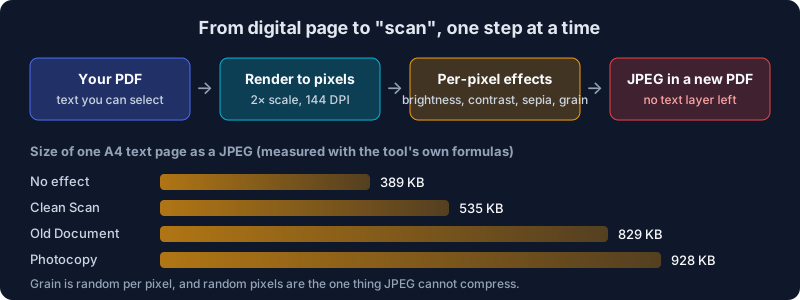
- Each page is rendered to a picture at twice its size in points, which works out to 144 DPI. An A4 page becomes 1191 × 1684 pixels.
- Four per-pixel adjustments run, in this order: brightness (−50 to +50), contrast (0 to 100), sepia (on or off) and noise (0 to 50). Noise adds random grain to every pixel, the same amount on all three colour channels, so it reads as speckle rather than colour confetti.
- Each page is saved as a JPEG at quality 0.92 and placed on a page the same size as the original.
The three presets are just starting values:
| Preset | Contrast | Noise | Sepia | Brightness | Looks like |
|---|---|---|---|---|---|
| Clean Scan | 20 | 5 | off | 0 | A decent office scanner |
| Old Document | 30 | 15 | on | 0 | A yellowed page that's been around |
| Photocopy | 50 | 25 | off | −15 | A tired copier, darker and grainier |
You can process a whole batch of files with the same settings, and the preview updates on your actual pages as you move the sliders.
What It Doesn't Do
Real scans have a few tells this tool doesn't add, and I'd rather you hear it here than notice it after uploading:
- No tilt, blur or shadow. Pages come out perfectly square with sharp edges and clean margins. A real sheet in a feeder lands a fraction of a degree off, and a book on a flatbed leaves a dark band at the spine.
- No grayscale. The Photocopy preset keeps colour. A logo that was blue stays blue, which no black-and-white copier would allow.
You can add the missing pieces with other tools, in this order: PDF to Grayscale first if you want a black-and-white copy, then Rotate by Any Angle with something like 0.4 to 0.8 degrees, then the scanner effect last, so the grain sits on top of everything.
Dedicated "look scanned" tools go further on realism. Look Scanned, which is open source and also runs in the browser, adds rotation, blur and grayscale. The make-look-scanned command-line tool adds skew, defocus and an edge shadow. If one ultra-convincing page is all you need, those are worth a look. Ours is the quicker route when you want a consistent look across many files, in one place, next to the rest of your PDF tools.
The Costs: File Size and Lost Text
A scanned page is a photograph of a page, and the effect gives you exactly that, including the downsides.
The text is gone. The output has no text layer. You can't select, search or copy anything, and a screen reader has nothing to read. If the recipient needs the text, run OCR PDF on the result to add a searchable layer back under the image. That's what a good office scanner does too.
The file gets heavy. I ran a synthetic A4 page of text through the tool's exact formulas and measured the JPEG for one page:
- just rendered, no effect: 389 KB
- Clean Scan: 535 KB
- Old Document: 829 KB
- Photocopy: 928 KB
The same page as a text PDF weighs a few kilobytes. Grain is the expensive part, because random pixels are the one thing JPEG can't compress. A 10-page document on the Photocopy preset is heading for 9 MB. If the place you're uploading to has a size limit, use a gentler noise setting first, then Compress PDF if you still need to go lower.
How to Make a PDF Look Scanned, Step by Step
- Open Scanner Effect and drop in one PDF or several. Password-protected files ask for the password first.
- Pick a preset. Clean Scan is the safe default. Old Document is for anything meant to look aged.
- Fine-tune with the sliders. If you're going for realism, a little grain goes a long way. Noise above about 15 starts to look like a filter rather than a scanner.
- Apply and download. Each output is named
<your file>-scanned.pdf.
The file never leaves your device. Pages are rendered, adjusted and rebuilt in your browser tab, which matters when the document is the kind of thing you'd normally have to scan: contracts, IDs, tax forms.
Frequently Asked Questions
How can I make a PDF look like it was scanned?
Open Scanner Effect, drop in the PDF, pick the Clean Scan, Old Document or Photocopy preset, and download the result. For more realism, convert it to grayscale and rotate it by half a degree before applying the effect.
Is it legal to make a PDF look scanned?
Changing how your own document looks is fine. Using it to claim that a digital document is a scan of a paper original, or that a typed name is a handwritten signature, is misrepresentation, and with official forms it can be fraud. If a form asks for a scan, ask whether an electronic signature or a digital upload is accepted instead.
Can I still search or copy text after applying the scanner effect?
No. Every page becomes an image. Run OCR PDF on the result if you need a searchable text layer again.
Why is my "scanned" PDF so much larger than the original?
Each page is now a 144 DPI JPEG, and the grain makes it hard to compress. One A4 text page measured about 535 KB with Clean Scan and 928 KB with Photocopy. Lower the noise or run Compress PDF afterwards.
Does the scanner effect tilt the pages?
No. Pages stay straight. Use Rotate by Any Angle with a small angle, around half a degree, before applying the effect.
Is my PDF uploaded anywhere?
No. Rendering, the effect and rebuilding the PDF all happen in your browser. Nothing is sent to a server.
Use It for the Look, Not as a Disguise
A scanner effect is a styling tool. It makes a clean file match a stack of scans, gives a prop some age, or produces realistic test data in seconds. Use it for those, keep an eye on the file size, and when a process really needs paper and ink, give it paper and ink.
Give your PDF a scanned look in your browser, with no upload.