Rohman
The quote went out on plain white paper because the template lives on someone else's laptop. Or the invoice comes out of an accounting app that has never heard of your logo. Either way you have a finished PDF and a letterhead, also a PDF, and you need the two to become one document.
You can add letterhead to a PDF without retyping anything. Treat the letterhead as a background sheet and stamp it onto the pages you already have, exactly the way a print shop runs letters through pre-printed stationery.
Quick answer: To add letterhead to a PDF, save the letterhead as a one-page PDF, then load your document and the letterhead into Overlay PDF. Keep Placement on Underlay, the default, so the letterhead sits behind the text, leave the page range blank for every page (or type 1 for the first page only) and download. It runs in your browser.
Why Letterhead Belongs Behind the Text
A PDF page is drawn in order, like layers of paint. Whatever is drawn later covers whatever came before. That gives you two ways to combine a letterhead with a letter, and they are not interchangeable.
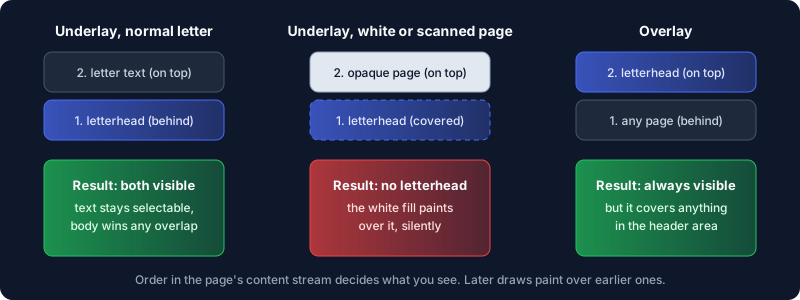
Underlay puts the letterhead first, so the letter's own content paints over it. That's what real stationery does: the logo and footer are on the paper before the printer adds your words, and if a long line ever runs into the footer, the words win. Overlay puts the letterhead last, on top of everything. That's how you add a stamp or a "CONFIDENTIAL" mark, and our watermark guide covers that job.
For a letterhead you almost always want underlay, and that's what Overlay PDF selects by default. Switch to Overlay only for stamps and marks that must sit on top.
How to Add Letterhead to a PDF, Step by Step
- Get the letterhead into PDF form. If it's a Word template, export the empty page to PDF (our Word to PDF guide covers which export settings keep it sharp). If it's a PNG or JPG of the header, convert it with JPG to PDF at the same paper size as your letters.
- Open Overlay PDF. Drop in the document first; that becomes the base, the file whose pages you keep. Then drop in the letterhead as the layer.
- Under Placement, leave Underlay selected.
- Leave "Apply to pages" blank to letterhead every page. The hint underneath confirms it, for example "3 of 3 base pages targeted".
- Keep "Loop the layer" on. That's what makes a one-page letterhead repeat across a ten-page document instead of landing on page one only.
- Apply the layer, check the count ("3 pages received the layer"), rename the file if you like, and download.
In my test, a three-page letter came out with the header bar and footer on every page, and the letter's text was still real, selectable text. Nothing gets rasterised; the letterhead is embedded once and referenced from each page, so the file grows by roughly the size of the letterhead and no more.
First Page Only, or a Different Continuation Sheet
Plenty of house styles put the full letterhead on page one and a lighter continuation sheet, maybe just a logo and page number, on the rest. Overlay PDF handles the first part directly: type 1 in "Apply to pages" and only page one gets the layer. The field also takes ranges like 2-5, open-ended ranges like 2- (page 2 to the end), lists like 1,3,7, and the words odd and even.
It doesn't have a "first page uses sheet A, the rest use sheet B" mode. A two-page layer file maps its pages onto the targeted pages in order and, with loop on, alternates A, B, A, B. So do it in two passes:
- Apply the full letterhead with the range set to
1, and download. - Load that result as the new base, add the continuation sheet as the layer, set the range to
2-, and apply again.
It takes a minute longer and gives you exactly the house style.
Three Things That Go Wrong
The letterhead disappears. Underlay can only show through where the page is transparent, and most letters are. But a scanned page is one big opaque image, and some apps export pages with a solid white rectangle behind the text. I tested a page like that: with Underlay the letterhead was completely hidden, with no warning, because the page painted over it. If your result looks unchanged, switch to Overlay. The letterhead then draws on top, so make sure the letter leaves its header and footer areas empty.
The letterhead floats off the edge. The layer is scaled to fit each page and centred, keeping its proportions. A US Letter letterhead on an A4 document doesn't fill it: in my test it shrank to about 97% and sat about half an inch below the top edge, leaving a white strip above the coloured header bar. Make the letterhead PDF the same paper size as the documents it goes on. Our sibling post on checking PDF page size shows how to find out which size you have.
The body runs into the logo. Overlay PDF only stacks PDFs. It can't move the letter's text down to make room for a tall header, so the fix is a bigger top margin in the source document, or a letterhead with a shorter header.
When a Header Is Enough
Not every "letterhead" needs artwork. If all you want is the company name and a line of contact details in the top or bottom margin, Add Header & Footer writes that text directly, with page numbers if you want them, and no second file to keep in sync. Use the overlay route when the letterhead is designed: a logo, a coloured band, a precise layout someone in marketing will check.
For reference, Adobe Acrobat handles the same job under Edit, then Background, then Add, with Page Range Options for a subset of pages, and it accepts a PDF, JPEG or BMP as the source (Adobe, Add backgrounds to PDFs). Overlay PDF does it without an install, and both files stay on your device: the compositing runs in the browser tab and nothing is uploaded, which is the point when the letter is a contract or a payslip.
Frequently Asked Questions
How do I put a letterhead on an existing PDF?
Save the letterhead as a PDF, load your document as the base and the letterhead as the layer in Overlay PDF, choose Underlay, and apply it to all pages.
Can I add letterhead to only the first page of a PDF?
Yes. Type 1 in "Apply to pages". For a different continuation sheet on later pages, run a second pass on the result with the range 2-.
Why doesn't my letterhead show after adding it?
The page is probably opaque, as scans and some exports are, and it's covering the underlay. Switch to Overlay, which draws the letterhead on top.
Will the text in my PDF still be selectable?
Yes. The letterhead is drawn as a separate layer and your text isn't touched. That holds for a password-protected PDF too: the tool decrypts it without redrawing the pages, so the text and links survive. The result is saved without the password.
Can I use a PNG or JPG logo as letterhead?
Not directly; the layer must be a PDF. Convert the image with JPG to PDF at your paper size first, then use that file as the layer.
Is it safe to add letterhead to confidential documents online?
With this tool, yes: both PDFs are read and combined inside your browser and never uploaded. Check that any other online tool says the same before you give it a contract.
Got a stack of plain-paper PDFs and one letterhead? Put it behind every page in your browser and send documents that look like they came from your company.