Rohman
A designer sends a poster as a .psd. The client double-clicks it and gets a "choose an app" dialog, because the only program that really opens a PSD is the one that costs a subscription. Converting PSD to PDF fixes that in one step: a PDF opens in every browser, on every phone, and in whatever the client's printer driver is.
The catch is that a PSD is many things at once, and a PDF made outside Photoshop can only carry one of them. Know which one before you send it.
Quick answer: To convert PSD to PDF without Photoshop, drop the file into PSD to PDF, pick a page size (Fit to image, A4 or Letter) and convert. You get one page per PSD showing the flattened image exactly as Photoshop last saved it, with transparency on white. Layers, editable text and CMYK color don't carry over; for those, export from Photoshop itself.
What's Actually Inside a PSD
A PSD holds a stack of layers: pixel layers, type layers, shape layers, adjustment layers, smart objects, masks. Photoshop composites them live on screen. When it saves, it can also write one extra thing: a single flattened picture of the whole canvas, called the composite.
That composite is what lets anything other than Photoshop show a PSD. Finder previews and converters outside Adobe read it rather than rebuilding your layer stack, because faithfully re-rendering Photoshop's blend modes, effects and smart filters is a job only Photoshop does reliably.
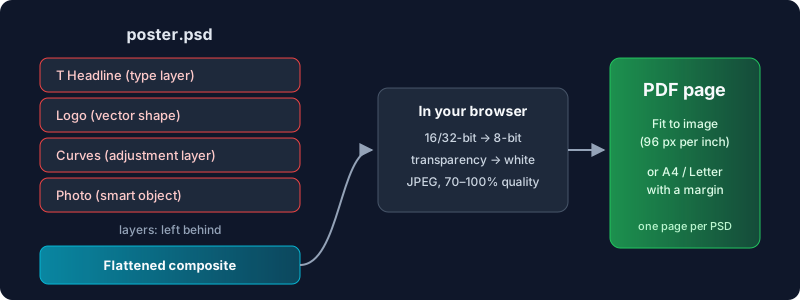
The composite is written only when Maximize PSD and PSB File Compatibility is on in Photoshop's File Handling preferences. Most setups leave it on, and some people turn it off because it makes files much bigger. If yours was saved without it, there's no flattened image to read, and PSD to PDF tells you so instead of guessing: re-save with the option on and try again.
What Carries Over to the PDF, and What Doesn't
| In the PSD | In the PDF |
|---|---|
| The image as Photoshop shows it | Yes, the saved composite, pixel for pixel |
| Transparency | Filled with white, the way it would look on paper |
| Layers, masks, adjustment layers | No, flattened into the one image |
| Type layers | Pictures of text: not selectable, not searchable |
| Vector shapes | Rasterized at the canvas resolution |
| 8-bit and 16-bit RGB, Grayscale | Yes |
| CMYK, Lab, Duotone, Multichannel | Not supported, convert a copy to RGB first |
The 16-bit row comes with a confession. While checking this table we found that every 16-bit PSD, the default for many photographers, failed with "Could not read this file as a Photoshop document." The converter was handing 16-bit pixel data to a browser API that only takes 8-bit. That's fixed now, and 16-bit and 32-bit composites come out at 8 bits per channel, which is what a PDF image needs anyway.
CMYK is still out, and print work is where that bites. If your PSD is set up for a press, make a copy, use Image, then Mode, then RGB Color, save and convert the copy. For a file that's actually going to the printer, though, read on: you probably want Photoshop's own PDF.
Page Size: Why "Fit to Image" Can Come Out Huge
The default page size, Fit to image, makes a page exactly the size of the picture, and it counts 96 pixels to the inch. That number matters more than it looks. Photoshop's own resolution setting (the ppi in Image Size) isn't used.
For a screen-sized mockup that's fine: a 1920 × 1080 design becomes a 20 × 11.25 inch page and every viewer zooms it to fit. For a print file it looks odd. A 3000 × 2000 pixel photo set to 300 ppi in Photoshop, a 10 × 6.67 inch print, comes out as a 31.25 × 20.83 inch PDF page. Nothing is lost, every pixel is there, but someone who hits Print gets the scaled-down version their printer driver picks.
If the PDF is meant for printing, choose A4 or Letter instead. The image is scaled to fit inside the page with a margin you set (0 to 1 inch, half an inch by default), orientation follows the image unless you force portrait or landscape, and the result prints at a predictable size.
How to Convert PSD to PDF in Your Browser
- Open PSD to PDF and drop in one or more
.psdfiles. Each is decoded on your device, and you'll see a preview of its composite. - Drag the files into the order you want. Each becomes one page of a single PDF.
- Choose the page size: Fit to image for screen review, A4 or Letter for printing.
- Set image quality. The composite is stored as a JPEG; the default of 92% is hard to tell from the original, and you can push it to 100% for artwork with fine gradients or flat colour where JPEG artefacts show first.
- Convert, name the file, and download or share it.
Large documents saved as PSB (Photoshop's format for files over 30,000 pixels or 2 GB) aren't supported. Save a smaller PSD copy if you hit that.
When You Should Use Photoshop's Own PDF Instead
A browser converter is the right tool when the person on the other end just needs to see the design: a client review, a portfolio piece, a proof attached to an invoice. It's the wrong tool in two cases.
The PDF is going to press. Photoshop's Save a Copy as Photoshop PDF can keep type layers as real vector text, keep CMYK and spot colours, and apply a printer's PDF/X preset. A flattened RGB JPEG can't do any of that. If the printer asks for outlined or embedded fonts, we cover what that means in converting text to outlines in a PDF.
Someone needs to keep editing. Photoshop's "Preserve Photoshop Editing Capabilities" option embeds the whole PSD inside the PDF, so it reopens in Photoshop with its layers. The file gets big, and it's still the right move when the PDF is a handover rather than a preview.
For everything else, flattened is fine, and often better. Nobody accidentally edits a flattened PDF.
Your Artwork Stays on Your Machine
Unreleased artwork, a client's product shots and a logo still under NDA are exactly the files you shouldn't upload to a stranger's server to change their format. PSD to PDF decodes the PSD and builds the PDF in your browser tab; nothing is sent anywhere. The result is a normal PDF, so if it's too large to email, Compress PDF shrinks it, and if you also have the artwork as PNG or JPG exports, Image to PDF handles those the same way.
Frequently Asked Questions
Can I convert PSD to PDF without Photoshop?
Yes. A browser converter like PSD to PDF reads the flattened image Photoshop stores inside the PSD and places it on a PDF page. You don't need Photoshop or any Adobe account.
Does converting PSD to PDF keep layers?
Not outside Photoshop. A converter reads the saved composite, so the PDF holds one flattened image per page. To keep layers, save from Photoshop as a Photoshop PDF with "Preserve Photoshop Editing Capabilities" on.
Why won't my PSD file convert?
Usually one of three things: the file was saved without Maximize Compatibility, so there's no composite to read; it's in CMYK, Lab, Duotone or Multichannel mode, which needs converting to RGB first; or it's a PSB large-document file.
Is the text in the PDF searchable?
No. Type layers become part of the flattened picture. If the text needs to be selectable, export from Photoshop with vector text, or run the PDF through OCR PDF to add a search layer.
Can I combine several PSDs into one PDF?
Yes. Drop them all in, drag them into order, and each one becomes a page in a single PDF.
Need the client to see it today? Convert your PSD to PDF in your browser and send them something every device can open.