Rohman
The print shop sends your flyer back with one line: "Please supply a print ready PDF with 1/8 inch bleed." The file looked perfect on screen. What they want isn't a nicer PDF. It's a file a guillotine can cut without leaving a white hairline, and a press can run without swapping your fonts.
Getting there is mostly a matter of decisions made before you export. Below is what printers check, which items a browser tool can fix after the fact, and the one trap that catches almost everyone who adds bleed to a PDF late.
Quick answer: A print ready PDF has its final size set as a TrimBox, artwork extending into bleed (usually 0.125 in or 3 mm), text inside a safe zone, crop marks, images at 300 ppi, print colour and embedded or outlined fonts, often as PDF/X. Print Production sets the trim and bleed boxes and draws crop marks in your browser.
What "Print Ready" Means to a Printer
A regular PDF describes how a page looks. A press file also says where the paper gets cut and carries everything the press needs inside it. On screen you can't tell them apart.
Printers publish their specs, and they agree on the basics. VSL Print's file specifications ask for 0.125" bleed on all sides, a safe zone 0.125" inside the trim, CMYK colour, 300 DPI images at final size, embedded fonts, and PDF/X-1a or PDF/X-4. The University of Minnesota's print shop tells you to enter .125" bleed on every side in InDesign or Illustrator before you design anything. Adobe's own guide to producing print-ready PDFs in InDesign adds a preflight pass that flags missing fonts and "low-resolution images less than 300 ppi."
Numbers vary. Metric printers usually ask for 3 mm, and one European printer's 2026 technical guide asks for 2 mm. Use the number your printer gives you. Not the one in a blog post, this one included.
The Checklist, Item by Item
Here is what a printer checks, and where each item gets fixed.
| Item | What the printer wants | Where it's fixed |
|---|---|---|
| Trim size | Final size set as the TrimBox | Layout app, or Print Production |
| Bleed | Artwork past the trim, usually 0.125 in / 3 mm | Layout app (artwork); Print Production (box) |
| Safe zone | Text kept about 0.125 in inside the trim | Layout app |
| Crop marks | Lines showing where to cut | Export dialog, or Print Production |
| Resolution | Images at 300 ppi at final size | Layout app (source images) |
| Colour | CMYK or a defined output intent | Layout app or printer's preflight |
| Fonts | Embedded, or converted to outlines | Export settings, or Flatten PDF Fonts |
| Standard | Often PDF/X-1a or PDF/X-4 | Export preset, checked by preflight |
Three of those are boxes and marks, which live in the PDF's page structure and can be added to a finished file. The rest are properties of the artwork itself. No tool can invent pixels a photo never had or turn RGB blues into CMYK without a colour decision someone has to make.
Trim Box and Bleed Box, and the Trap
The PDF specification (ISO 32000-1, section 14.11.2) gives every page up to five boxes. The two that matter for print are the TrimBox, the finished page after cutting, and the BleedBox, the region the page is clipped to in production, which is the trim plus the bleed.
A box is only a rectangle. Setting a bleed box tells the printer "the artwork extends this far." It doesn't make the artwork extend that far.
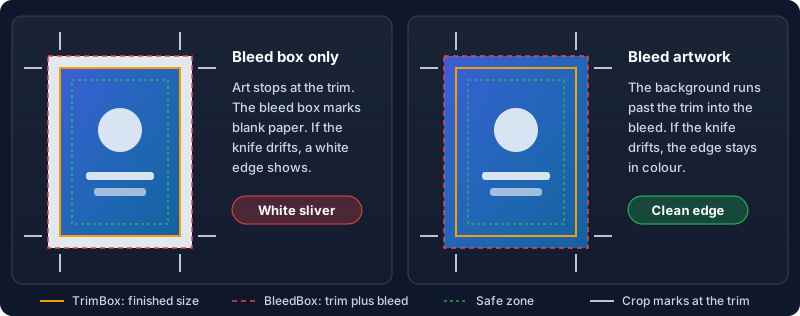
If your design's background stops exactly at the page edge, adding 1/8 inch of bleed to that PDF gives you 1/8 inch of white paper around it. The knife is meant to land on the trim line, but cutting a stack of sheets isn't exact, and that's why bleed exists at all. A cut that drifts toward the bleed shows white. The fix is in the layout file: extend backgrounds and edge-touching images past the page edge, then export with bleed.
When is adding bleed after export fine? When nothing touches the edge. A text document, a form or a flyer with a white border has no colour to run off the page, so the boxes and crop marks are all the printer needs.
How to Make a PDF Print Ready With Print Production
Use this when your artwork is already right and the printer wants boxes and marks.
- Open Print Production and drop in your PDF.
- Read the Page Boxes panel. It shows the first page's MediaBox, CropBox, BleedBox, TrimBox and ArtBox in points and millimetres, or "Not set". The tool takes your existing TrimBox as the finished size, falling back to the CropBox and then the MediaBox.
- Set the bleed. The field is in points, with the millimetre value in its label, and there are presets for 3mm, 5mm, 1/8" and 1/4". The default is 9 points, which is exactly 1/8 inch. Note that 3 mm is 8.5 points, so pick the preset that matches your printer's unit.
- Choose the marks. Everything except the page info line starts switched on; that line prints the file name, page number and date under the page.
- Run it and download
yourfile-press-ready.pdf.
The tool writes the TrimBox and a BleedBox around it on every page, then grows the page outward so the marks have room. Crop marks are 0.25-point lines starting 6 points outside the trim. Registration targets sit at the middle of each edge, and the colour bar strip along the top holds cyan, magenta, yellow and black patches plus red, green, blue and grey steps. Your page content is never moved or scaled, and the file is processed with pdf-lib inside the browser tab, so unreleased artwork stays on your machine.
What This Tool Can't Do
Be clear about the boundary, because a file that passes this tool can still fail a printer's preflight.
- It doesn't create bleed artwork. The area it adds outside your original page is blank. See the trap above.
- It doesn't convert colour or check resolution. RGB stays RGB, and a 72 ppi logo stays 72 ppi. That's the layout app's job, or the printer's preflight.
- It doesn't make PDF/X. According to the Library of Congress summary of the PDF/X family, PDF/X needs embedded fonts and images, explicitly defined trim boxes, and colour described through an output intent. The tool covers the boxes. Export from your design app with a PDF/X-4 or PDF/X-1a preset when the printer asks for one.
- It trusts your existing page size. A PDF exported with bleed included but no TrimBox gets treated as if the bleed edge were the cut line, and more bleed is added around it. Check the Page Boxes panel first, or confirm the size with Page Size Inspector; our guide to checking PDF page size covers the points-to-millimetres maths.
- Mark spacing is fixed. You choose which marks appear, not their offset, length or weight.
- Give it an unprotected file. A password-protected PDF is decrypted by redrawing each page as an image, which turns crisp vector text into pixels. Use the original instead.
Fonts are the one artwork problem with a late fix. If the printer complains about missing or unembedded fonts, Flatten PDF Fonts renders every page as an image at the resolution you pick, up to 600 DPI, so nothing needs a font to print. Read how converting text to outlines works first, because it trades sharp vector text for pixels. Printing something bigger than one sheet? Posterize PDF tiles a large page across several, with overlap and crop marks.
Frequently Asked Questions
What does "print ready PDF" mean?
It's a PDF a commercial printer can run without fixing anything: the final size set as a trim box, artwork extending into bleed, crop marks, high-resolution images, print colour and fonts embedded or outlined. Many printers ask for it as a PDF/X file.
How can I make a PDF print-ready?
Set up bleed in the layout app and extend edge artwork into it, then export with a print preset, ideally PDF/X-4, with crop marks on. If you only have the finished PDF and nothing touches the edge, Print Production adds the page boxes and crop marks.
What is the difference between a print-ready PDF and a regular PDF?
A regular PDF only describes how the page looks on screen. A print-ready one also defines the trim and bleed, carries crop marks, embeds its fonts and uses images and colour that suit a press. Both can look identical in a viewer.
How do I add bleed to a PDF?
Properly, in the source: set 0.125 in or 3 mm bleed in the document setup, pull backgrounds past the page edge and re-export. Adding bleed to a finished PDF only sets the bleed box, so the margin it adds is blank unless the artwork already extends there.
How can I convert an image to a print-ready PDF?
Start with an image that has 300 ppi at the printed size, plus bleed in the pixels if it runs to the edge. Then place it on a page with Image to PDF and add marks with Print Production. Resolution and bleed can't be added later.
Is PDF/X the same as PDF/A?
No. PDF/X (ISO 15930) is for exchanging files with a printer; PDF/A is for long-term archiving. They share rules like embedded fonts, and our explainer on what PDF/A is covers the archival side.
Get the Boxes and Marks Right
Most of what a printer checks is settled in the layout file. The structural part is what gets forgotten at the last minute, and it's the part you can still fix. Add trim, bleed and crop marks with Print Production in your browser, check the result, and send the printer a file they won't send back.