Install OxygenPDF Desktop
Your download should have started automatically. Follow the steps below to install.
Installation Guide
OxygenPDF Desktop isn't code-signed yet, so your OS will show a security warning. Here's how to get past it.
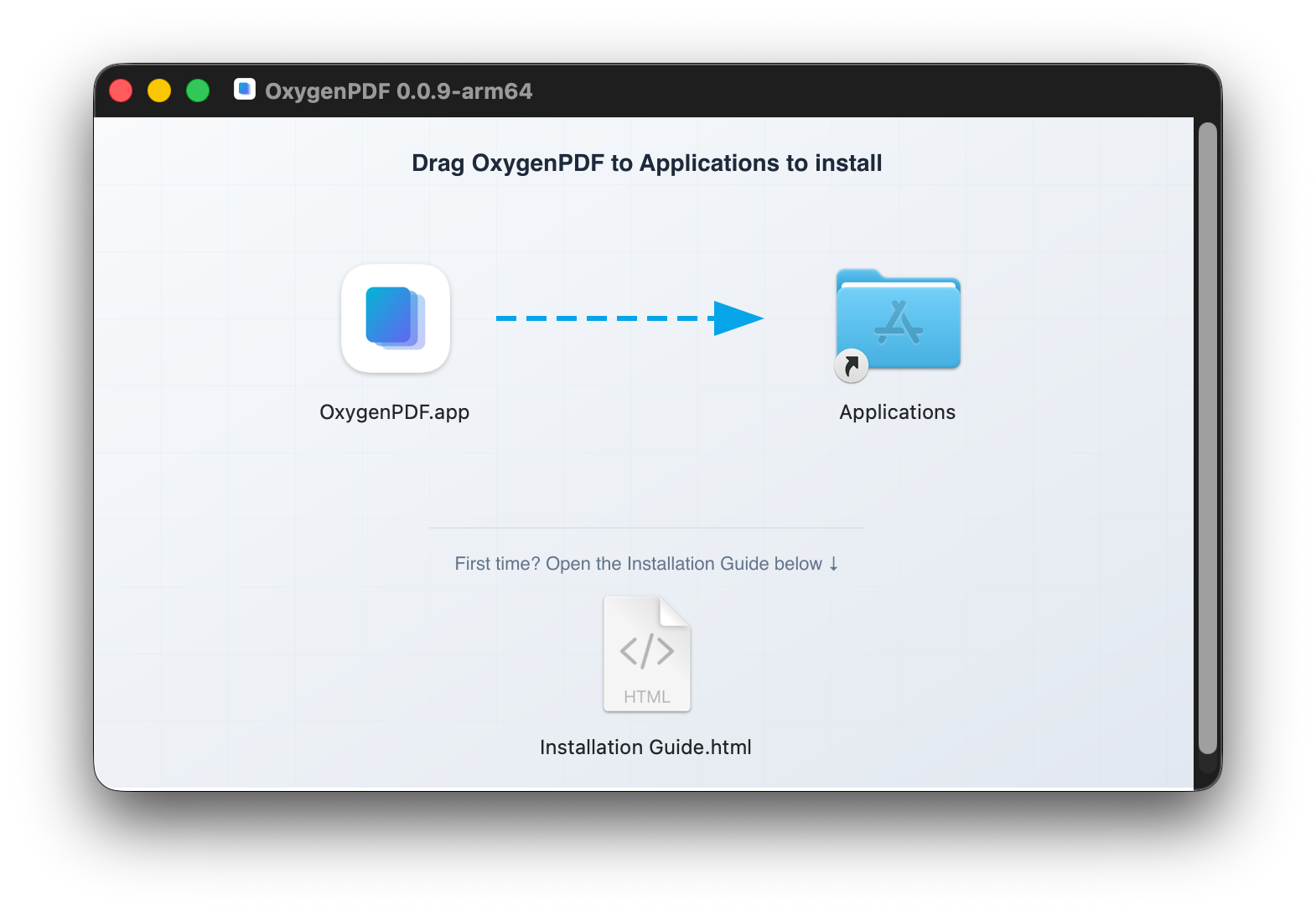
- 1Open the downloaded .dmg file
- 2Drag OxygenPDF into your Applications folder
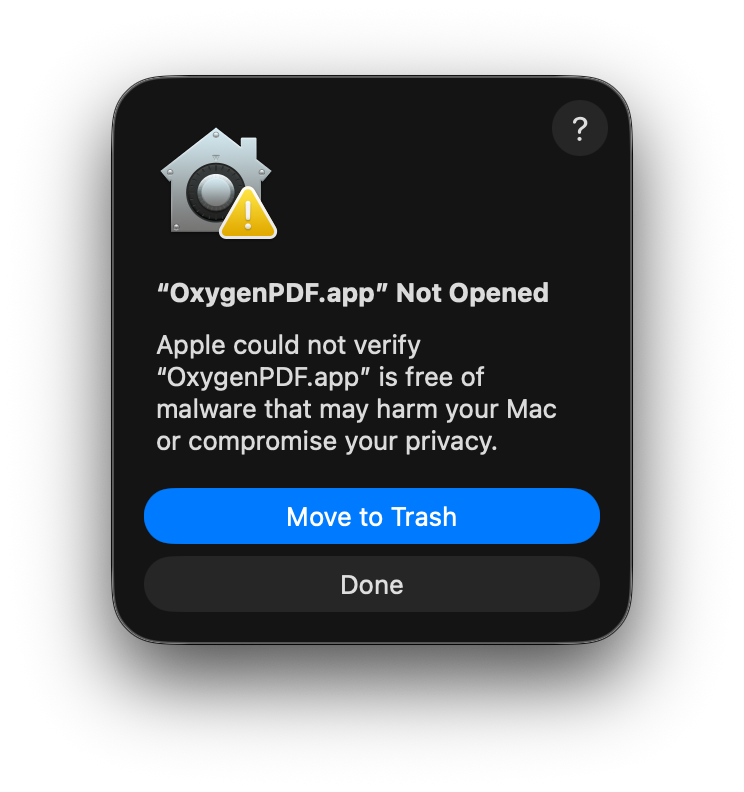
- 3Double-click OxygenPDF in Applications — macOS will show a warning that the app is from an unidentified developer. Click Done for now.
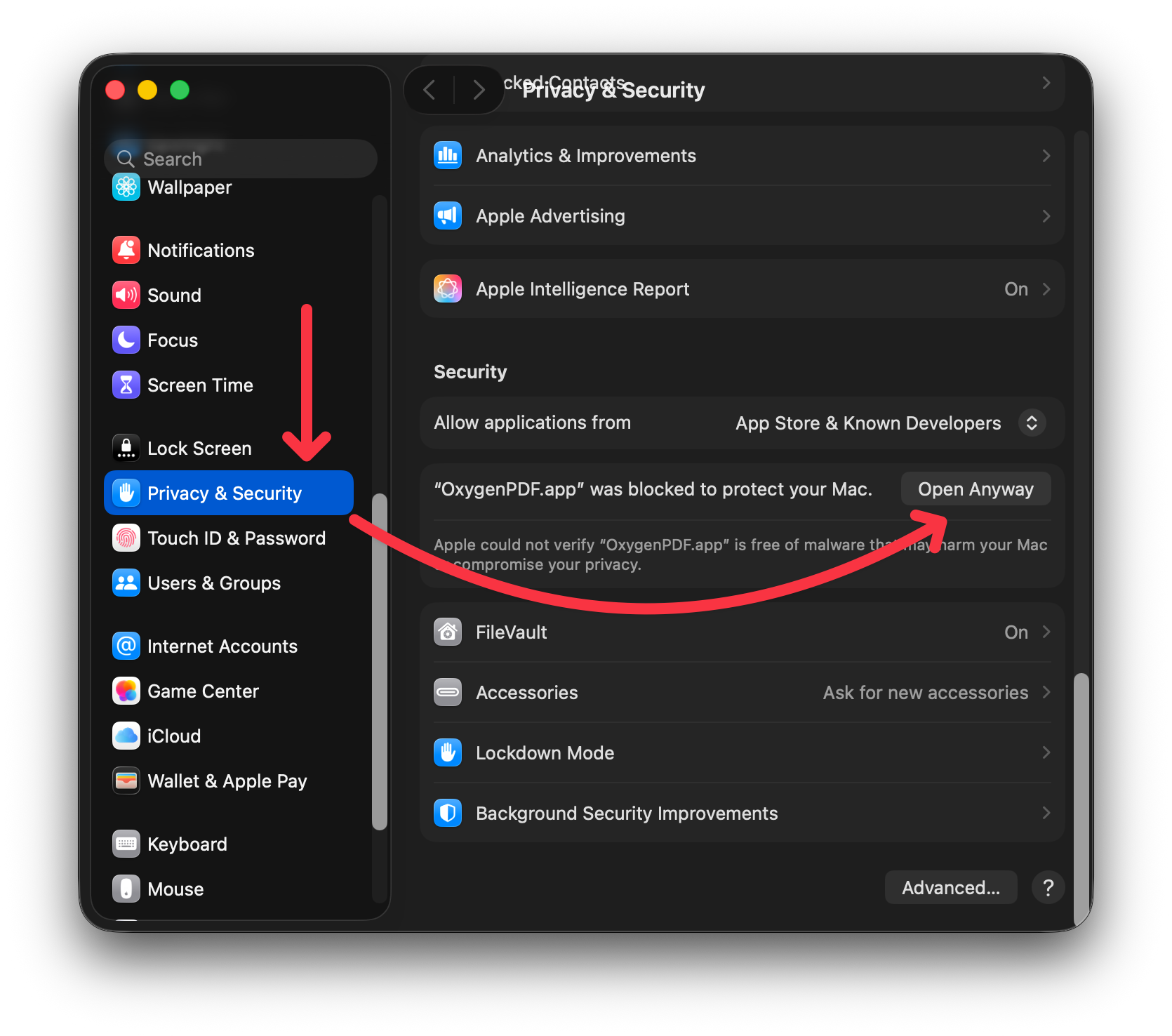
- 4Open System Settings → Privacy & Security , scroll down to the Security section, and click Open Anyway next to the OxygenPDF message.
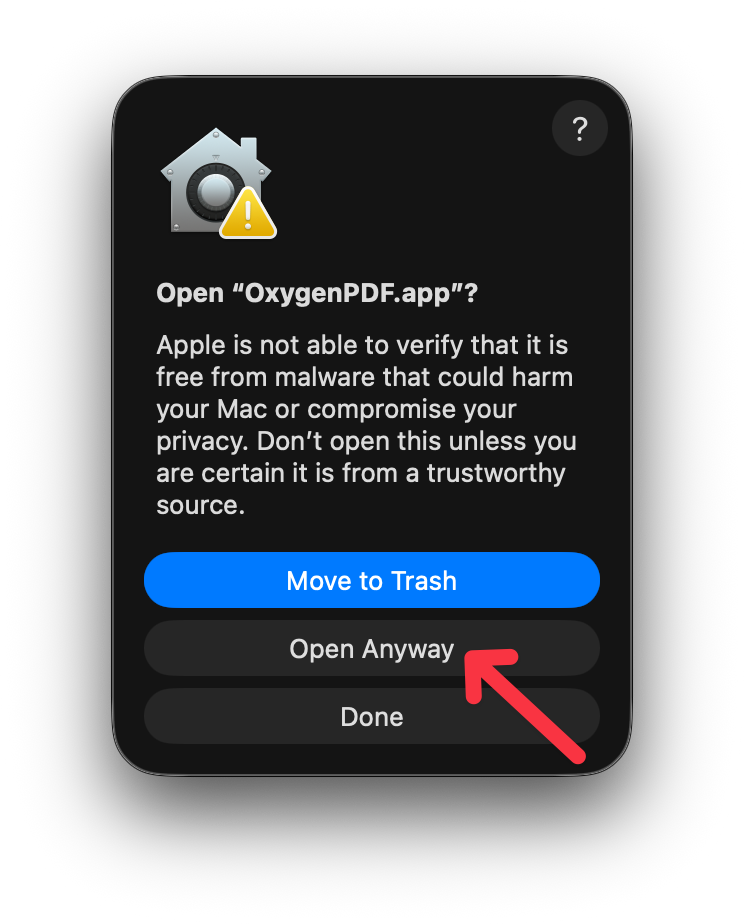
- 5A final confirmation dialog will appear — click Open Anyway to launch OxygenPDF. macOS remembers your choice and won't ask again.
Why does this happen?
OxygenPDF is not yet notarized with Apple. This is a standard macOS security feature for apps downloaded outside the App Store. The steps above are completely safe.